Download YouTube Videos with Quetta
Download most publicly accessible YouTube videos with Quetta on Android, Windows, Mac, Firefox, or Edge. Compare the right method, available video and audio options, quality, storage, and common limitations.

Kayla
Quetta Networks


Quetta can download most publicly accessible YouTube videos in compatible Android, Windows, macOS, Firefox, and Microsoft Edge versions. Open the video in Quetta, start playback when required, choose an available video or audio option, and save it for offline access. Chrome extension support does not currently include YouTube.
There is no copy-and-paste converter workflow. Quetta detects compatible media while the video is open in your browser and shows the formats and resolutions supplied by the source.
Responsible use: Use downloading in accordance with YouTube’s terms, applicable rights, and local law. YouTube’s current Terms allow downloading where the service permits it, the relevant parties provide permission, or applicable law allows it. Review the YouTube Terms of Service for the authoritative wording.
Choose the right Quetta version
Your device or browser | Recommended Quetta option | YouTube video | YouTube audio | What makes it different |
|---|---|---|---|---|
Android (APK) | Compatible Quetta Browser build | Yes | Depends on available media | Built into the mobile browser; APK and store builds may differ |
Windows | Quetta Browser for Windows | Yes | Depends on available media | Complete desktop browser workflow |
macOS | Quetta Browser for Mac | Yes | Depends on available media | Integrated Mac browser and file workflow |
Firefox | Quetta Video Downloader extension | Yes | Yes, when detected | Works inside Firefox |
Microsoft Edge | Quetta Video Downloader extension | Yes | Yes, when detected | Works inside Edge |
Chrome extension | Quetta Video Downloader extension | No | No | Supports compatible media on other websites, not YouTube |
Support can vary with product version, video availability, access controls, region, format, and changes to the source platform. “Most publicly accessible videos” is not a guarantee that every video or quality can be downloaded.
How Quetta downloads YouTube videos
Quetta uses browser-integrated media detection rather than asking users to send a YouTube URL to a separate converter website.
The general workflow is:
Open a publicly accessible YouTube video in a compatible Quetta browser or supported extension host.
Start playback if the page has not yet loaded its media resources.
Open Quetta’s video or extension download control.
Review the video, audio, format, resolution, and size options detected from the source.
Choose an available option and save it through the browser.
Find the completed file in Quetta, the browser’s download history, or the configured device folder.
The controls and file location differ by platform. Use the detailed guide for Windows, Mac, or Android instead of treating every device as the same workflow.
Download YouTube videos on Android
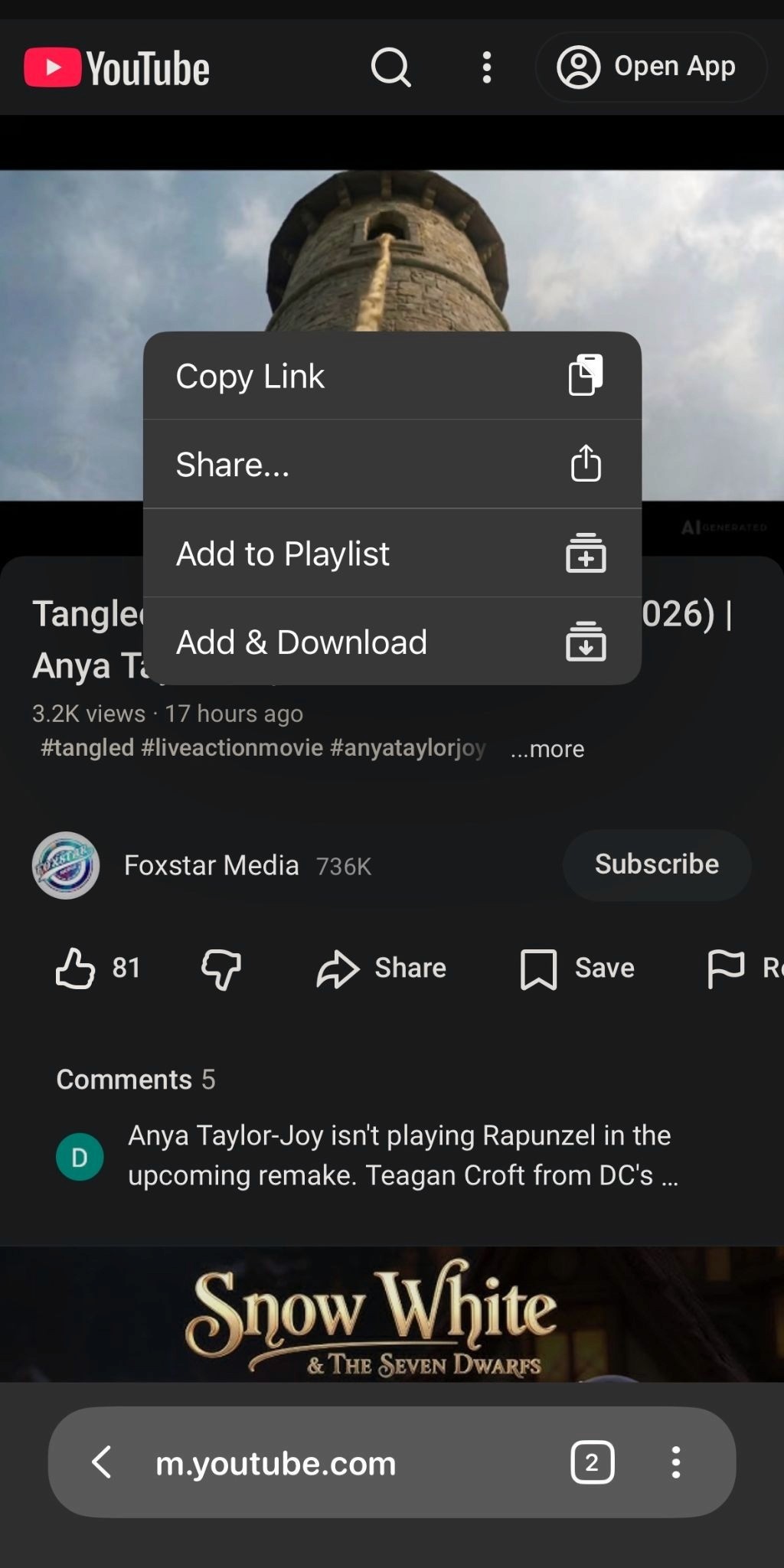
On Android, video downloading is built into compatible Quetta Browser versions. Open the video inside Quetta—not the standalone YouTube app—start playback, then use the available long-press or media-download control.
Android users should verify which Quetta build is installed. Direct APK and app-store releases can differ because distribution policies and release timing are not always identical. Download the APK only from the official Quetta for Android page and verify the published package details.
For installation channels, storage, battery optimization, and file locations, follow How to download YouTube videos on Android.
Download YouTube videos on Windows
Windows users have two routes:
Use Quetta Browser for Windows for an integrated desktop experience.
Use the Quetta Video Downloader extension in Firefox or Microsoft Edge to remain in an existing browser.
The complete browser is suitable when video playback, downloading, privacy controls, and file management are part of the same everyday workflow. The extension is suitable when Firefox or Edge is already your preferred browser.
See How to download YouTube videos on Windows for both workflows and Windows file-location instructions.
Download YouTube videos on a Mac
Quetta Browser for macOS can detect and download supported YouTube media inside the desktop browser. Start playback when required, choose an available option, and reveal the completed file in Finder through the browser’s download history.
Mac users also need to consider the selected download folder, available storage, external-drive status, and application permissions. Follow How to download YouTube videos on a Mac for the complete process.
Download with Firefox or Edge
Quetta’s Firefox and Microsoft Edge extensions support most compatible, publicly accessible YouTube video and audio options. Install only through the official add-on-store link provided on Quetta’s extension page.
After installation:
Pin Quetta to the toolbar.
Open the YouTube video.
Start playback.
Open Quetta when supported media is detected.
Choose an available video or audio option.
Firefox and Edge have different extension menus and site-permission controls, but their media-download goal is the same. Use the combined Firefox and Edge YouTube download guide rather than publishing two near-duplicate tutorials.
Why the Chrome extension does not download YouTube
Quetta’s Chrome extension supports compatible MP4, WebM, HLS/M3U8, and live-stream media on other supported websites, but it does not currently support YouTube downloads.
Browser-store policies and technical capabilities differ across Chrome, Firefox, and Microsoft Edge. Installing the Chrome extension again will not enable YouTube support. Use Firefox, Edge, or a compatible Quetta desktop browser instead.
This limitation should appear consistently on every Chrome-related Quetta page. Avoid claims such as “download from any website” because they contradict the current browser matrix.
Download YouTube video or audio
Quetta can show different media choices depending on what the source exposes:
A combined video-and-audio option.
A video-only stream.
An audio-only stream.
MP4 or WebM containers.
SD, HD, Full HD, or up to 4K when available.
An audio-only download is not automatically an MP3 file. MP3 is a specific audio format; an available YouTube audio stream may use another container or codec. Quetta should target “YouTube to MP3” only if the product genuinely creates verified MP3 output.
Read How to download YouTube audio for browser and format details, or compare MP4 vs WebM before choosing a video file.
Choose 720p, 1080p, or 4K
Choose based on the screen and storage—not simply the largest number:
720p: Practical for phones, travel, and limited storage.
1080p: A balanced choice for laptops, desktops, and many larger screens.
4K: Useful when the source genuinely provides it, and the extra detail matters on a large display.
Quetta does not transform a lower-resolution source into 4K. File size also depends on duration, bitrate, codec, frame rate, audio, and visual complexity—not resolution alone.
See 720p vs 1080p vs 4K: video quality and file size for the full decision framework.
Where downloaded YouTube videos are saved
The destination depends on the platform:
Windows: The configured browser download folder, commonly Downloads.
Mac: The selected Quetta download folder, visible through Finder.
Android: Quetta’s download or media interface and, depending on Android storage behavior, the system file manager.
Firefox/Edge: The host browser’s download location.
If the filename looks technical, the source may not have supplied a readable media title. Confirm that the file plays, then rename the local copy.
Why a YouTube video may not download
Check these causes in order:
You are using the Chrome extension, which does not support YouTube.
Playback has not started, so the page has not loaded compatible media.
The extension is not enabled or does not have site access.
The video is private, protected, paid, age-restricted, account-restricted, or region-restricted.
The requested format or quality is not exposed by the source.
Storage, battery optimization, network, or download-folder access interrupted the transfer.
YouTube changed its media delivery and the current Quetta version needs an update.
Use the complete YouTube download troubleshooting guide instead of creating a separate thin page for every error.
Browser downloader, online converter, or YouTube Premium?
YouTube Premium provides official offline viewing inside YouTube. Its help documentation explains that offline items remain associated with the signed-in YouTube experience and may require periodic reconnection. See the official YouTube Premium offline guide.
A browser-integrated downloader is different: it detects compatible media while you browse and can save an available local file. An online converter introduces a separate website and processing workflow.
Compare the three approaches in Browser downloader vs online converter vs YouTube Premium.
Frequently asked questions
Can Quetta download every YouTube video?
Quetta supports most publicly accessible YouTube videos in compatible versions, but not every video is guaranteed. Private access, DRM, paid content, account or regional restrictions, media formats, browser capabilities, and platform changes can affect availability.
Is Quetta a free YouTube video downloader?
Quetta includes video-download capability in its supported browser and extension products without requiring a separate paste-link converter. Current availability and product terms should be confirmed on the relevant download page.
Can Quetta download YouTube videos in Chrome?
Not through the current Chrome extension. Use Firefox, Microsoft Edge, Quetta for Windows, Quetta for Mac, or a compatible Android version.
Can Quetta download YouTube audio?
Firefox and Edge can download supported audio-only options when detected. The output is not automatically MP3; check the actual format shown.
Can Quetta download 1080p or 4K YouTube videos?
Yes, when the source exposes a compatible 1080p or 4K option. Quetta cannot create a resolution that is not available from the source.
Do I need to copy and paste the video URL?
No. Quetta detects compatible media from the page open in the browser.
Why does a downloaded video have no audio?
You may have selected a video-only stream. Return to the detected options and choose a combined video-and-audio file or a separate supported audio option.
Where can I find my downloaded video?
Open Quetta or the host browser’s download history and reveal the file in its folder. Android users should begin with Quetta’s download or media interface.