How to Read Ebooks on Android
Learn how to open and read EPUB, MOBI, AZW3, and TXT ebooks on Android using a reading app, a books service, or a browser with a built-in reader.

Kayla
Quetta Networks


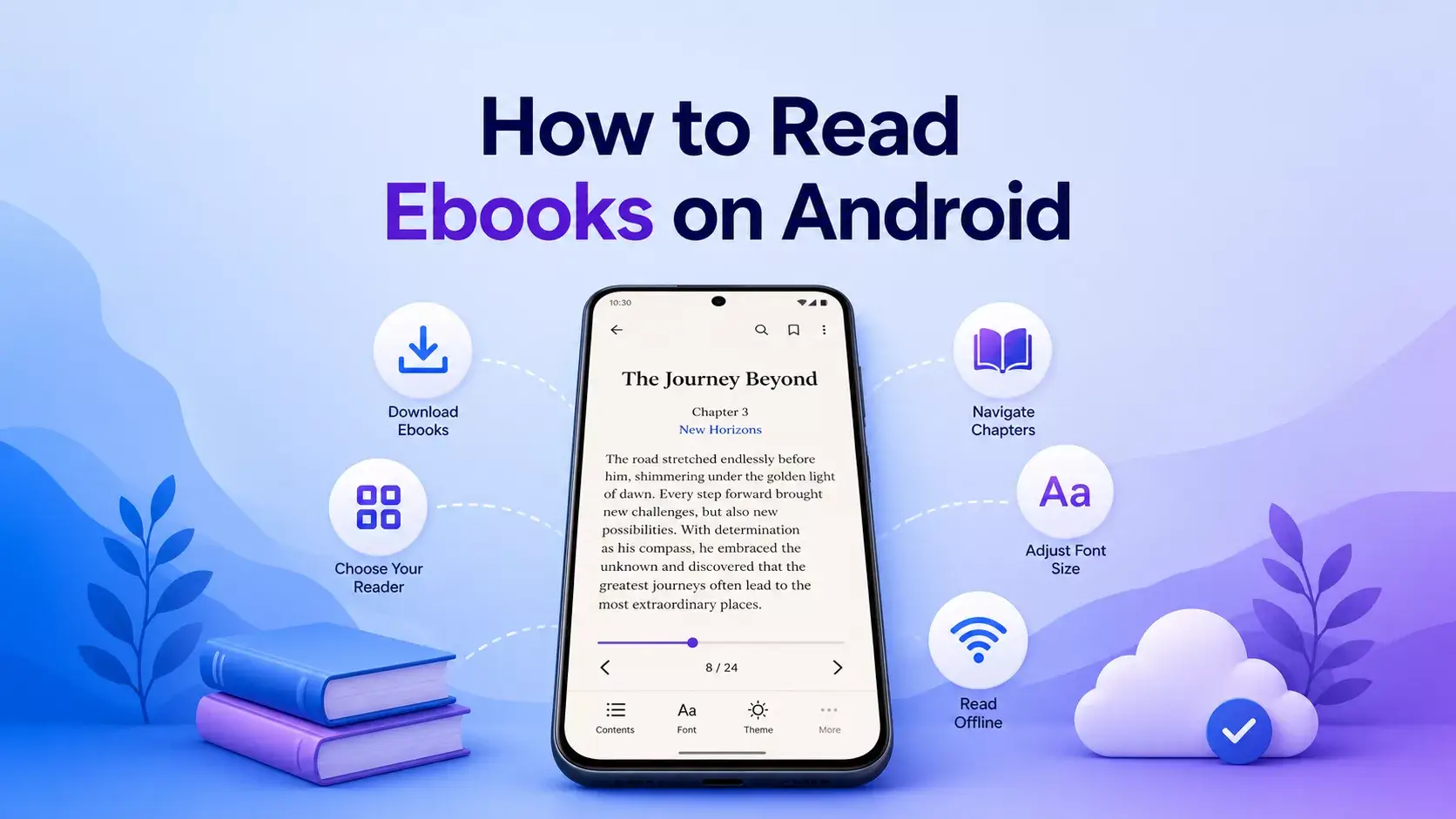
You can read an ebook on Android by opening the file in a compatible reader app, importing it into a books service, or using a browser that includes a reader for downloaded files. The right method depends on the file format, whether the ebook has DRM, and whether you need library management or simply want to open one book.
This guide explains how to identify the file, choose an appropriate reader, and prepare a book for offline use.
The Short Answer
First, check the ebook's file extension. EPUB works with many reading systems, while MOBI, AZW and AZW3 are associated with older or current Kindle-format workflows. TXT contains plain text. Then use an Android app or browser that explicitly supports that format, and remember that DRM-protected books may require the authorized service.
Step 1: Identify the Ebook File Format
Look at the filename in Downloads or your Android file picker. The characters after the final dot identify the extension, such as .epub, .mobi, .azw3 or .txt.
Extension | Typical content | Practical implication |
|---|---|---|
| Reflowable ebook | Widely supported by modern reading systems |
| Older ebook format | Requires a reader that retains MOBI compatibility |
| Kindle-associated formats | DRM or Amazon-specific features may limit where a file opens |
| Plain text | Easy to open, but contains little or no book styling |
Do not assume a file is valid because its name ends in a supported extension. A renamed, incomplete or damaged download can still fail.
For a deeper comparison, see EPUB vs MOBI vs AZW3.
Step 2: Decide How You Want to Read It
Android offers three common approaches.
Use a dedicated ebook reader
A dedicated reader is usually the best choice for people who maintain a large library or need advanced organization, annotations, dictionaries or synchronization. Check its official format list before importing a book.
Import the file into a books service
Some book services allow personal file uploads and synchronize them between devices. This can be convenient, but it may require an account, an internet connection during import, and acceptance of the service's storage terms.
Use a browser with a built-in reader
A browser reader is convenient when you downloaded a permitted ebook from the web and want to open it without changing apps. Quetta Browser on Android, for example, includes Quetta Reader for supported TXT, EPUB, MOBI, AZW and AZW3 files.
Learn how downloading and reading ebooks works in Quetta.
Step 3: Open the Ebook File
Android apps can use the system document picker to let a user choose a file from available document providers. Google's Android documentation describes this user-controlled model as the Storage Access Framework.
The visible steps depend on your device and reader, but the usual process is:
Open Files, Downloads, or the download list in your browser.
Tap the ebook file.
Select a compatible app if Android asks how to open it.
Allow access to that specific document when prompted.
Wait for the reader to parse the file, then confirm the cover, chapters, and text display correctly.
If you just downloaded an EPUB, follow the dedicated EPUB opening guide. For Kindle-family files, use the MOBI, AZW and AZW3 guide.
Step 4: Adjust the Reading View
Useful controls vary by app, but common options include:
Background or theme color
Font family and font size
Line spacing and margins
Continuous scrolling or page transitions
Chapter navigation
Full-screen reading
Brightness controls
Reflowable formats allow text to adapt more naturally to different screen sizes than fixed-layout documents. The final result still depends on the structure and styling inside the ebook.
Step 5: Prepare the Book for Offline Reading
Make sure the entire file has finished downloading and can open before disconnecting. Move it to a location you can find, check that chapters and images load, and keep enough storage available. If the book depends on account authorization or external resources, offline behavior may be limited.
See How to Read Downloaded Ebooks Offline for a pre-travel checklist.
Why an Ebook May Not Open
An ebook can fail to open for several different reasons:
The reader does not support the format.
The download is incomplete or corrupt.
The extension does not match the actual file type.
The book is protected by DRM.
The file uses layout, font, script, or media features the reader does not handle.
Android opened the file with the wrong app.
Try downloading the file again from the original legitimate source and check the publisher's or seller's instructions before converting anything. Do not use tools that claim to bypass access controls.
Which Method Should You Choose?
Need | Usually the best starting point |
|---|---|
Manage a large book collection | Dedicated ebook reader |
Sync personal books across devices | Books service with personal uploads |
Open a book immediately after downloading it | Browser with a built-in reader |
Access a protected purchase or library loan | Authorized store or library app |
Read a simple text document | TXT-compatible reader or browser |
The best option is the one that supports your actual file and required access method. No single reader is guaranteed to open every ebook.
Frequently Asked Questions
Can Android open EPUB files?
Yes, but the device needs an app or browser that supports EPUB. Android itself can present a file picker and route a document to a compatible app, but the chosen reader is responsible for rendering the publication.
Can I read an ebook on Android without internet access?
Yes, if the complete compatible file is stored locally and does not require online authorization or external resources. Open it once before going offline to confirm that the book renders correctly.
Why does my AZW3 file not open?
The reader may not support AZW3, the file may be damaged, or it may contain DRM or ecosystem-specific features. Use the authorized app for protected purchases and verify that an unprotected personal file is complete.
Is EPUB the same as PDF?
No. EPUB is designed as a packaged digital publication and commonly supports reflowable text. PDF primarily preserves a fixed page layout, which can require zooming on a small screen.
Does Quetta Browser read ebooks?
Quetta Reader on Android supports TXT, EPUB, MOBI, AZW, and AZW3 files. Compatibility can vary by file, and Quetta does not bypass DRM or supply ebook content.
Choose Your Next Step
If you already know the format, follow the focused guide for opening EPUB files on Android or opening MOBI, AZW and AZW3 files. If you are choosing between formats, compare EPUB, MOBI and AZW3. Before travelling, use the offline ebook checklist.
Read Downloads in the Same Browser
If you want to download a supported ebook and open it without switching to a separate app, see how Quetta Reader handles downloaded ebook files. You can continue to the Android download when that workflow fits your needs.
For format and storage background, consult the W3C EPUB overview and Android Developers' guide to opening documents from shared storage.