How to Read Downloaded Ebooks Offline on Android
Prepare EPUB, MOBI, AZW3, or TXT files for offline reading on Android. Download completely, test the book, organize the file, and check access before travel.

Kayla
Quetta Networks


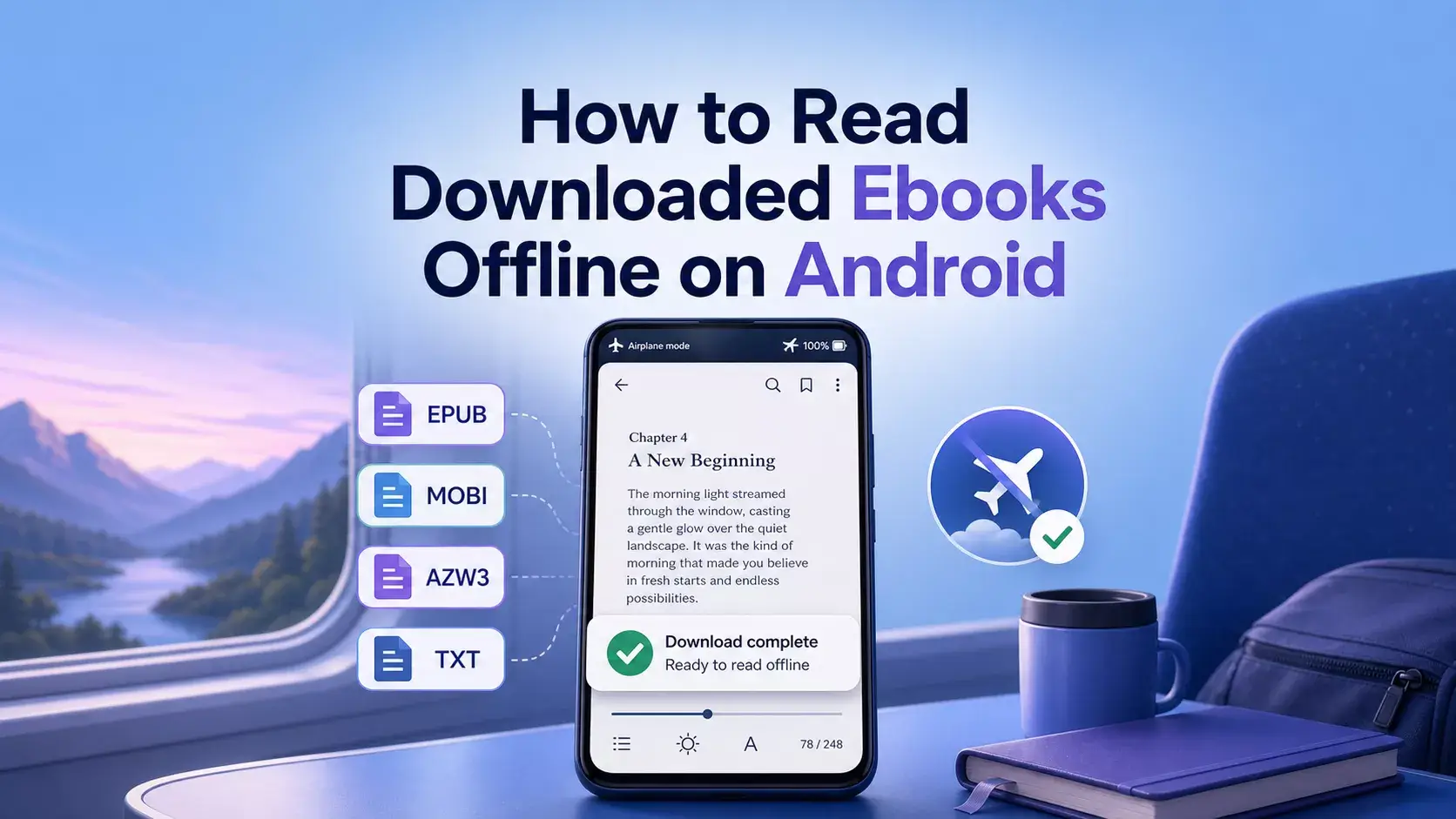
To read an ebook offline on Android, download the complete file, store it somewhere you can access, open it once in a compatible reader, and check that its chapters, images, and authorization work before disconnecting. A local file may still fail offline if it depends on DRM verification or external resources.
Offline Reading Checklist
Before losing your connection:
Download the complete ebook file.
Confirm the extension is supported by your reader.
Open the book once while still online.
Test the table of contents and several chapters.
Check that images and fonts display.
Verify that the book does not need fresh account authorization.
Remember where the file is stored.
Keep enough battery and device storage available.
Step 1: Get the Ebook from a Legitimate Source
Download only a book you own, a title in the public domain, or material you otherwise have permission to save. A reader or browser does not grant rights to third-party content.
Avoid pages with deceptive download buttons, unexpected executable files, or claims that paid books are available without authorization. An ebook download should match the format and filename you expected.
Step 2: Let the File Finish Downloading
Do not open or move a partial file. Wait for the browser or download manager to show completion, then check that the file has a plausible name and extension.
If a source publishes a file size or checksum, compare it before relying on the download for travel or study.
Step 3: Open It in a Compatible Reader
Use software that explicitly supports the file extension. Dedicated ebook apps, book services, and browsers with built-in readers serve different needs.
Quetta Reader on Android can open compatible TXT, EPUB, MOBI, AZW and AZW3 files. This can reduce app switching when you download the ebook in Quetta and want to continue reading in the same browser.
See how Quetta downloads and reads supported ebooks.
Step 4: Test the Book Before Going Offline
Open the first chapter, use the table of contents, jump to a later chapter, and check an image if the book includes one. Then briefly enable airplane mode and reopen the file.
This test can reveal:
An incomplete download
Missing embedded resources
A file that needs account authorization
A reader-format incompatibility
A book that was never stored locally
Step 5: Make the Reading View Comfortable
Before a long offline session, choose a readable font size, suitable background, and preferred page movement. In Quetta Reader, supported files can use adjustable backgrounds, fonts and font sizes; Scroll, Curl, Cover or None transitions; chapter navigation; and options to hide the status or navigation bar.
Where Should You Store Offline Ebooks?
Use a folder that is easy to identify, such as Downloads or a dedicated Books folder. Avoid moving a file after a reader has imported it unless the app documents how relocation works. Keep a legitimate backup if the original source allows it.
Android's document picker can expose files from local and participating cloud storage providers, but a cloud-only file is not automatically available offline. Confirm that the actual file has been downloaded to the device.
Why an Ebook Stops Working Offline
It was only cached, not downloaded
A webpage or cloud preview can look available while connected without storing the complete ebook locally.
Authorization expired or was never completed
Protected books may need the official service to verify the account or device.
Some resources are external
An ebook can reference remote media or links. Core text may work while external material remains unavailable.
The file is incomplete
An interrupted download can open partially and then fail at a later chapter.
The reader did not retain file access
Moving, renaming, or deleting the source file can break the reader's reference to it.
Frequently Asked Questions
Can I read an EPUB without Wi-Fi?
Yes, if the complete compatible EPUB is stored on the device and does not require online authorization or external resources. Test it in airplane mode before relying on it.
Does offline reading use mobile data?
Reading a fully local file should not require mobile data for its core content, but external links, remote images, synchronization, ads, or authorization checks may use a connection.
Does Quetta provide free novels for offline reading?
No. Quetta provides browser, download, and reading tools, not an ebook catalogue. Obtain books from legitimate sources and follow the applicable rights and terms.
Which formats can Quetta Reader open offline?
The Android release supports compatible TXT, EPUB, MOBI, AZW and AZW3 files. [VERIFY offline behavior for each format before publishing this exact wording.]
For the complete choice of Android reading methods, see How to Read Ebooks on Android.
Download Once, Then Read in Quetta
Quetta Reader keeps compatible ebook files in the same browser workflow. Download the book completely, open and test it, then verify airplane-mode access before relying on it during travel.
See Quetta's download-to-reader workflow
For format-specific help, see opening EPUB files, opening MOBI, AZW, and AZW3 files, or compare the formats first. Android Developers explains how the system document picker accesses local and participating storage providers.