Download and Read Ebooks Without Leaving Your Browser
Download supported ebook files and read them directly in Quetta Browser on Android. Open EPUB, MOBI, AZW, AZW3, and TXT files with customizable reading controls.
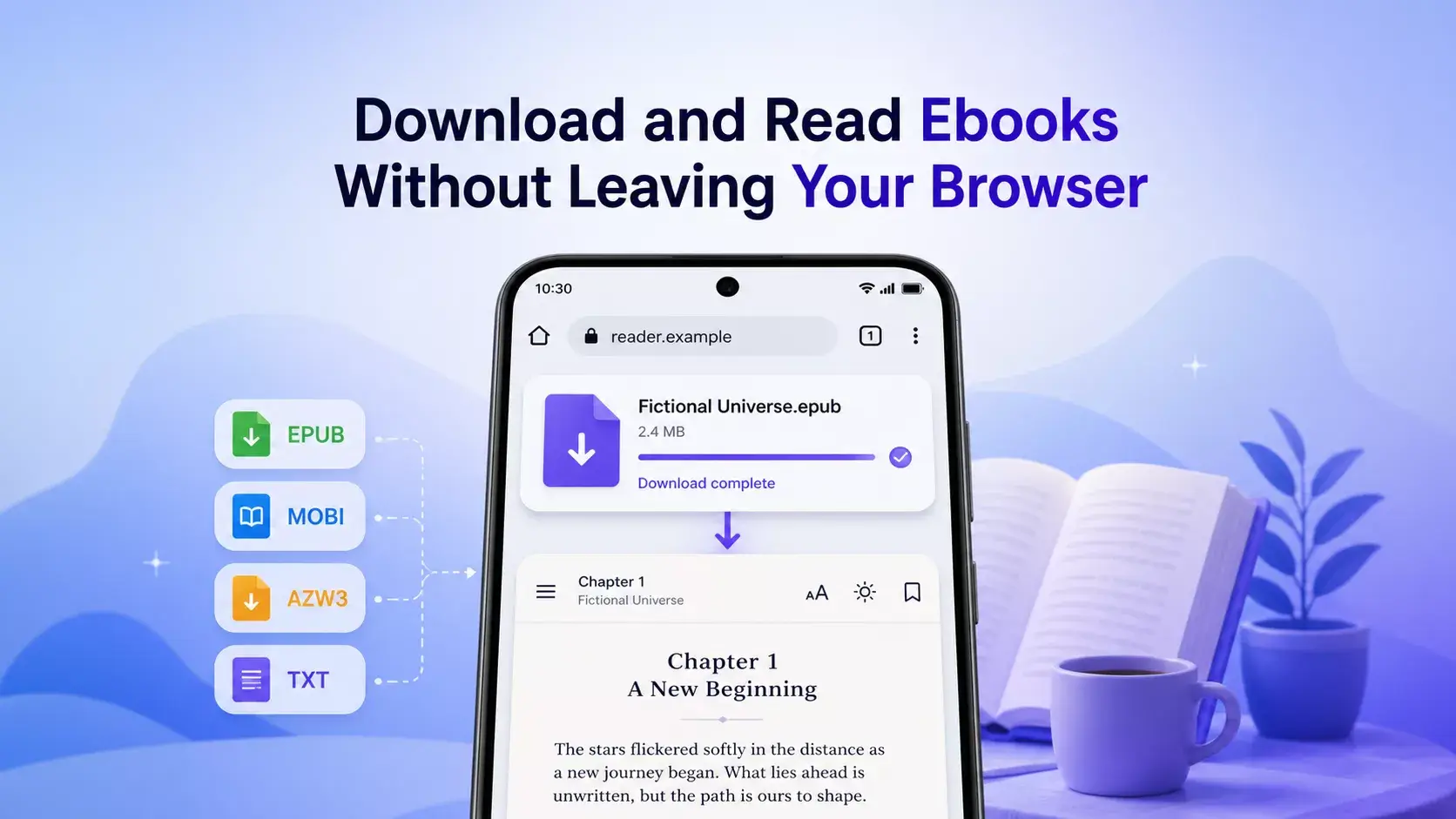
Quetta Reader lets you open supported ebook files directly in Quetta Browser on Android. Download a compatible EPUB, MOBI, AZW, AZW3, or TXT file, open it in the browser, and adjust the page for a more comfortable reading experience.
One Browser for Finding, Downloading and Reading Ebooks
Quetta Reader is a built-in reading view for supported ebook files. It is designed for people who find a permitted ebook file on the web and want to continue reading without moving between a browser, file manager, and separate reader app.
The workflow stays simple: browse to a legitimate source, download a compatible file, open it in Quetta, and choose the reading settings that suit you. Once the file is available locally, you can continue reading without depending on the original webpage or a continuous internet connection.
Quetta does not provide ebook titles or access rights. Only download and open books that you own, that are in the public domain, or that you otherwise have permission to use.
How to Download and Read an Ebook in Quetta
To read a supported ebook in Quetta, download the file from a source you trust, open the completed download, and choose Quetta Reader when prompted. The exact labels may vary by Android version and Quetta release.
Open a trusted ebook source. Use a publisher, library, author, retailer, or public-domain archive that gives you permission to download the file.
Choose a supported format. Quetta Reader supports TXT, EPUB, MOBI, AZW and AZW3 files in the current Android release.
Download the file. Confirm the download and wait for it to finish.
Open the downloaded ebook. Open it from Quetta's completed downloads or the available Android file-opening control. [VERIFY exact UI path]
Start reading in Quetta Reader. Move between chapters and adjust the display to suit your reading environment.
Some files may not open even when their extension is supported. A file can be damaged, mislabeled, protected by digital rights management, or created with features that a particular reading system does not support.
Supported Ebook File Formats
Quetta Reader currently supports five file extensions on Android: TXT, EPUB, MOBI, AZW and AZW3. Format support describes the file types the Reader can attempt to open; it does not mean every file using those extensions will render identically.
Format | What it is commonly used for | What to know |
|---|---|---|
TXT | Plain-text books and documents | Contains text with limited layout and styling |
EPUB | Reflowable digital publications | Common across many ebook stores, libraries and reading systems |
MOBI | Older Mobipocket/Kindle-era ebooks | Older format; layout capabilities can be more limited |
AZW | An Amazon-associated ebook format | Some files may include protection or ecosystem-specific features |
AZW3 | A newer Kindle Format 8 container | Can carry richer layout than classic MOBI; protected files may not open |
EPUB is a single-file container for structured publication content and can include HTML, CSS, images, and navigation resources. The W3C EPUB specification provides the authoritative technical definition.
Important: Quetta Reader does not bypass DRM or other access controls. A protected ebook may require the authorized app or service connected to the purchase or loan.
Make the Page Comfortable to Read
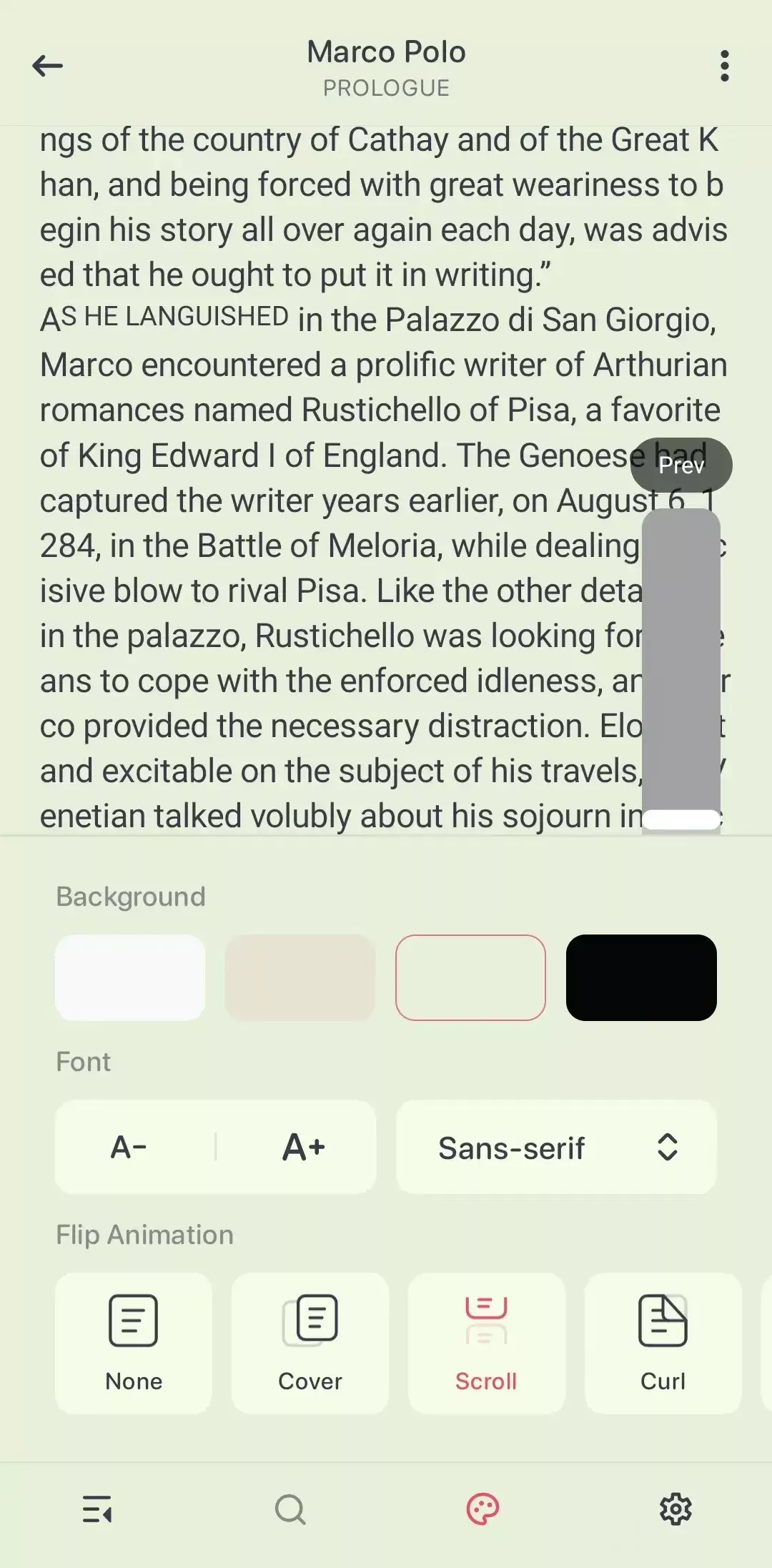
Quetta Reader includes controls for changing how a supported book appears and moves on screen.
Change the background
Choose a background color that fits the room and your reading preference. A softer background may feel more comfortable during long reading sessions, while a darker option may be preferable in low light.
Adjust the font and text size
Change the font and increase or decrease the text size instead of repeatedly zooming a fixed webpage. The result can depend on the formatting contained in the ebook file.
Choose how pages move
Select from Scroll, Curl, Cover or None. Scroll creates a continuous reading flow; Curl and Cover add page-transition effects; None minimizes animation.
Move between chapters
Use the available chapter navigation to move through a book without manually scrolling from the beginning. Chapter availability depends on the structure included in the file.
Reduce interface distractions
Hide the status bar or navigation bar when you want more of the screen devoted to the text. The exact full-screen behavior may depend on the device and Android version.
When a Browser Reader Is the Practical Choice
A browser with an integrated ebook reader is most useful when the book starts on the web. It shortens the path from finding an authorized file to reading it, especially for occasional reading, public-domain books, author-provided downloads and personal TXT documents.
A dedicated ebook app may be a better fit if you need a large managed library, cross-device reading-position sync, extensive annotation tools, dictionary integration or store-specific DRM access. Quetta Reader is intended to make supported downloaded files convenient to read inside the browser; it is not a replacement for every specialized reading platform.
For a neutral overview of the available approaches, read How to Read Ebooks on Android.
Read Supported Files Offline
After a compatible ebook has been downloaded to your Android device, the file can be opened locally without loading the original webpage again. This can be useful during travel, commuting or any time your connection is limited.
Before going offline, open the file once and confirm that its chapters and resources display correctly. Some ebooks may reference external material or require authorization that is unavailable without a connection.
Read the complete guide to reading downloaded ebooks offline.
Get Quetta Reader on Android
Quetta Reader is included in the current Android version of Quetta Browser. Download Quetta from Google Play or the official Quetta Android page, then keep the app updated to receive the current compatibility and stability improvements.
Frequently Asked Questions
What is Quetta Reader?
Quetta Reader is a reading view built into Quetta Browser on Android. It opens supported TXT, EPUB, MOBI, AZW and AZW3 files and provides controls for the page background, font, text size, chapter navigation, transition style and interface visibility.
Which ebook formats can Quetta Reader open?
The current Android release supports TXT, EPUB, MOBI, AZW and AZW3. Individual files can still fail because of DRM, corruption, unsupported content or an incorrect file extension.
Can Quetta Reader open DRM-protected ebooks?
Quetta Reader does not bypass DRM or other access controls. Protected books may need to be opened in the authorized app or service associated with the purchase or loan.
Can I use Quetta Reader without an internet connection?
A compatible file that is already stored on the device can generally be read without loading its original webpage. Open and test the book before going offline because some files may contain external resources or require authorization. [VERIFY offline behavior across all five formats]
Is Quetta Reader available on iPhone, Windows, or macOS?
Quetta Reader is documented here as an Android capability. [VERIFY platform roadmap and replace this answer if other platforms support it at publication time.]
Does Quetta provide free ebooks?
No. Quetta provides browser and reading tools, not an ebook catalogue. Users are responsible for obtaining files from legitimate sources and following applicable copyright rules and website terms.
Start Reading Downloaded Ebooks in Quetta
Quetta Reader keeps the download and reading workflow in one Android browser. If your file is supported and unprotected, download Quetta Browser for Android, open the ebook, and adjust the background, font size, chapter navigation, and page movement to suit your reading style.
Related guides:
For technical background, consult the W3C EPUB overview and Android Developers' guide to opening documents from shared storage.