How to Change Your Default Browser on Android
Change the default browser on Android in five steps. Learn the standard path, why some links still open in apps, and how to set Quetta as your browser.

Kayla
Quetta Networks


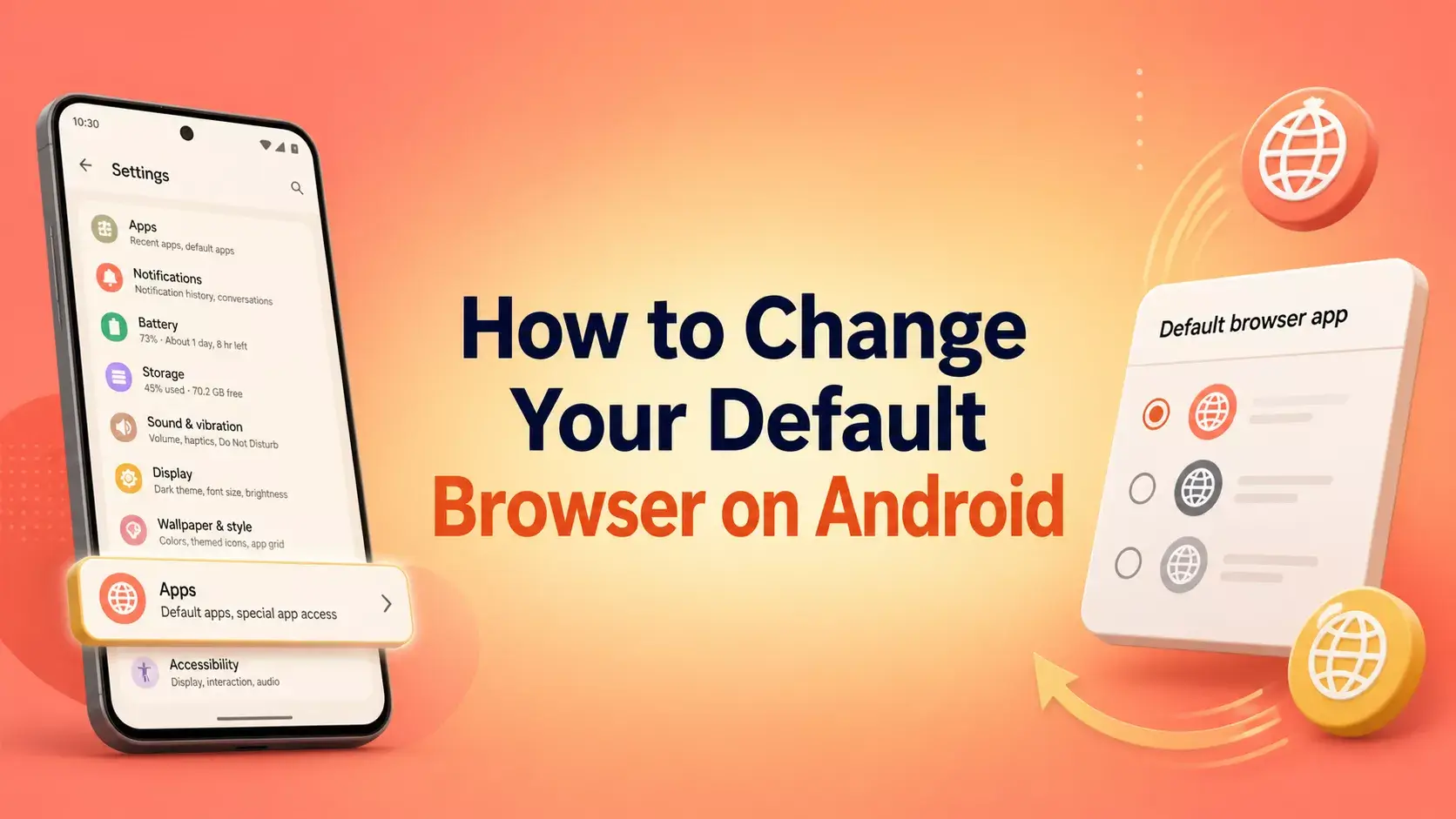
To change the default browser on Android, open Settings, choose Apps, select Default apps or Choose default apps, tap Browser app, and select the installed browser you want to use. Menu names can differ slightly by Android version and phone manufacturer.
Quick steps: change the default browser on Android
Google's current Android instructions use this five-step path:
Open Settings on your Android device.
Tap Apps.
Tap Default apps or Choose default apps.
Tap Browser app.
Select the browser you want Android to use.
Once selected, ordinary web links should open in that browser by default. Google documents the same basic process in Android Help.
Before you start: Install and open the browser at least once. If it is not installed or Android has not recognized it as a browser, it may not appear in the Browser app list.
How to set Quetta as your default browser
First, download Quetta from an official source and open it. Then use Android's device-level setting:
Open Android Settings.
Go to Apps > Default apps.
Choose Browser app.
Select Quetta.
Tap a normal web link to confirm that it opens in Quetta.
Setting Quetta as the default changes which browser Android uses for ordinary links. It does not automatically transfer passwords, bookmarks, open tabs, or settings from another browser.
Why do some links still open in apps?
A default browser does not control every type of link. Android App Links can associate verified web addresses with installed apps, so a link to a supported service may open that service's app even when Quetta is your default browser.
If one service keeps taking over its links, change that app's Open by default or Open supported links setting. Follow Quetta's guide to stop links from opening apps on Android for the focused troubleshooting steps.
Why is my preferred browser missing from the list?
The most common reasons are that the browser is not installed, has not been opened after installation, is disabled, or is restricted by a work profile or device policy.
Try these checks:
Update the browser from its official store listing.
Open it once and complete any initial setup.
Restart Android Settings and check the Browser app again.
Check whether a work, school, parental-control, or device-management policy limits default apps.
Avoid downloading a replacement browser from an untrusted APK mirror.
What changes when you set a default browser?
Setting or data | Does it change automatically? |
|---|---|
Browser used for ordinary web links | Yes |
Existing bookmarks | No |
Saved passwords | No |
Search engine inside the browser | No |
Verified links assigned to other apps | Not necessarily |
Existing browser history | No |
Previously installed browsers | No |
Your default browser and default search engine are separate choices. A browser displays websites; a search engine helps you find them. For example, Quetta can remain your default browser while you select DuckDuckGo as the search engine inside Quetta. Read the full explanation of browser vs search engine.
Should you uninstall your old browser?
No. You can keep multiple browsers installed and change the default again later. Keeping the old browser temporarily is useful while you verify passwords, bookmarks, website compatibility and any workflows you rely on.
Before switching permanently, test:
Your most-used websites and sign-ins.
Payment, banking and work sites.
Password and bookmark access.
Downloads and file handling.
Any browser extensions or accessibility tools you need.
Try Quetta before making it permanent
Quetta for Android combines mobile browsing with supported Android extensions, ad and tracker controls, and video-focused tools. Feature availability and compatibility can vary by platform, website, extension, and app version, so test your essential workflows before making it your only browser.
Next step: Download Quetta, test your important sites, and then select it under Android's Browser app setting.
Frequently asked questions
Can I have more than one browser on Android?
Yes. Android can have multiple browsers installed, but only one is normally selected as the default for ordinary web links. You can open another browser manually at any time or return to Android Settings to change the default.
Does changing the default browser delete Chrome data?
No. Changing the default browser does not delete another browser's history, bookmarks, passwords, or app data. Data moves only if you use a supported import or sync process, and available transfer options differ between browsers.
Why do links still open in another app?
Verified Android App Links and app-specific defaults can override the ordinary browser path for supported domains. Review the app that takes over the link under Apps > [App name] > Open by default rather than repeatedly changing your browser.
Can I make Quetta the default browser but use DuckDuckGo Search?
Yes. The browser and search engine are separate layers. Quetta can be the Android default browser while DuckDuckGo is selected as the search provider inside Quetta. See how to use DuckDuckGo in Quetta.