How to Stop Links From Opening Apps on Android
Learn why Android links open installed apps and how to change per-app link defaults without disrupting every website.

Kayla
Quetta Networks


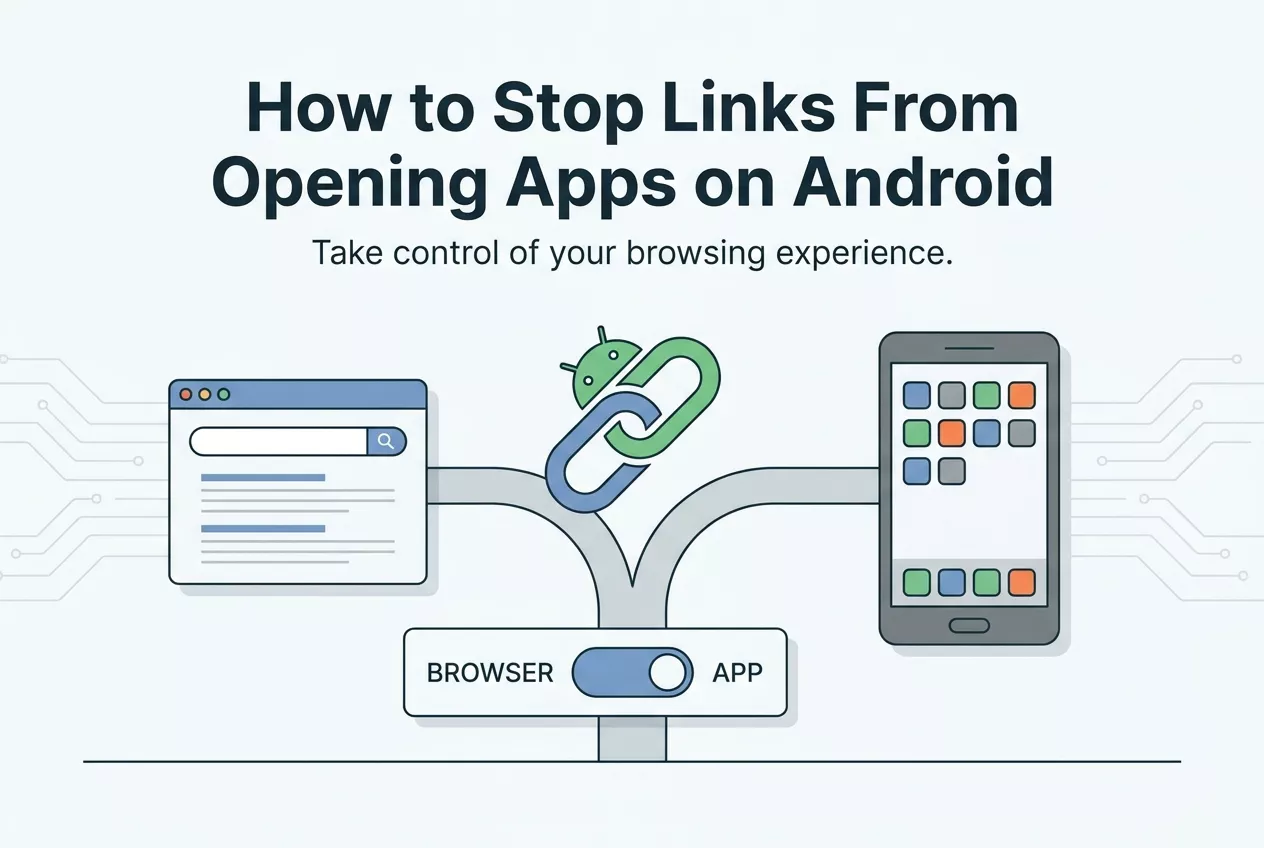
To stop links from opening an installed Android app, go to Settings → Apps → the app that opens → Open by default, then turn off Open supported links where available. Return to your browser and test the same link. Menu names vary by phone, so search Settings for “opening links” if needed.
This changes Android's handling of that app's web links. If a webpage instead launches an app unexpectedly while you are browsing in Quetta, follow how to stop app redirects in Quetta.
Why does Android open some web links in apps?
Android App Links let an app declare that it handles web addresses on a verified domain. When the relationship is verified and the app is allowed to open supported links, Android may route a matching URL directly to that app instead of asking you each time.
This is different from a webpage using a redirect or an “Open in app” prompt. It is also different from a pop-up. Identify the layer first so you do not change browser settings that cannot affect an Android-level association.
Choose the right fix
Behavior | Best first action |
|---|---|
One service's links always open its app | Change that app's supported-link setting |
A site unexpectedly launches an app while browsing | Use the browser's redirect protection |
You selected “Always” in a chooser | Clear or change the app default |
An unknown page demands an app install | Close it and use the official store |
Change link-opening behavior for one app
Open Android Settings.
Open Apps and select the app that takes over the link.
Find Open by default, Opening links, or similar wording.
Turn off Open supported links, or remove the supported domain association if your device offers that choice.
Return to your browser and test the original URL.
On Samsung, Pixel, and other devices, the path may differ. Search within Settings for “opening links” if the option is not visible. Avoid resetting every app preference unless you understand the wider consequences, because that can clear unrelated defaults.
Clear an accidental “Always” choice
If you previously chose an app as the permanent handler, open that app's information page and clear its default-opening behavior. The next compatible link may show a chooser again, depending on the Android version and whether the domain is verified.
Choose Just once while testing. Once you know which destination you prefer, set a permanent choice only for that app and link type.
When the website—not Android—is initiating the redirect
A page can use scripts, intent links, or prompts to encourage an app handoff. Browser-level redirect protection can help with unexpected launches, whereas Android's app setting governs broader verified-link behavior.
In Quetta, use Stop App Redirects in Privacy Guard for unexpected website-to-app handoffs. If the same service opens its app from links outside Quetta too, review Android's per-app link settings above.
Safety checks before changing defaults
Confirm the page uses the service's correct domain.
Do not install an APK offered by a redirecting webpage.
Do not grant accessibility or device-administrator access to “fix” a link.
Open banking and payment destinations from a trusted bookmark or official app.
Change only the app responsible for the unwanted handoff.
Test with the same URL after each change.
Frequently asked questions
Does disabling supported links uninstall the app?
No. The app remains installed. You are only changing whether matching web addresses open there automatically.
Can I force all links to use one browser?
You can select a default browser, but verified app links and explicit actions can still affect particular URLs. Per-app settings offer more precise control.
Why does the setting name look different on my phone?
Manufacturers customize Android Settings, and Android releases reorganize menus. Look for terms such as Open by default, Opening links, or Supported web addresses.
Is every app-opening link a privacy problem?
No. Many are legitimate conveniences. The relevant distinction is whether you expected and chose the handoff, and whether you trust the page and destination.
Make the smallest effective change
Start with the installed app that claims the URL, adjust its supported-link behavior and retest. Use browser redirect protection only for website-initiated handoffs. Keeping those layers separate solves the problem with fewer side effects.