How to Set Up AdGuard DNS on Android
Set up AdGuard DNS on Android with step-by-step Private DNS instructions. Learn which server to use, what DNS can block, and when to add browser-level protection.


If you have been wondering how to use AdGuard DNS on Android, chances are you have already tried the basic stuff and found out that DNS alone does not block all content. This article will help you learn about setting up AdGuard DNS on Android, why it fails to block some ads, and how to integrate it with uBlock Origin in Quetta Browser for maximum ad-blocking power.
What Is AdGuard DNS and How Does It Work on Android?
AdGuard DNS is a completely free DNS resolver that prevents connections to well-known advertising and tracking domains. After configuring AdGuard DNS on Android, each request coming from your smartphone will be automatically screened before it hits your web browser or any other application on the device.
There are several benefits of using AdGuard DNS on Android: it is free, does not affect your battery life, requires zero additional applications installed, and can even replace your mobile carrier's DNS servers.
How to Set Up AdGuard DNS on Android
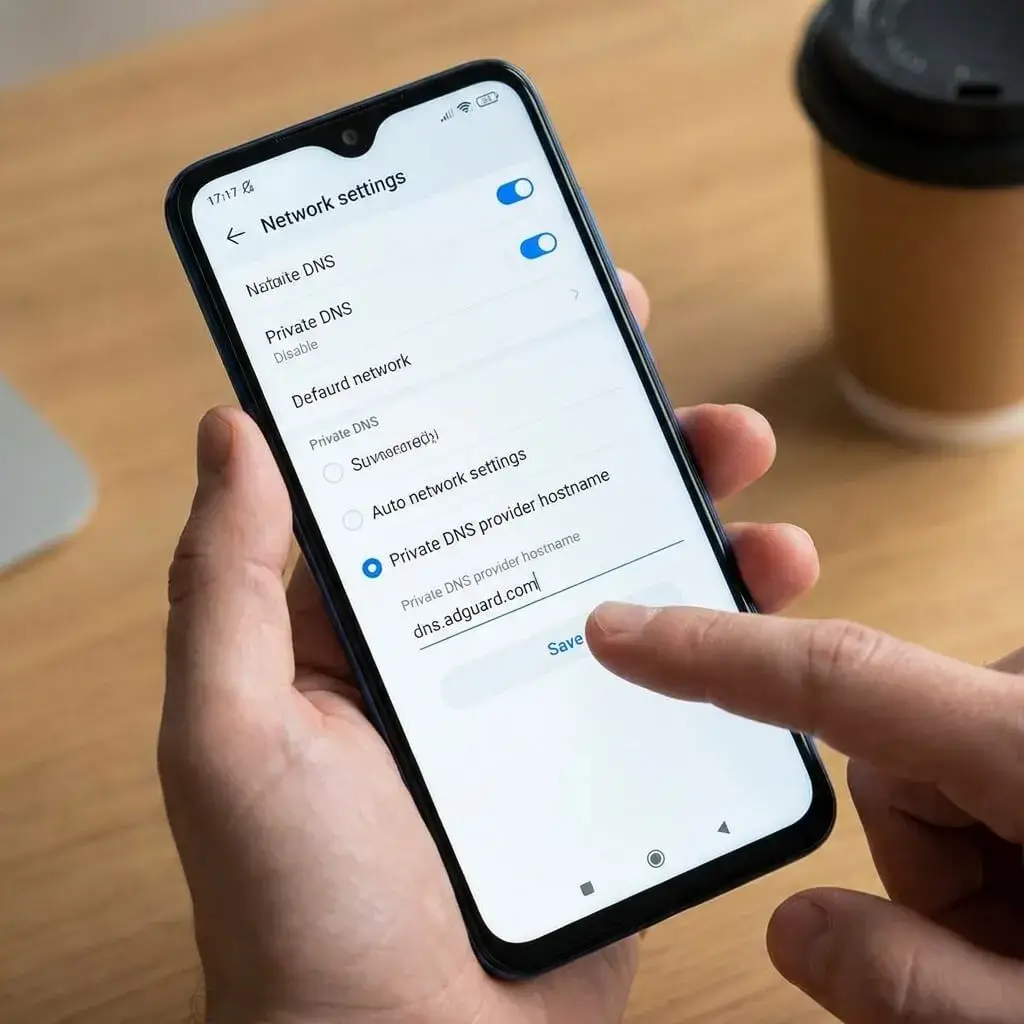
Starting from Android 9, you can use the Private DNS feature, which allows you to send all your DNS requests to your preferred resolver. Here are the steps to set up AdGuard DNS for Android devices using this approach:
Open Settings
Go to Network & Internet → Advanced → Private DNS (On Samsung: Settings → Connections → More connection settings → Private DNS)
Select Private DNS provider hostname
Enter:
dns.adguard-dns.comTap Save
Now your Android device is configured to use AdGuard DNS.
Which AdGuard DNS server should you use?
Hostname | What it blocks |
| Ads + trackers (recommended) |
| Ads + trackers + adult content |
| Nothing (bypass/testing) |
For most users, dns.adguard-dns.com is the right choice.
Why AdGuard DNS on Android Doesn't Block Everything
And here's the most common issue people face once they've installed AdGuard DNS on their Androids, ads keep popping up, particularly YouTube ads, Instagram, and within other applications.
Reason being:
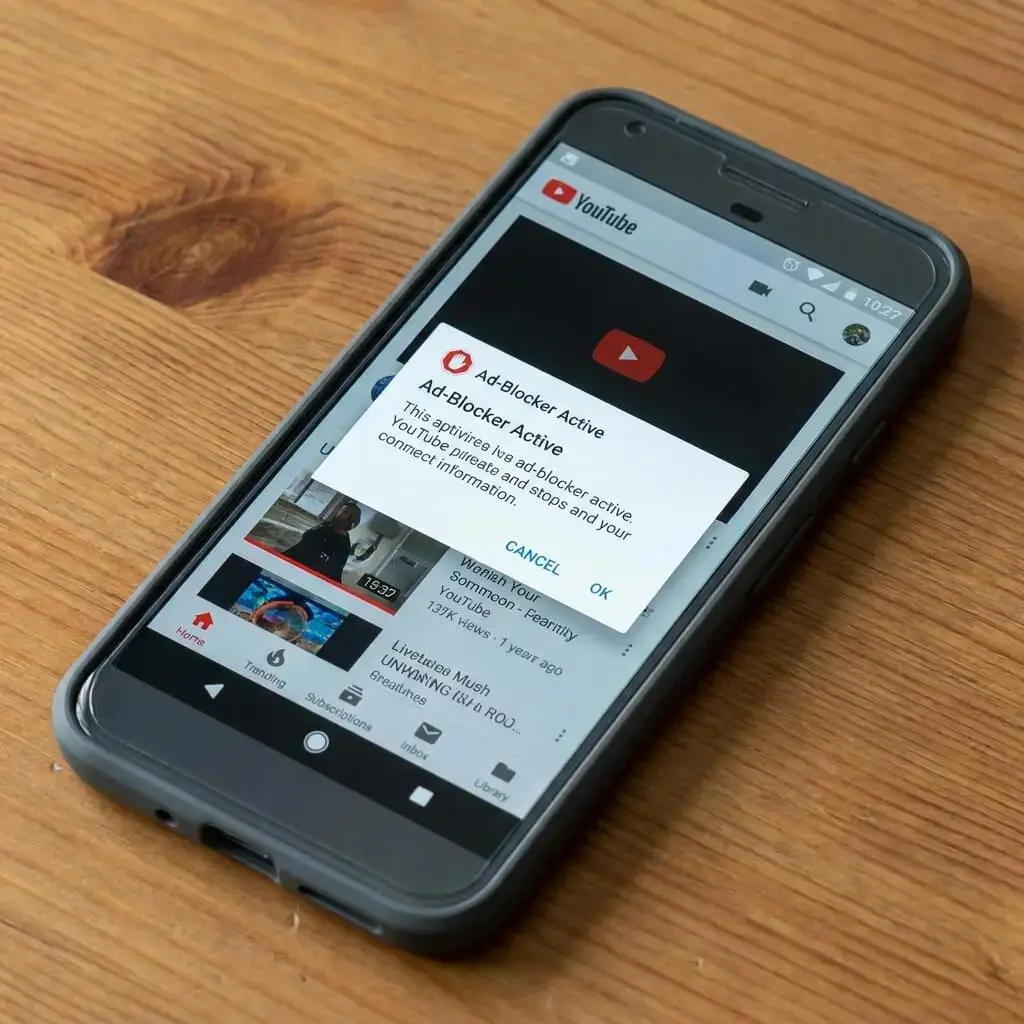
YouTube ads originate directly from the servers of YouTube (googlevideo.com, youtube.com). For AdGuard DNS to block ads, it would need to block the entirety of YouTube; an obvious and rather impractical solution.
The in-app ads on apps such as TikTok and Instagram come directly from the same domain as the content provided; hence, DNS-based filtering wouldn't be able to distinguish between the two.
First-party ad networks, which use rotating domains and refresh faster than any filter list, might sometimes get through.
However, while AdGuard DNS is extremely efficient at blocking third-party ad networks and trackers throughout the device, uBlock Origin is the missing piece to the puzzle.
Adding uBlock Origin on Top of AdGuard DNS Android
uBlock Origin is a web browser extension that blocks ads at the level of the page, from YouTube pre-roll, mid-roll ads to cosmetic ad boxes which cannot be blocked by DNS because they are inserted into web pages after they are loaded.
The issue on Android phones: uBlock Origin needs a compatible web browser, but there are few of those on Android. Chrome for Android does not support Chrome extensions. Samsung Internet and almost all other Android web browsers do not have this functionality.
The browser that makes this work: Quetta
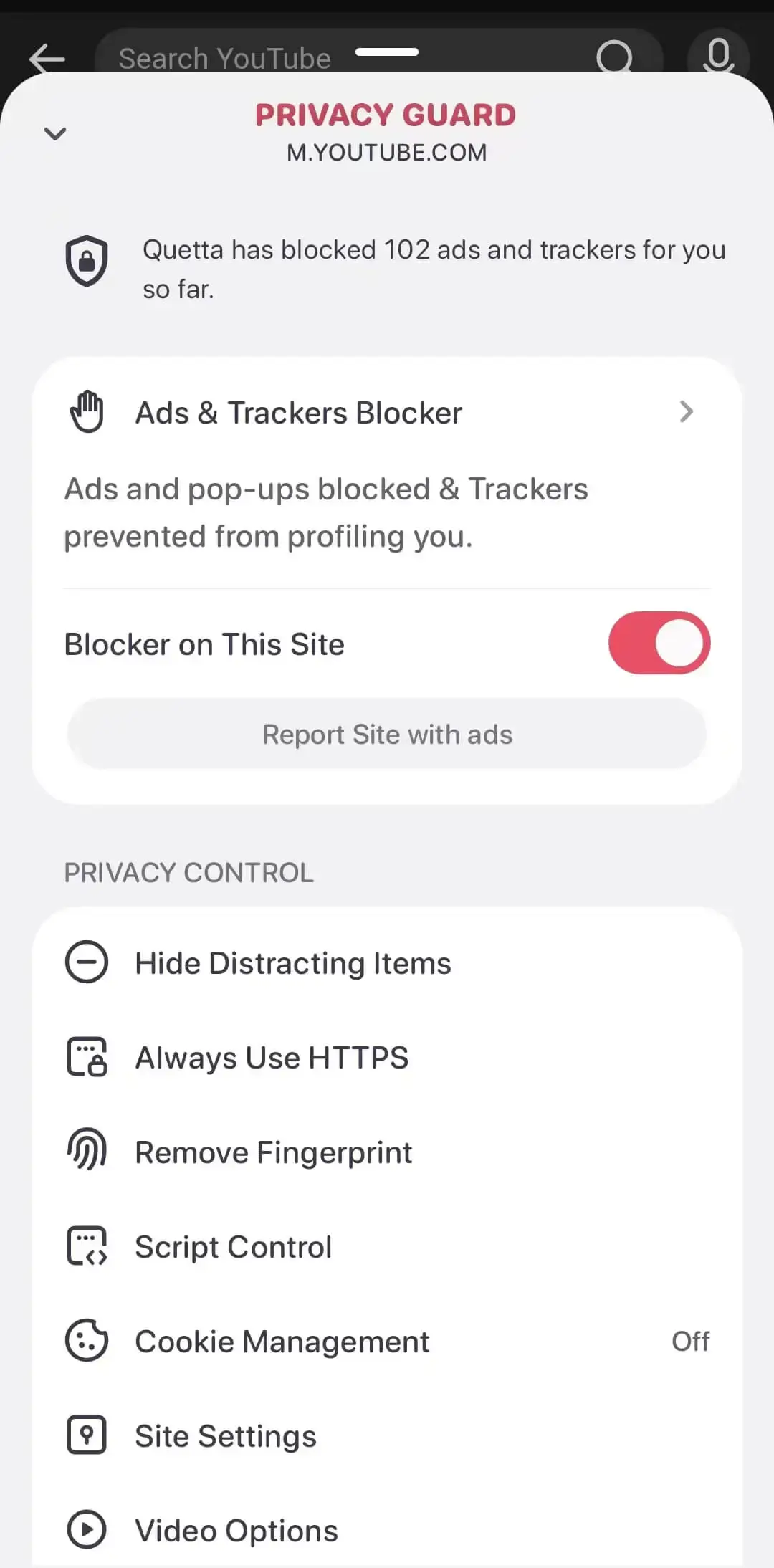
Quetta Browser has its own integrated ad-blocker, and it is based on Chromium, which allows installing Chrome extensions such as uBlock Origin.
How to install uBlock Origin on Android via Quetta
Download Quetta Browser on your Android device
Open the Chrome Web Store:
chrome.google.com/webstoreSearch uBlock Origin (by Raymond Hill — not "uBlock Origin Lite")
Tap Add to Chrome and confirm
uBlock Origin is now running inside Quetta alongside its built-in blocker.
Recommended filter lists for uBlock Origin on Android
In uBlock Origin settings → Filter lists, enable these in addition to the defaults:
EasyPrivacy: tracking protection
AdGuard Base: broader ad coverage
AdGuard Mobile Ads: optimized for mobile browsing patterns
uBlock filters – Annoyances: cookie notices, newsletter popups
For YouTube ads specifically, the default uBlock filters handle most pre-roll and mid-roll ads. If ads slip through after a YouTube update, go to Filter lists → Update now.
The Full Setup: Three Layers of Ad Blocking on Android
With AdGuard DNS and uBlock Origin both running in Quetta, your ad blocking works at three distinct layers. Compare Android ad blocker options:
Layer | Tool | Coverage |
Network (device-wide) | AdGuard DNS Android | Ad domains + trackers across all apps |
Browser (built-in) | Quetta Ad Blocker | Browser-level filtering before page load |
Browser (extension) | uBlock Origin | YouTube ads, cosmetic filtering, custom rules |
Each level picks up where the rest leave off. AdGuard DNS is your constant default layer. Within Quetta, the integrated blocker, along with uBlock Origin, will block video ads and page-specific content not blocked by the DNS level.
Troubleshooting AdGuard DNS on Android
AdGuard DNS is not working despite having setup It could be that if you are using a VPN application, it overrides the Private DNS settings, as DNS functionality within a VPN is usually handled internally by the application. Either set up the DNS settings within the application or switch off the application to check if AdGuard DNS is functioning.
AdGuard DNS seems to work, but YouTube ads pop up anyway. This is okay. Refer to the explanation provided above. Ads on YouTube cannot be blocked unless the adblocker is installed in your browser via uBlock Origin.
uBlock Origin does not work after an update from YouTube and/or Chrome. You may want to visit uBlock Origin → Filter lists → Update now. As mentioned earlier, YouTube keeps updating how it delivers its ads, and the filter lists have to be updated accordingly to keep up with those changes.
Summary
Installing AdGuard DNS on your Android will take around one minute, and you'll instantly get improved privacy and fewer ads on all applications. If you want to block ads on YouTube videos and websites, add uBlock Origin to Quetta browser.
With the native ad-blocking feature, DNS filtering, and uBlock Origin, you will have the most advanced combination of ad-blocking tools on Android without rooting your phone.