Ad Blocker Not Working on Android? 7 Causes and Fixes
Still seeing ads on Android? Diagnose outdated filters, DNS and VPN conflicts, allowlists, app ads and video ads with this practical troubleshooting guide.

Kayla
Quetta Networks


An Android ad blocker may stop working because its filters are outdated, a website changed how it delivers ads, another VPN or Private DNS setting is overriding it, the site was accidentally allowlisted, or the ads are served inside an app or video platform the blocker cannot fully filter. The correct fix depends on where the ads appear.
This guide is for users who already have an ad blocker enabled but still see advertisements. If you have not configured ad blocking yet, begin with the complete guide to blocking ads on an Android phone.
Quick Diagnosis: Why Are Ads Still Appearing?
Identify the symptom before changing your setup. Installing more blockers without knowing the cause can create conflicts and make the original problem harder to diagnose.
Symptom | Likely cause | First action |
|---|---|---|
Ads appear on one website only | The site is allowlisted or has changed its ad delivery | Check site controls and update filters |
Ads appear on every website | The blocker is disabled, paused, or outdated | Confirm it is enabled and refresh filter lists |
Ads appear inside unrelated Android apps | A browser blocker cannot inspect other apps | Review DNS or VPN limitations |
Video or social-feed ads remain | Ads may be delivered with first-party content | Confirm whether the platform can be filtered safely |
Ads returned after enabling a VPN | The VPN may override Private DNS or network routing | Test the VPN and DNS separately |
Empty ad boxes remain | DNS blocked the request, but cannot clean the page layout | Use browser-level cosmetic filtering |
Pop-ups or redirects remain | Pop-up rules, script controls, or filters may be missing | Update filters and check browser settings |
A website breaks when blocking is enabled | Too many rules or overlapping filter lists | Disable extra lists and test the default configuration |
1. Your Ad-Blocking Filters Are Outdated
Filter-based blockers rely on lists of advertising domains, scripts, page elements, and known tracking patterns. Websites regularly change their code and delivery methods. A rule that worked last month may no longer match the current page.
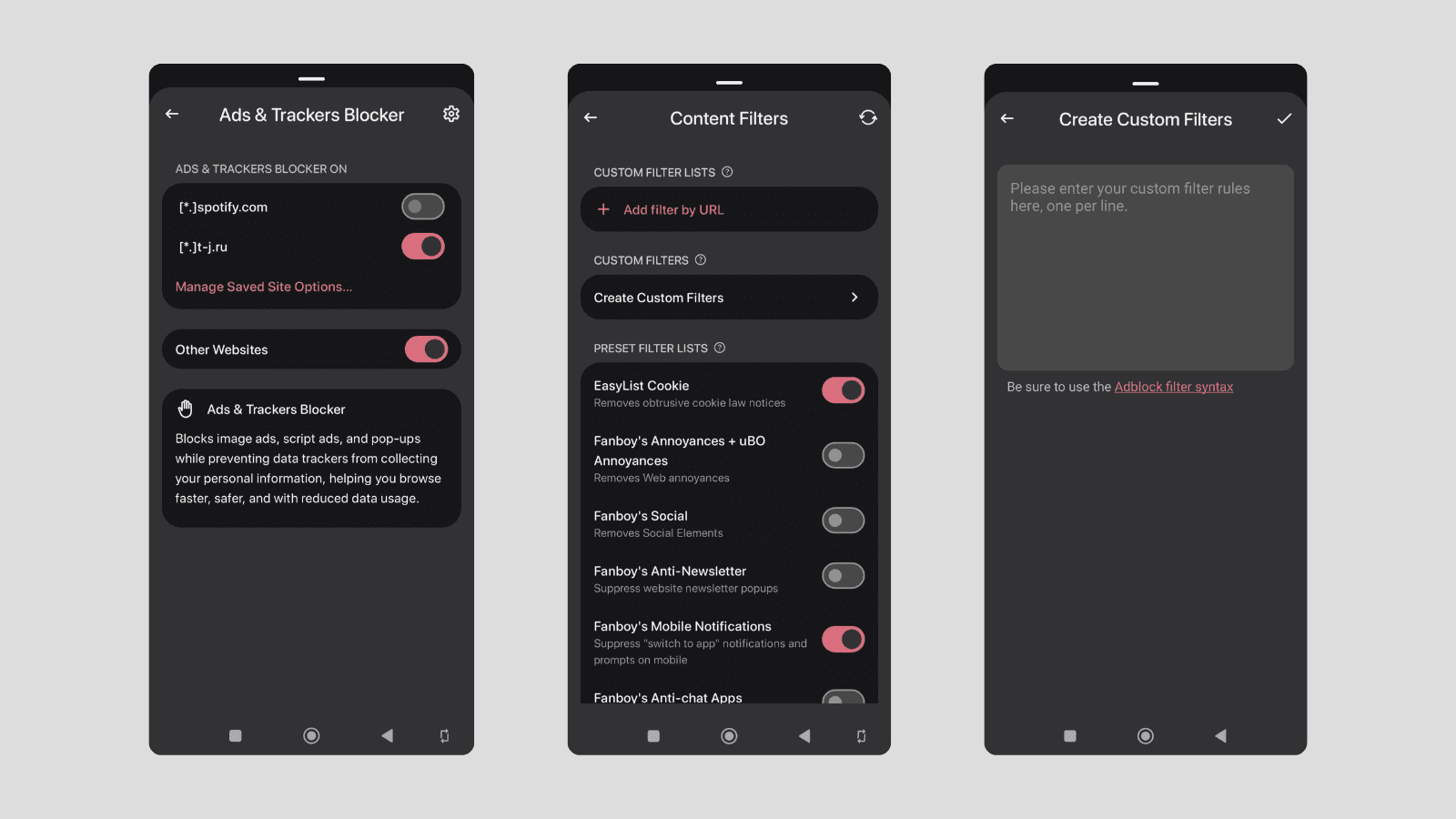
Update the blocker’s filter lists, close and reopen the affected page, and test again. If you use Quetta, follow the dedicated instructions for managing and updating Quetta ad-block filters.
Avoid enabling every available list at once. The uBlock Origin documentation warns that additional third-party lists can cause website breakage or interfere with one another. Start with the default lists, update them, and add specialized filters only when you understand the need.
Signs that outdated filters are the cause
Blocking worked recently but failed after a website redesign.
Ads appear on one or two sites while other sites remain clean.
Other users report the same new ad format.
Updating the lists immediately changes the result.
2. The Website Changed How It Delivers Ads
A website can move advertisements to a new domain, rename page elements, insert ads dynamically, or serve ads from the same infrastructure used for normal content. These changes can temporarily bypass existing rules.
When only one website is affected, do not replace your entire blocking setup immediately. First:
Update filter lists.
Reload the page without using a cached copy.
Test the website in another tab.
Confirm that blocking is enabled for that site.
Check whether the issue affects one ad placement or the entire page.
If the problem is reproducible, report the exact page, device, browser version, and visible ad format through the blocker’s supported reporting channel. A clear report is more useful than a general statement that “ad blocking is broken.”
3. The Website Was Accidentally Allowlisted
Most browser blockers let users disable filtering for a specific site. This is useful when a site breaks or when a user wants to support a publisher, but it can also explain why ads appear on one domain while blocking works everywhere else.
Open the blocker’s site controls and confirm that:
Blocking is enabled for the current domain.
The domain is not on an allowlist or exception list.
A global setting has not been changed to “allow acceptable ads.”
A custom rule is not overriding the default behavior.
After correcting the setting, reload the page. If the website remains broken with blocking enabled, restore the default filter configuration before adding new rules.
4. A VPN Is Overriding Private DNS
Android Private DNS and VPN applications can interact because a VPN may control its own DNS resolution and network routing. If ads returned after you enabled or changed a VPN, the VPN may be bypassing the Private DNS provider you expected to use.
Test the layers separately:
Keep the browser blocker enabled.
Temporarily disconnect the VPN.
Test the affected website again.
Check the Android Private DNS setting.
Reconnect the VPN and compare the result.
Review the VPN’s DNS, filtering, or split-tunneling settings.
Do not run multiple VPN-style filtering applications simultaneously. Android normally allows one active VPN service at a time, and competing network configurations can produce confusing results.
If you specifically want DNS-based filtering, follow the AdGuard DNS setup guide for Android and verify the configuration without another VPN active.
5. The Ads Are Inside Another Android App
A browser-level blocker works inside its browser. It cannot inspect or rewrite the interface of an unrelated game, social application, streaming app, or utility. If websites are clean but another app still displays ads, the browser blocker is probably working as designed.
Private DNS may reduce some app advertising when requests are sent to known third-party ad domains. It cannot block every in-app ad. Some applications serve advertising and normal content from the same infrastructure, and blocking the domain could stop the app itself from working.
Avoid downloading an unknown APK that promises to remove all ads from every application. Google says Play Protect checks apps for harmful behavior, scans applications from Google Play and other sources, and can warn, disable, or remove potentially harmful apps. Keep it enabled and use official sources.
6. The Platform Uses First-Party or Video Ads
Video and social-feed advertisements are difficult to block when they are delivered through the same domains, players, or content streams as the material the user wants to watch. A DNS service sees the domain request but may not know which part is the advertisement.
This explains why a DNS blocker can successfully reduce third-party banners and trackers while leaving some video advertisements untouched. Blocking the entire first-party domain could also block the video, account login, comments, or other essential functions.
A browser-level blocker may have more page context and can apply cosmetic or script rules, but no responsible product should promise permanent removal of every video ad on every platform. Delivery methods change, and some formats cannot be separated safely.
7. Multiple Ad-Blocking Layers Are Conflicting
Using a built-in browser blocker, an extension, Private DNS, and a VPN-based blocker at the same time does not automatically provide better protection. Multiple layers can duplicate rules, block required scripts, create empty pages, slow troubleshooting, or make it unclear which tool caused the problem.
Return to a known configuration:
Keep one browser-level blocker enabled.
Disable additional ad-blocking extensions temporarily.
Test with the default filter lists.
Disconnect any VPN-based blocker.
Test Private DNS separately.
Add one layer back at a time.
If the website starts working after one layer is removed, review that tool’s filters, permissions, and compatibility before enabling it again.
Android Ad-Blocker Troubleshooting Checklist
Use this order to diagnose the problem without making unnecessary changes:
Identify where the ad appears. Is it in the browser, another app, a game, or a video platform?
Confirm the blocker is enabled. Check both the global control and the current site.
Update filter lists. Then reload the affected page.
Check the allowlist. Remove unintended site exceptions.
Test the default configuration. Disable optional filter lists and custom rules.
Test without a VPN. Determine whether it overrides Private DNS.
Test DNS separately. Confirm whether DNS-level filtering is active.
Restart the browser. Reopen the page and compare results.
Record a reproducible example. Include the URL, device, Android version, browser version, and ad type.
Report the issue through an official channel. Avoid random filter rules from unverified sources.
When the Ad Cannot Be Reliably Blocked
An advertisement may not be reliably removable when it is embedded in an app feed, delivered from the same server as first-party content, inserted into a protected video stream, or tied to functionality the service needs to operate.
In these situations, the safest response is to understand the limitation rather than enabling increasingly aggressive permissions or unknown software. Consider whether the browser version of the service provides more control, whether a paid ad-free option exists, or whether the remaining advertising is acceptable for that service.
When to Change Your Android Ad-Blocking Setup
Change your setup only after identifying a mismatch between the tool and the problem:
If you have not configured blocking yet, use the Android ad-blocking setup guide.
If you are deciding between browser, DNS, extension, and VPN options, compare the best Android ad blockers.
If you want browser-level ad and tracker blocking, explore Quetta’s built-in ad blocker.
If you need DNS-specific instructions, use the AdGuard DNS Android guide.
If Quetta filters need updating or customization, follow the Quetta filter management guide.
The goal is not to run the maximum number of blockers. It is to use the smallest trustworthy setup that solves the advertisements you actually encounter.
Frequently Asked Questions
Why am I still seeing ads with an ad blocker enabled?
The blocker may have outdated filters, the website may have changed its ad delivery, the site may be allowlisted, or the advertisement may be inside an app or first-party video stream that the blocker cannot inspect. Identify where the ad appears before changing tools.
Why did my Android ad blocker suddenly stop working?
A recent website change, browser update, filter-list issue, VPN setting, or expired network configuration can cause a sudden change. Update filters, confirm the blocker is enabled for the site, and test VPN and DNS layers separately.
Can a VPN stop Private DNS from working?
Yes. A VPN may use its own DNS resolver and network routing, which can override the Android Private DNS behavior you expected. Disconnect the VPN temporarily and test Private DNS independently.
Why does DNS blocking leave empty ad spaces?
DNS filtering can stop a request to a known advertising domain, but it cannot understand the page layout or remove the container that would have displayed the advertisement. Browser-level cosmetic filtering is better suited to cleaning visible page elements.
Why does my blocker work in the browser but not in apps?
A browser blocker only controls pages loaded inside that browser. It cannot rewrite unrelated Android applications. DNS or VPN-based filtering may reduce some external requests, but neither can guarantee removal of every in-app advertisement.
Why are video ads harder to block?
Video ads may come from the same domains and content delivery systems as the video itself. Blocking the request could break the content. Platforms also change video delivery methods frequently, which can make existing rules stop matching.
How do I update ad-block filter lists in Quetta?
Open Quetta’s ad-blocking or Privacy Guard controls and use the content-filter update option. For the current menu path and custom-filter guidance, follow the dedicated Quetta ad-block filter guide.
Can running multiple ad blockers cause conflicts?
Yes. Multiple browser blockers, extensions, DNS filters, and VPN-based tools can duplicate rules, block necessary scripts, or make diagnosis difficult. Test one layer at a time and return to default filter lists when a site breaks.