How to Use Browser Extensions on Android Phone
Learn how to install, open, manage, disable, and remove browser extensions on Android. Includes Chrome extension options, permission checks, and troubleshooting steps.

Kayla
Quetta Networks


You can use browser extensions on Android, but you need a browser with mobile extension support. Chrome for Android does not run desktop Chrome extensions directly. A compatible browser such as Quetta can install many extensions from the Chrome Web Store or Edge Add-ons, while Firefox for Android uses Mozilla’s own add-on catalog.
This guide walks through the complete process: choosing the right browser, installing an extension, finding its controls, managing permissions, disabling or removing it, and fixing common problems.
Quick Steps: Install a Browser Extension on Android
Install an Android browser that supports the extension store you need.
Open the browser’s extension manager or supported extension store.
Select an extension from its official listing.
Review the publisher, update history, and requested permissions.
Tap the install or add button and approve only necessary access.
Open the browser menu or extension manager to launch the extension.
Test its main function on a normal webpage.
The menu names vary by browser. The sections below explain the process in Quetta Browser and Firefox for Android, followed by management and troubleshooting steps that apply more broadly.
Before You Start
Choose an extension-compatible Android browser
The official Chrome app for Android cannot run desktop Chrome extensions locally. If you want extensions from the Chrome Web Store or Edge Add-ons, use a compatible Chromium-based browser. If you want Mozilla add-ons, use Firefox for Android.
Not sure which ecosystem fits your needs? Compare the best Android browsers with extension support.
Identify the exact extension you need
Search intent is often clearer than a product name. Write down the job you want the extension to do—such as save an article, modify page appearance, manage passwords, translate text, or block selected content. This makes it easier to find a mobile-compatible alternative if the desktop extension does not work.
Check whether the extension requires desktop software
Read the extension description for phrases such as “desktop app required,” “native companion,” “open DevTools,” or “keyboard shortcut.” These dependencies can prevent full use on Android even when installation succeeds.
Update your browser
Install the latest stable version from a trusted app store or the browser’s official website. Extension support can depend on current browser APIs and security fixes.
How to Install Chrome Extensions in Quetta Browser on Android
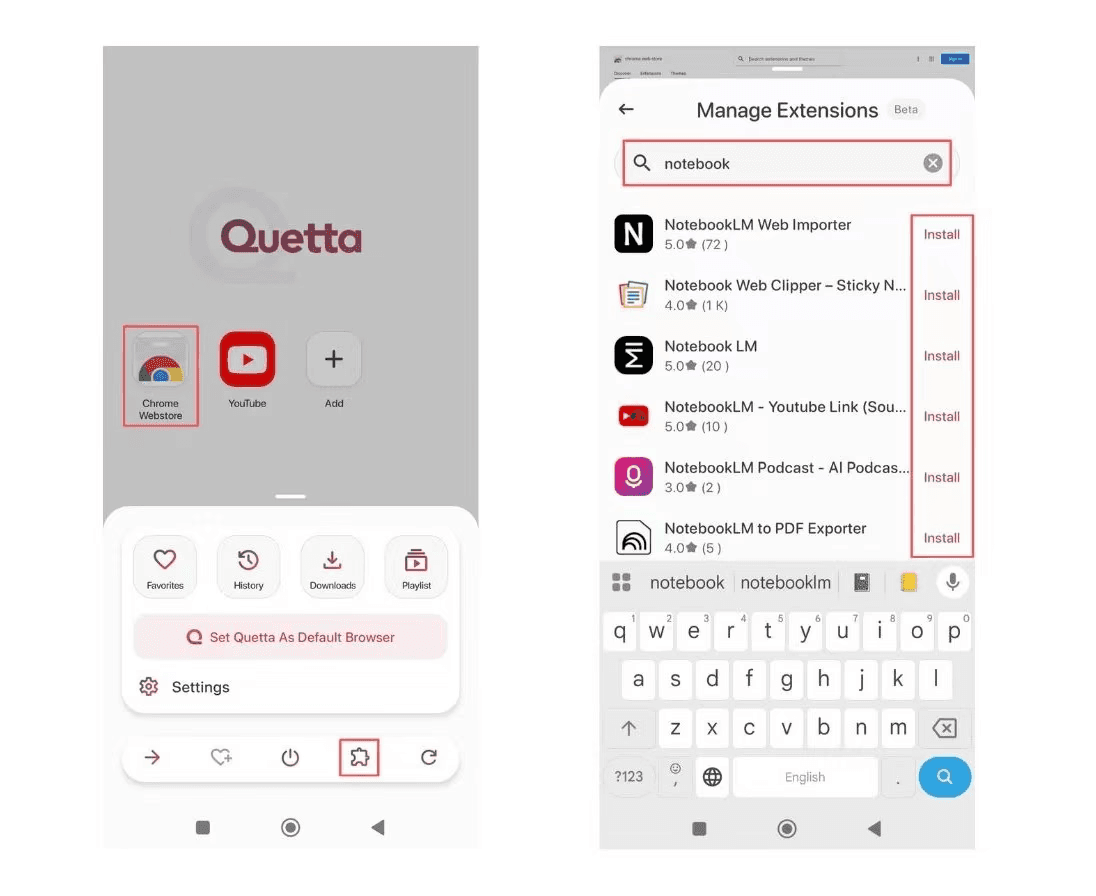
If you have not installed Quetta yet, you can download an Android browser with extension support before following the steps below. Quetta Browser provides access to Chrome Web Store extensions on Android. The exact labels may change slightly as the app is updated, but the workflow is:
Open Quetta Browser. If it is not installed, get Quetta Browser for Android from an official source.
Open the browser menu. Find the extension option or visit Quetta’s extension page for the current store route.
Open the Chrome Web Store. Search for the extension by its exact name.
Check the listing. Confirm the developer, official website, recent reviews, update date, and privacy information.
Choose Add to Chrome or the displayed install action. Quetta should show the access the extension requests.
Review permissions. Do not approve broad site or data access unless it is necessary for the extension’s stated function.
Confirm installation. Wait for the browser to report that the extension has been added.
Open the extension manager. Verify that the extension appears and is enabled.
Test its main action. Visit a relevant webpage and use the extension from the menu or extension list.
If the extension installs but fails during the final test, skip to What to Do When an Android Extension Does Not Work.
How to Install Edge Add-ons in Quetta Browser
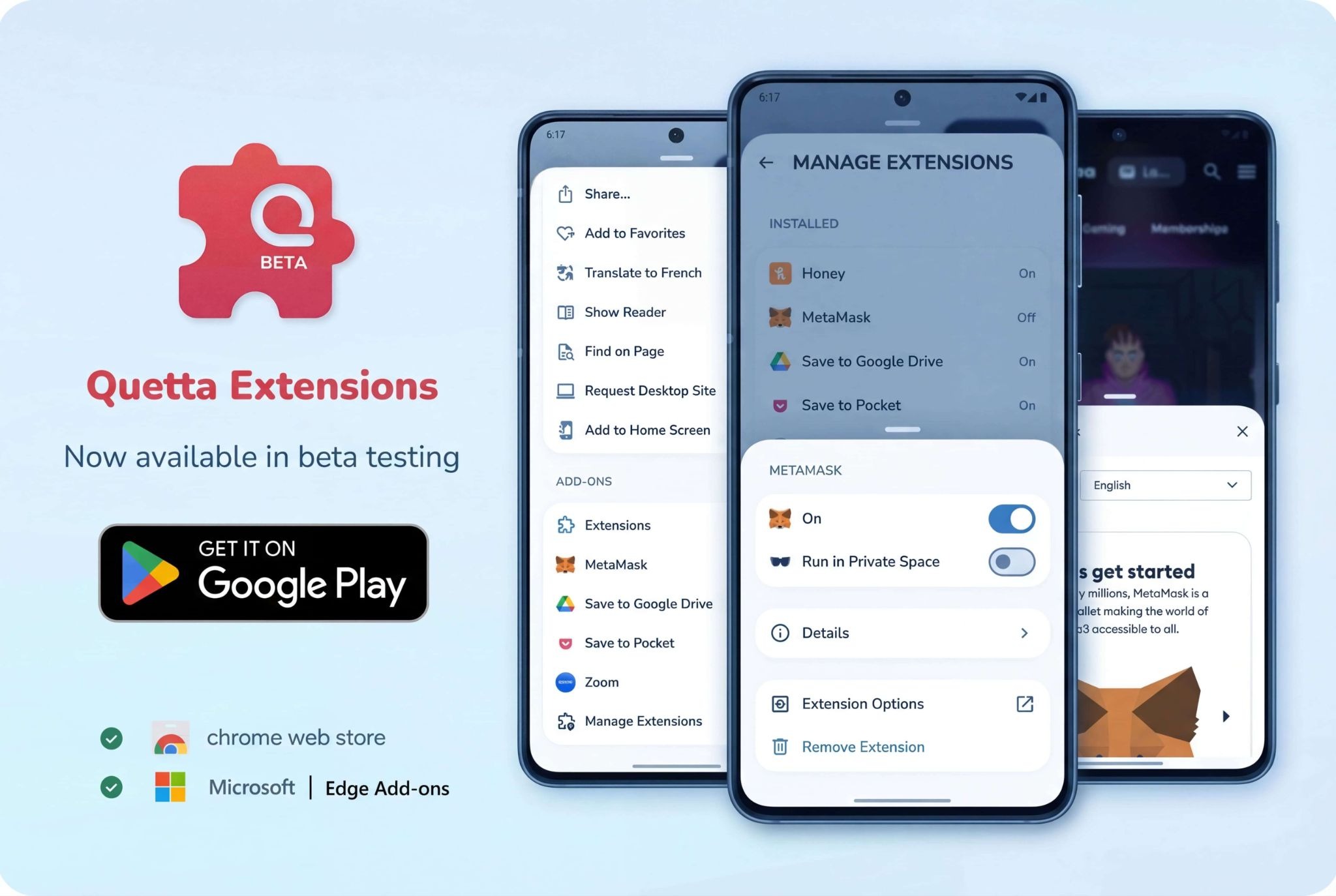
Quetta also supports access to Edge Add-ons, which can be useful when an extension is distributed through Microsoft’s add-on store.
Open Quetta Browser.
Open the extension area from the browser menu.
Choose the Edge Add-ons source, or open the supported Edge Add-ons store route.
Search for the required add-on.
Verify the publisher and requested permissions.
Tap the displayed install action and confirm.
Open the extension manager to make sure the add-on is enabled.
Test the main feature on a relevant website.
Chrome Web Store and Edge Add-ons versions of the same tool may not be identical. Use the publisher’s official listing and avoid installing two versions at once unless the developer specifically recommends it.
How to Install Extensions in Firefox for Android
Firefox for Android uses Mozilla Add-ons rather than the Chrome Web Store. Mozilla’s current official workflow is:
Open Firefox on your Android phone or tablet.
Tap the browser menu.
Tap Extensions or the current add-ons menu item.
Browse the available Android extensions or open an extension’s details.
Tap the + or install button.
Review the access the extension requests.
Tap Add to approve installation.
Choose whether to allow the extension in private browsing.
Tap OK and test the extension.
You can also browse Android-compatible extensions through Mozilla’s official add-on catalog. Firefox extensions and Chrome extensions use different stores, so look for an equivalent Firefox add-on if a Chrome Web Store product is unavailable.
How to Open and Use an Installed Extension
On a desktop, an extension usually appears beside the address bar. Android browsers have less toolbar space, so the control may be inside a menu.
Try this sequence:
Open a normal webpage where the extension should work.
Tap the browser menu.
Open Extensions, Add-ons, or Extension Manager.
Tap the installed extension.
Complete any sign-in or first-run setup.
Grant site-specific access only when required.
Run the extension’s main action and verify the result on the page.
Some extensions work automatically and have no action you need to tap. For example, a page filter may activate after the page reloads. Check the extension’s options page if its behavior is unclear.
How to Manage Extension Permissions on Android
Extension permissions determine which data and webpages an add-on can access. Review them during installation and again after an extension update or ownership change.
Common permissions include:
Read and change site data: needed by extensions that modify page content, but powerful because it can expose what appears on those sites.
Access browsing history: may be required for history managers or tab tools; unrelated extensions should not need it.
Manage downloads: relevant to download tools but unnecessary for most reading or appearance extensions.
Clipboard access: useful for copy-and-paste tools, but sensitive if requested without a clear reason.
Run in private browsing: generally disabled unless you explicitly enable it.
To review permissions, open the browser’s extension manager, select the extension, and look for Permissions, Site access, Details, or Settings. Choose the narrowest access that still lets the extension complete its job.
How to Enable or Disable an Extension
Disabling is useful when you want to troubleshoot or temporarily stop an extension without losing its settings.
Open the browser menu.
Open Extensions, Add-ons, or Extension Manager.
Select the installed extension.
Turn the Enabled switch off or choose Disable.
Reload the affected webpage.
To turn it back on, return to the same screen and enable it. If disabling the extension fixes a broken website, check its site-access settings before re-enabling it everywhere.
How to Remove a Browser Extension on Android
Remove extensions that you no longer use, do not recognize, or no longer trust.
Open the browser’s extension manager.
Select the extension you want to uninstall.
Tap Remove, Uninstall, or the trash icon.
Confirm the removal.
Close and reopen the affected webpage.
If the extension used an external account, review that account’s connected-app settings and revoke access if necessary.
Uninstalling an extension removes it from the browser, but it may not delete data already stored by the extension provider. Consult the provider’s privacy controls when the extension handled personal data.
How Browser Extensions Update on Android
Most extensions installed from an official store update automatically when the browser checks for compatible releases. Keep the browser itself updated so it can receive current extension and security support.
After a major extension update:
Review any new permissions
Confirm that the publisher has not changed unexpectedly
Test the main function again
Check recent reviews for widespread problems
Disable the extension if it suddenly affects performance or pages
Avoid downloading “update” packages from pop-ups or third-party sites. Legitimate store extensions should update through the supported browser and store workflow.
What to Do When an Android Extension Does Not Work
If an extension installs but does not open or work correctly, confirm that it is enabled, review its access to the affected website, reload the page, and test it without other extensions. Mobile compatibility can also vary when an extension relies on desktop-only interfaces or APIs.
For the complete browser-specific diagnostic sequence, follow how to fix an extension not working in Quetta on Android.
Android Extension Troubleshooting Table
Problem | Likely cause | What to try |
|---|---|---|
Extension installs but does nothing | Missing site permission or unsupported API | Grant access to one test site, reload, and test the primary action |
Extension popup is cut off | Desktop-sized interface | Rotate the phone, open its full settings page, or use a mobile alternative |
Extension icon is missing | Android browser hides toolbar actions | Open the browser menu or extension manager |
It works on one site but not another | Site restriction or unsupported page | Check site access and test a standard webpage |
It fails in private mode | Private access is disabled | Enable private-browsing access only if you trust the extension |
Browser becomes slow | Heavy script, conflict, or too many extensions | Disable extensions one at a time and keep only essential ones |
A website looks broken | Page modification conflict | Disable the extension for that site and reload |
Login does not persist | Cookie, storage, or background limitation | Allow required storage, reopen the browser, or use the service’s app |
Extension stops after an update | Permission or compatibility change | Review permissions, update the browser, reinstall, and check publisher notes |
Extension Safety Checklist
Before installing:
I am using the browser’s supported extension store
The publisher matches the official developer or company
The extension has a clear purpose and privacy policy
Recent reviews do not show suspicious behavior or a harmful ownership change
The requested permissions match the feature
The extension is maintained and has a credible update history
After installing:
I tested the extension on a non-sensitive webpage first
I restricted site access where possible
I know how to disable and remove it
The browser remains stable and responsive
I removed any duplicate extension that performs the same task
For ideas that have already been organized by use case, see these recommended extensions for Quetta Browser. Always recheck the current publisher and permissions before installing.
Frequently Asked Questions
Can I install Chrome extensions directly in Chrome on Android?
No. Chrome for Android does not run desktop Chrome extensions locally. The “Add to Desktop” option sends an extension to a compatible signed-in computer rather than installing it on the phone.
Which Android browser can install Chrome extensions?
Compatible Chromium-based Android browsers can provide Chrome Web Store access. Quetta Browser supports many Chrome extensions and Edge Add-ons. Individual extensions may still have mobile limitations.
Where do I find installed extensions on Android?
Open the browser menu and look for Extensions, Add-ons, or Extension Manager. Android browsers often place extension controls in a menu instead of beside the address bar.
Why did my extension install but not appear?
It may run automatically, be hidden inside the browser’s extension menu, or be disabled. Check the extension manager and test it on a normal webpage.
Can I use Android browser extensions in private mode?
Sometimes. Many browsers disable extension access in private browsing by default. Enable it only for extensions you trust, because private-mode access may expose page data to the add-on.
Do Android browser extensions update automatically?
Extensions installed from a supported store generally update through the browser’s extension system. Keep the browser updated and review any new permissions after major changes.
How many browser extensions should I install on Android?
Install only extensions you actively use. Each add-on can request data access, consume resources, or conflict with websites. A small set of trusted tools is easier to maintain and troubleshoot.
Is it safe to install an extension from an APK or unknown website?
It is safer to use the browser’s supported extension store. Unknown packages can bypass publisher verification, reviews, permission disclosures, and automatic security updates.
Start With One Essential Extension
The easiest way to build a reliable Android extension setup is to start small. Choose a compatible browser, install one trusted extension, review its permissions, and test its main feature on several websites. Add another extension only after the first one works reliably.
If you want Chrome Web Store or Edge Add-ons access, explore Quetta Browser for Android. If you are still deciding between browsers, use the Android browser extension comparison before installing.