How to Set Up a Browser for Freelance Work
Set up a browser for freelance work with account separation, secure logins, client bookmarks, permissions, extensions, downloads and a fallback plan.

Kayla
Quetta Networks


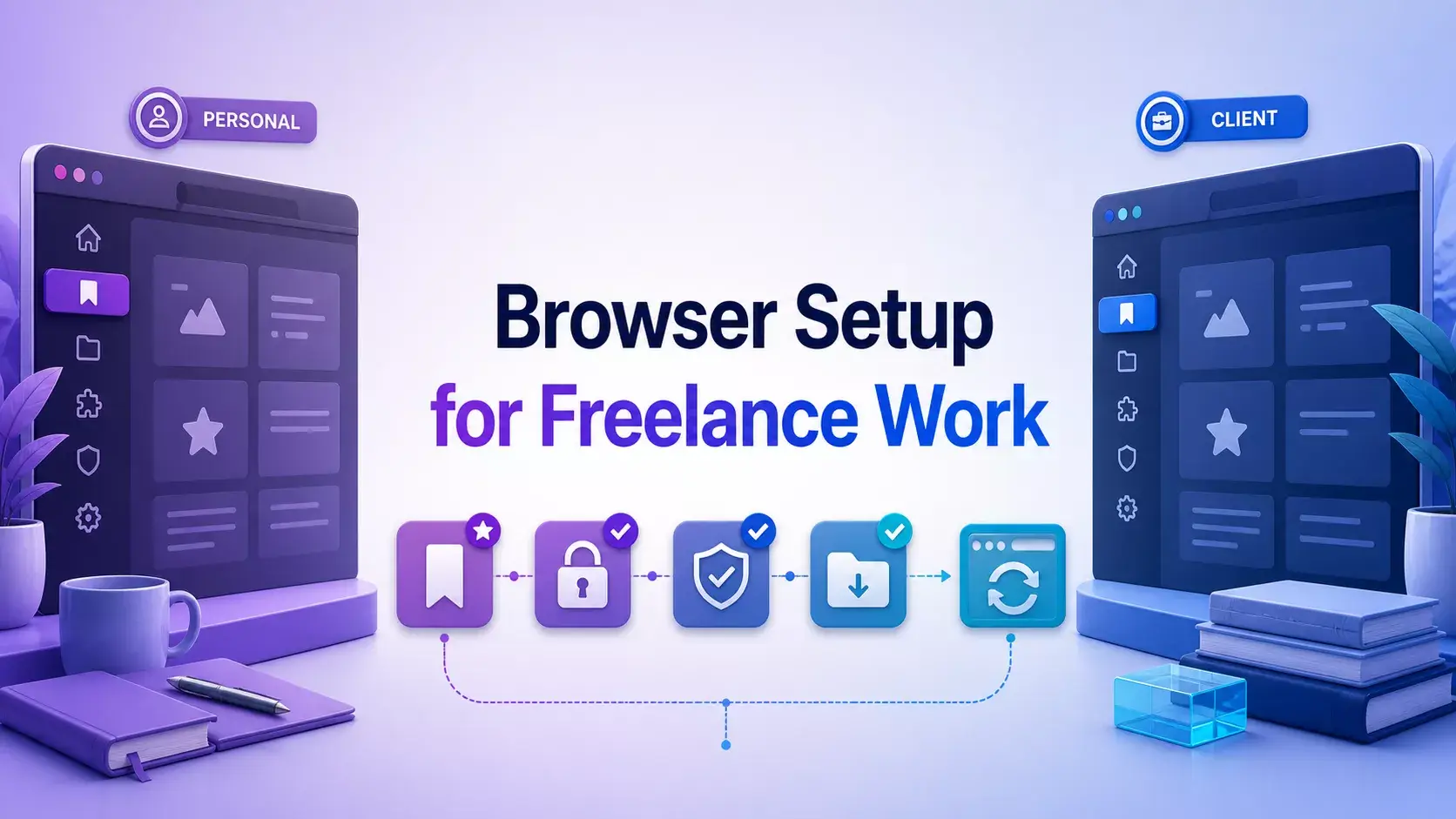
A reliable freelance browser setup separates personal and client sessions, secures account access, limits site and extension permissions, organizes repeat destinations, defines file-handling rules, and keeps a tested fallback browser. The goal is not maximum customization; it is fewer account mistakes and a repeatable path to paid work.
This guide assumes you have already selected a compatible browser. If not, compare browser options for freelancers first.
Step 1: List your income-critical browser tasks
Write down the browser actions that would stop you from delivering work if they failed:
Freelance-platform login and messaging
Client email and shared documents
Project management or ticketing
File upload and download
Video meetings
Website administration
Payment and invoicing
Mark which tasks require desktop, Android, a native app or a particular supported browser. This prevents you from building a beautiful setup around an incompatible tool.
Step 2: Separate personal and work activity
Use browser profiles when available, separate browser installations, or another clearly documented separation method. Choose one model:
One work profile
Best for freelancers with a small number of clients and centrally managed accounts.
One profile per sensitive client
Useful when clients provide separate managed identities or when accidental account crossover would be costly.
Primary browser plus isolated secondary browser
Useful on mobile devices where profile controls may be limited. Keep high-risk client work in the isolated browser and ordinary research elsewhere.
Name profiles neutrally if screenshots or screen sharing could expose client names.
Step 3: Secure account access
Use unique passwords through a reputable password manager and enable multi-factor authentication where available. Phishing-resistant MFA is stronger than codes that can be captured through social engineering; follow each client's required method.
Never store recovery codes in an unprotected browser note or screenshot folder. Record who owns each account and how access should be removed when a contract ends.
Step 4: Organize bookmarks around actions
Create a short work bookmark structure:
Work
├── Start Here
├── Communication
├── Projects
├── Files
├── Finance
└── Reference
Put only frequently used, verified destinations in `Start Here`. Bookmark the official login page for payment and client systems to reduce reliance on search ads or unexpected links.
Step 5: Configure site permissions
Review camera, microphone, notifications, location, pop-ups, downloads, and clipboard access. Apply this rule:
Deny by default when the function is not required; allow the narrowest permission that completes the task.
Video-meeting sites may need camera and microphone access. A project board rarely needs your location. Remove permissions from sites you no longer use.
Step 6: Install only essential extensions
Start with one extension per documented problem. Review the publisher and requested access, then restrict site access when possible. Google's Chrome guidance allows some extensions to be limited to activation on click or specific sites.
Use the freelancer extension guide to build a lean stack. For Android installation instructions, use the separate Android extension tutorial.
Step 7: Define download and upload rules
Choose a work download folder and establish a naming convention such as:
client-project-deliverable-v03-2026-08-25.pdf
Before uploading, confirm:
Correct client
Correct version
No hidden comments or metadata that should be removed
No unrelated files selected
Correct destination domain
Delete temporary client files according to the contract or retention policy, not merely when storage becomes full.
Step 8: Tune privacy controls without breaking work
Tracker, script, and cookie controls can reduce unwanted data collection, but aggressive settings may break legitimate authentication or embedded tools. Upwork, for example, documents that third-party cookies may be necessary for full functionality.
When a trusted work site breaks:
Confirm the domain.
Check the platform's current support documentation.
Create the narrowest site-specific exception.
Retest sign-in and the required action.
Remove the exception when it is no longer needed.
Do not globally disable protections to repair one site.
Step 9: Test the setup end to end
Use non-sensitive sample content to test:
Login and logout
Password-manager fill
Message composition
Document editing
Upload and download
Video-call permissions
Required extensions
Payment or invoice navigation without completing a transaction
Document failures and the fallback route.
Step 10: Keep a fallback browser
The fallback should be current, supported by your income-critical platforms and free of unnecessary extensions. Use it when an alternative browser encounters a compatibility issue, not as an excuse to postpone fixing an insecure or outdated setup.
Building an Android work setup? Quetta supports many Chrome and Edge extensions on Android and includes built-in ad-blocking and privacy controls. Review Quetta's current capabilities and test them against this checklist; use whichever browser completes the work reliably.
Weekly five-minute maintenance
Install browser and extension updates.
Close stale client sessions.
Remove completed-project tabs.
Check the download folder for files that should be moved or deleted.
Confirm the fallback browser opens income-critical sites.
Monthly security maintenance
Review installed extensions and their permissions.
Review site permissions.
Remove inactive client access.
Test account recovery and MFA ownership.
Check whether platform browser requirements changed.
Frequently asked questions
Should freelancers use one browser per client?
Not always. Separate profiles may be sufficient, but an isolated browser can be useful when a client has strict account, extension, or security requirements. Follow the client's policy.
Is Incognito mode enough to separate client accounts?
No. Incognito limits some local data retention after a session, but it is not a durable identity-management or security system. Use profiles, separate browsers or managed accounts where appropriate.
Should sync be enabled on a work browser?
Enable sync only when you understand which data is uploaded, which account owns it, and whether client policy permits it. Avoid syncing client passwords or history into an unmanaged personal account without authorization.
How often should extensions be reviewed?
Review them monthly and after unexpected permission changes. Remove tools you no longer use.
A good setup is boring and repeatable
Your browser should make the safe path the easy path: the correct account, the correct destination, and the minimum access needed. Apply the checklist to the browser you already use before switching. If you need Android extensions and adjustable privacy controls, evaluate Quetta as one option rather than assuming any browser is automatically the answer.