When Clearing Cache or DNS Will Not Fix a Website
If clearing cache or flushing DNS did not fix a website, use this decision tree to test the network, browser, extensions, account and server.

Kayla
Quetta Networks


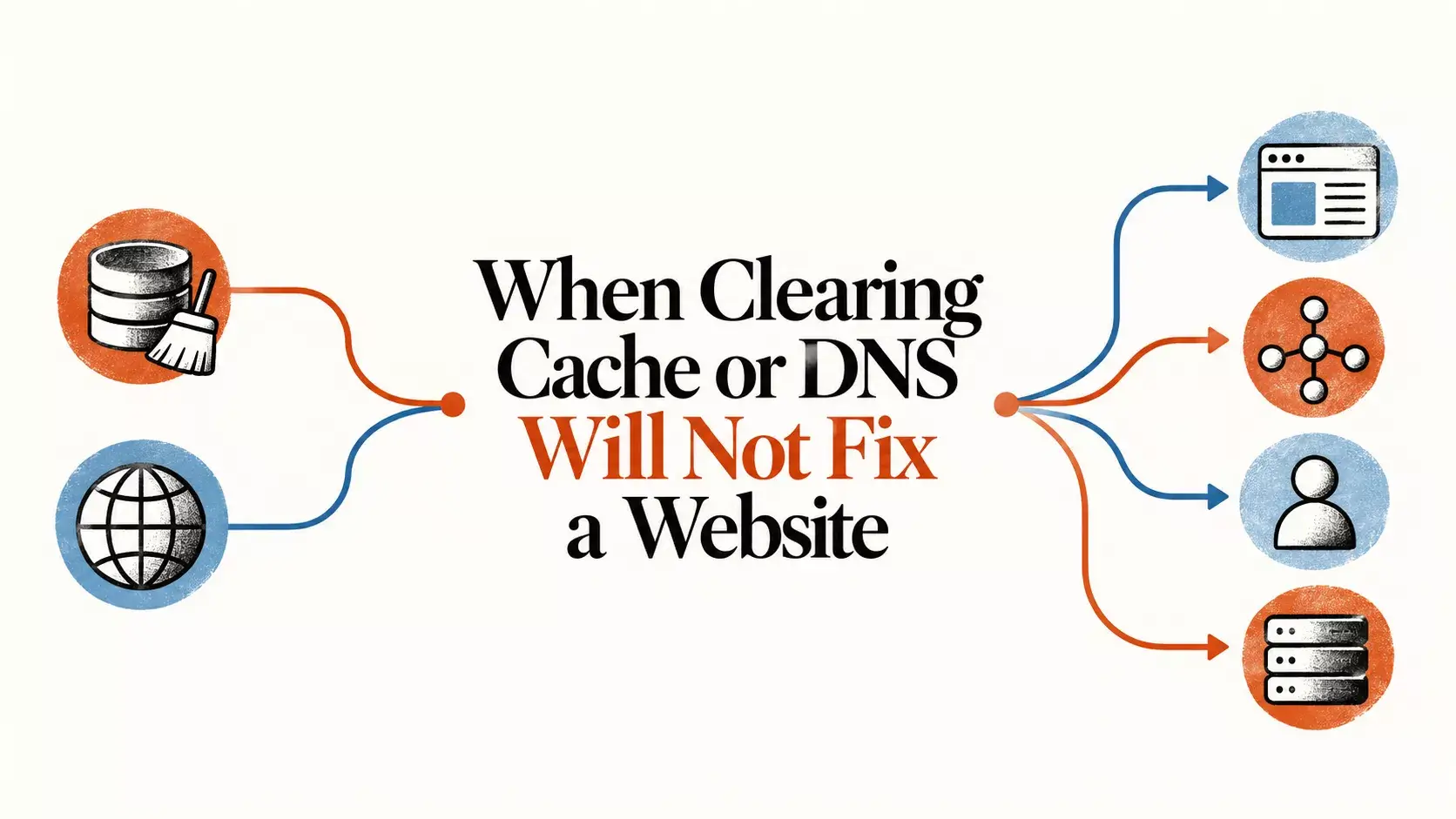
If clearing the cache or flushing DNS did not fix a website, stop repeating those steps. Compare another site, a private tab, a different browser, network, and device. Those tests reveal whether the problem belongs to the page resources, normal browser profile, connection, account, device, or website server.
Start with this decision table
What you observe | Likely area | Next test |
|---|---|---|
One site fails in every browser and network | Website/server or account | Check service status and sign-in state |
One site fails only in the normal tab | Cookies, extension, or profile setting | Test private mode and single-site data |
All sites fail on one network | Router, ISP, DNS, or firewall | Switch networks and restart the router if authorized |
All sites fail in one browser | Browser settings, extension, or update | Disable one add-on; update; compare browser |
Page loads but controls do not work | Script blocked, site permission, or compatibility | Review blockers, JavaScript and permissions |
Phone is slow outside the browser | Device/system issue | Use manufacturer or Android support |
Error mentions certificate or clock | TLS, date/time, or server certificate | Check automatic time; do not bypass warning |
1. Confirm whether the website is actually down
Open two unrelated trusted sites. Then try the affected site on another network or device. If it fails broadly, the site may have an outage, deployment error, overloaded server, or regional problem. Local cache and DNS actions cannot repair a remote service.
If the page contains account-specific information, do not paste its URL or credentials into an unknown “down checker.” Prefer the service’s official status page or support channel.
2. Test a private tab
Private browsing creates a cleaner session, although exact behavior varies by browser. If the site works privately, investigate normal-session cookies, site storage, extensions, and profile settings.
Clear data only for that website before clearing all browser data. Remember that removing cookies can sign you out and may remove preferences. If you need to revisit the basics, see what cached data and cookies actually store.
3. Compare another browser
Use the same device and network so that only the browser changes. If the second browser works, compare:
Extensions and content blockers.
JavaScript, cookie, and pop-up permissions.
Secure DNS settings.
Browser updates.
User-agent or feature compatibility.
VPN/proxy settings controlled by the browser.
Do not import every extension or setting before completing the test; that would recreate the same conditions.
4. Test the network layer
Switch briefly between Wi-Fi and mobile data. If the site works on one, investigate the failing connection’s router, resolver, VPN, firewall, or administrator policy. If you recently changed DNS or the domain recently moved, use how to flush DNS correctly.
On work, school, or managed networks, do not bypass security policy. Contact the administrator with the domain, error message, time, and tests performed.
5. Review extensions and content filtering
Ad blockers, privacy extensions, and script controls can block resources a page needs for login, payment, video, or navigation. Disable only one relevant tool for the affected site, reload once, and restore protection after the test.
If Quetta’s ad blocking affects a site, follow the Quetta-specific repair guide instead of turning off protection everywhere.
6. Check permissions and account state
A page can load while a feature fails because camera, microphone, location, notifications, pop-ups, third-party cookies, or downloads are blocked. Review the site’s permissions from the address-bar site-information panel.
Also check whether the session expired, the account is restricted, the region is unsupported, or multi-factor authentication is waiting elsewhere. These are not cache failures.
7. Treat security warnings as security warnings
Do not bypass a certificate, phishing, or malware warning just because clearing the cache did not remove it. Confirm the device’s automatic date and time, type the official domain yourself, and contact the website if its certificate is invalid. A browser warning may be the protection working as designed.
8. Check memory, storage, and updates
If tabs crash or many pages reload, close inactive tabs and background apps, check available storage, and install current browser and Android updates. Google’s Chrome Android loading-error guide recommends private-mode testing, browsing-data checks, malware checks, and freeing memory as separate stages—not one repeated cache fix.
For broad slowdown rather than one broken page, use why browsing feels slow on a phone.
Information to collect before contacting support
Exact URL and time of failure.
Visible error code or screenshot without private data.
Device model and operating system version.
Browser name and version.
Whether private mode worked.
Whether another browser, network, or device worked.
Recent extension, VPN, DNS, or security changes.
Whether the problem affects one account or every visitor.
This evidence is more useful than saying “I cleared everything and it is still broken.”
Use Quetta as a controlled comparison
Quetta can be the second browser in the comparison test. Keep the same device, network, and account; open the same URL without copying untrusted extensions. A difference helps isolate the browser layer, while the same failure points toward the network, account, or website.
If Quetta is mentioned, keep it as one optional controlled-comparison browser. Do not turn the conclusion into a download claim: Quetta cannot fix a server, DNS, account, or managed-network failure.
Frequently asked questions
Why does one website not load when every other site works?
The website may be down, block your account or region, require a permission, conflict with an extension, or have a server/DNS/certificate problem. Test another browser and network to narrow it down.
Why does a website work in private mode but not normally?
Normal-session cookies, storage, extensions, or profile settings are likely involved. Clear only that site’s data and test relevant extensions individually.
Should I reset the browser?
Use reset or reinstall only after targeted tests and after protecting bookmarks, passwords and other needed data. It is a broad action, not the first step.
Can an ad blocker break a website?
Yes. A rule can block a script or request used for legitimate page functions. Create a site-specific exception or adjust the responsible rule instead of disabling protection globally.
When should I stop troubleshooting locally?
Stop when the problem reproduces across browsers, devices and networks, or when it involves a certificate, account restriction or managed-network policy. Contact the website, administrator or ISP with the evidence collected.