How to Switch From Kiwi Browser Without Losing Your Setup
Use this practical checklist to move from Kiwi Browser. Audit your extensions, protect account data, test compatibility, and choose a maintained Android browser.

Kayla
Quetta Networks


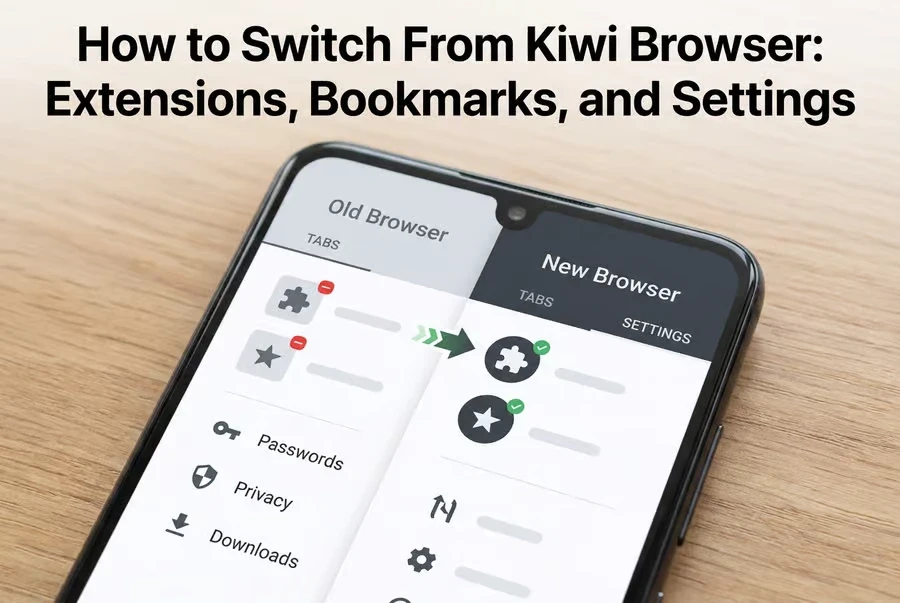
The safest way to switch from Kiwi Browser is to keep your current installation temporarily, record the extensions and data you rely on, and test them in a maintained Android browser before changing your default. Extension support alone is not enough. Compatibility, permissions, bookmarks, passwords, site logins, and mobile usability can all differ.
This guide gives you a practical Kiwi Browser migration process. It does not rank browsers or assume that one replacement fits everyone. Instead, it helps you protect your setup, test the features that matter, and move only when the new browser is ready for daily use.
Why Kiwi Users Should Plan the Move
Kiwi Browser earned a loyal following because it brought desktop-style extensions to Android. Its official GitHub repository now states that the project is archived and will no longer be maintained after January 2025. The developer also advises users to explore maintained browsers and warns against downloading Kiwi from unofficial sources.
A browser has access to sensitive parts of your digital life. It can hold active sessions, browsing history, extension permissions, bookmarks, downloads, and access to saved credentials. Moving without a plan can leave you locked out of an account, dependent on an incompatible extension, or tempted to install an untrusted APK.
Do not uninstall Kiwi immediately. First build a record of what you use, test a replacement in parallel, and verify that your important workflows still work.
If you have not chosen a browser yet, compare the best Kiwi Browser alternatives before starting the migration.
Step 1: Audit What You Actually Use in Kiwi
Before installing anything new, make a short inventory. Most people use fewer browser features than they think, but the few they do use may be essential.
Item | What to record | Why it matters |
|---|---|---|
Extensions | Name, store page, permissions, and purpose | An extension may install but still fail on a mobile screen |
Bookmarks | Important folders and individual links | Import and export support varies between browsers |
Passwords | Whether they are stored in a browser, account, or password manager | You need to know the source before moving credentials |
Open tabs | Pages you genuinely need to keep | Open sessions rarely transfer cleanly between mobile browsers |
Site logins | Critical accounts and recovery options | A new browser normally requires fresh sign-ins |
Downloads | Important local files and their storage location | A new browser may not inherit the old download history |
Settings | Search engine, privacy controls, site permissions, and ad blocking | New defaults may behave differently |
Record your essential extensions
Open Kiwi's extension manager and list every installed extension. For each one, write down:
Its exact name and official store URL.
What task does it perform?
Whether you use it every day, occasionally, or never.
Which permissions does it request?
Whether its settings contain information you need to recreate.
Do not assume that remembering the extension name is enough. Similar or counterfeit listings can appear in extension stores, so keeping the official URL helps you find the correct version later.
Save important tabs as bookmarks
Do not try to preserve every open tab. Save important pages into a temporary bookmark folder such asKiwi Migration, then remove pages you no longer need. This produces a clean list that is easier to verify after the move.
Find out where your passwords are stored
Determine whether your credentials are stored locally, synced through an account, or managed by a dedicated password manager. Do this before clearing data or removing the app.
Never move passwords through screenshots, plain-text notes, chat messages, or an unknown conversion tool. If an export is necessary, use only a trusted method supported by the relevant password service, protect the exported file, and delete it securely after a successful import.
Step 2: Decide Which Extensions You Still Need
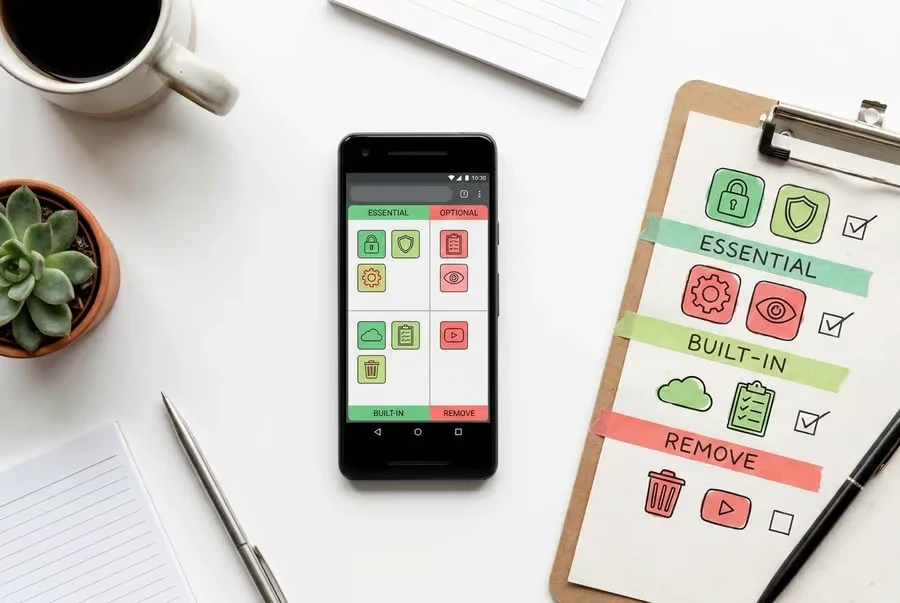
A migration is a useful chance to simplify your browser. Divide your extensions into four groups:
Must-have: The workflow does not function without it.
Useful but optional: It saves time but has an acceptable alternative.
Already built into the new browser: The browser provides the same function natively.
Remove: It is unused, abandoned, overly invasive, or no longer trustworthy.
For example, a browser with native ad blocking may reduce the need for a separate blocking extension. Built-in privacy controls or video tools can also replace individual add-ons. Fewer extensions generally mean fewer permissions, fewer compatibility checks, and fewer possible conflicts.
Quetta includes built-in ad blocking for users who prefer not to depend on a separate ad-blocking extension.
This is not a reason to remove every extension. Password managers, accessibility tools, productivity utilities, and specialized content controls may remain essential. The goal is to keep the smallest set that supports your real browsing habits.
Step 3: Test Extension Compatibility on Android
An extension being installable does not prove that it works properly on Android. Many browser extensions were designed for a mouse, keyboard shortcuts, large screens, desktop page layouts, or browser APIs that may behave differently on mobile.
Use this test for every must-have extension:
Install from a trusted source. Use the extension developer's official store listing or documentation.
Review permissions. Confirm that requested access is appropriate for the extension's purpose.
Open the interface. Check whether buttons, menus, and settings fit a touch screen.
Test the main task. Use the extension on two or three representative websites.
Restart the browser. Confirm that the extension remains installed and enabled.
Test alongside other extensions. Look for conflicts, unexpected page behavior, or noticeable slowdowns.
Check private-mode behavior separately. Do not assume an extension has access in private browsing.
For a broader explanation of why desktop add-ons behave differently on phones, check Android extension compatibility before rebuilding your setup.
If you want to evaluate Quetta specifically, review its Android browser extension support and then test the exact extensions your workflow requires.
A simple compatibility score
Score each must-have extension from zero to two in four areas:
Test | 0 points | 1 point | 2 points |
|---|---|---|---|
Installation | Cannot install | Installs with extra steps | Installs normally |
Core function | Does not work | Partly works | Works as expected |
Mobile interface | Unusable | Awkward but usable | Touch-friendly |
Stability | Frequent failures | Occasional problems | Stable in repeated tests |
An extension scoring seven or eight points is a strong migration candidate. A score of four to six needs a workaround or more testing. A score below four should not be treated as dependable for daily use.
This score is a practical decision aid, not a security certification. You must still review the extension's developer, permissions, update history, and privacy practices.
Step 4: Choose a Browser by Migration Fit
Do not choose a replacement solely because it appears in a list. Choose it according to the part of Kiwi you actually depend on.
Your Kiwi workflow | What a replacement must prove | What to test first |
|---|---|---|
Chrome-style extensions | Compatibility with your exact extensions | Installation, permissions, popup UI, and core behavior |
Privacy and ad blocking | Clear privacy controls and reliable built-in protection | Trackers, pop-ups, redirects, and site breakage |
Video-heavy browsing | Playback controls and supported download workflows | Real pages and supported media formats |
Password manager use | Reliable extension behavior and autofill | Sign-in, unlock, fill, and timeout behavior |
Simple browsing and sync | Familiar account, bookmark, and history workflows | Sign-in, sync, and cross-device recovery |
Quetta is one browser worth testing if your Kiwi setup depends on mobile extensions and you also want built-in ad blocking, privacy protection, and video tools. Test every must-have extension before switching fully because mobile extension behavior can vary.
Users with video-heavy workflows can also review Quetta's video tools for supported sites and formats before deciding whether those built-in capabilities replace part of their old setup.
Notice what this section does not do: it does not declare one browser the universal winner. Your migration succeeds only when the replacement passes your own extension, data, privacy, and usability requirements.
Step 5: Move Your Browser Data Carefully
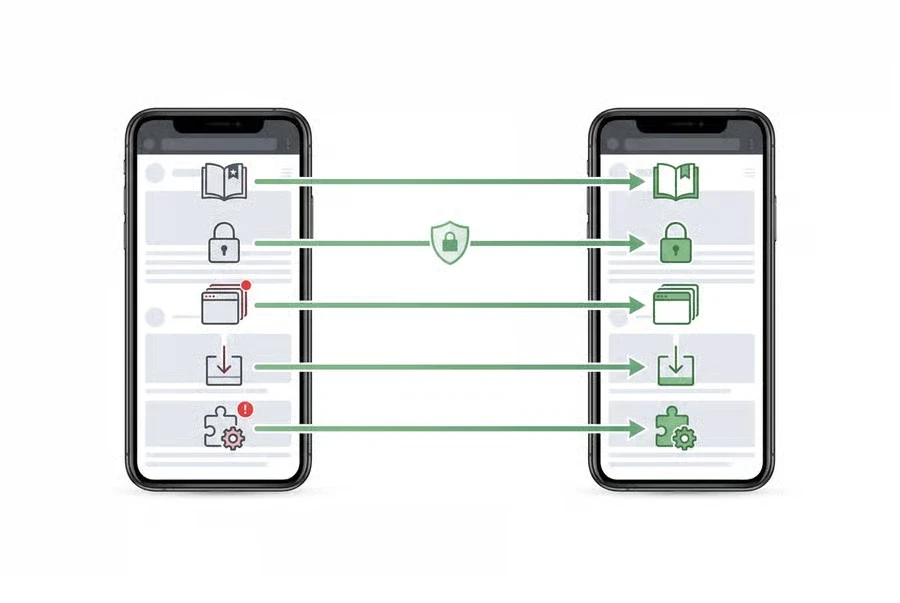
Browser data does not always transfer as one package. Treat bookmarks, passwords, tabs, downloads, and extension settings as separate items.
Bookmarks
Check whether Kiwi and the destination browser provide a supported bookmark export, import, or sync method. If a direct path is unavailable, save the most important pages manually or use a trusted cross-browser bookmark service that you have reviewed.
After importing, compare the number and structure of folders. Open a sample of links before deleting the original data.
Passwords
First, identify the system that currently stores your passwords. Follow that provider's official migration or sync instructions. Avoid moving credentials through an unofficial tool simply because it promises a one-click transfer.
After the move, test several low-risk accounts before relying on autofill for critical services. Confirm that recovery email addresses, authentication apps, and backup codes remain accessible.
Open tabs
Mobile browsers may not transfer active tab sessions cleanly. Bookmark essential tabs, send important pages to another trusted device, or add them to a temporary reading list. Treat the old tab session as temporary, not as a durable archive.
Downloads
Confirm that important downloads exist in device storage or a backup location. A new browser may see the files on the device while still lacking the original browser's download history or organization.
Extension settings
Expect to configure extensions again unless the extension itself provides a documented sync or export feature. Recheck site access and private-mode permissions instead of assuming the old settings carried over.
Step 6: Run a Seven-Day Parallel Test
Keep Kiwi and the candidate browser installed together for one week. Use the new browser for normal tasks while keeping the old setup available as a temporary reference.
Day 1: Installation and permissions
Install the browser from its official source. Review app permissions, privacy settings, default search options, and site controls. Do not set it as your default yet.
Day 2: Core extensions
Install only your must-have extensions. Test their main functions and record any failures. Avoid installing every optional extension until the basic setup is stable.
Day 3: Accounts and passwords
Sign in to a few representative services. Test your password manager or autofill workflow, sign-out behavior, and two-factor authentication.
Day 4: Privacy and ad blocking
Visit the kinds of pages you use regularly. Check pop-ups, redirects, cookie prompts, tracker controls, and whether important page functions break.
Day 5: Media and downloads
Test normal video playback, picture-in-picture, background behavior, and downloads from supported sources where you have permission to save the content. Confirm file names, storage location, playback, and offline access.
Day 6: Performance and stability
Pay attention to battery use, heat, memory pressure, crashes, page reloads, and slow extension interfaces. Test on both Wi-Fi and mobile data if that reflects your normal use.
Day 7: Final review
Review your notes. If the new browser passes the essential workflows, make it your default. Keep Kiwi only as a short-term fallback while you confirm that no important data or settings were missed.
You can test Quetta on Android as part of this parallel process without removing Kiwi first.
Kiwi Browser Migration Checklist
Use this list before uninstalling your old browser:
Record every must-have extension and its official source.
Save essential bookmarks and tabs.
Confirm where passwords and recovery information are stored.
Back up important downloads.
Install the replacement browser from an official source.
Review browser and extension permissions.
Test extension behavior, not just installation.
Verify sign-ins, autofill, and two-factor authentication.
Test privacy, ad blocking, media, and download workflows.
Run both browsers in parallel for seven days.
Set the new default only after essential workflows pass.
Remove sensitive data from Kiwi before uninstalling it.
When Should You Remove Kiwi Browser?
Remove Kiwi only after the new browser passes your essential tests, and you have confirmed that important data is accessible elsewhere.
Before uninstalling:
Sign out of sensitive accounts where appropriate.
Confirm that bookmarks and necessary files exist outside the old app.
Verify that your password workflow works independently.
Remove unnecessary extension access and sensitive browsing data.
Keep a record of any extension settings you may need later.
Do not install old or modified Kiwi packages from random APK sites to preserve the setup. The official Kiwi repository specifically warns users not to download the browser from other sources.
Frequently Asked Questions
Can I transfer Kiwi Browser extensions to another Android browser?
Usually, you should reinstall each extension from its official source rather than trying to copy the installed extension directly. The destination browser must support the extension's format and required APIs. You may also need to recreate settings unless the extension provides its own documented sync or export feature.
How do I move bookmarks from Kiwi Browser?
First, check for a supported export, import, or sync option in Kiwi and the destination browser. If a direct method is unavailable, save critical pages manually or use a trusted bookmark service. Verify imported folders and open several links before deleting the original bookmark data.
Will my Kiwi Browser passwords transfer automatically?
Do not assume so. Password transfer depends on where the credentials are stored and whether the destination supports the same account, password manager, or import format. Identify the current password provider first and follow its official instructions. Never move passwords through screenshots or untrusted conversion tools.
Can every Chrome extension work in another Android browser?
No. Installation and compatibility are different. An extension may depend on desktop APIs, keyboard shortcuts, a large pop-up window, or page behavior that does not translate well to Android. Test the extension's core function, permissions, interface, persistence, and stability before relying on it.
Should I uninstall Kiwi Browser immediately?
No. Keep it temporarily while you audit your setup and run the replacement browser in parallel. Uninstall Kiwi only after bookmarks, passwords, essential extensions, account access, and important files have been verified outside the old browser.
How long should I test a replacement browser?
Seven days is a practical minimum because it covers more than a single browsing session. During that week, test extensions, account access, privacy controls, media, downloads, performance, and both Wi-Fi and mobile-data use where relevant.
Final Takeaway
Switching from Kiwi Browser is not just an app replacement. It is a small migration of extensions, data, permissions, and habits.
Start by recording what matters, remove extensions you no longer need, test must-have tools on Android, and move each type of browser data carefully. A seven-day parallel test gives you time to find missing settings or compatibility problems before they interrupt daily use.
Once the new setup handles your essential tasks reliably, make it your default and retire Kiwi with confidence.