How to Protect Your Privacy on a Shared Android Phone
A practical checklist for Android guest users, screen pinning, notifications, accounts, browser sessions and device locks when sharing a phone.

Kayla
Quetta Networks


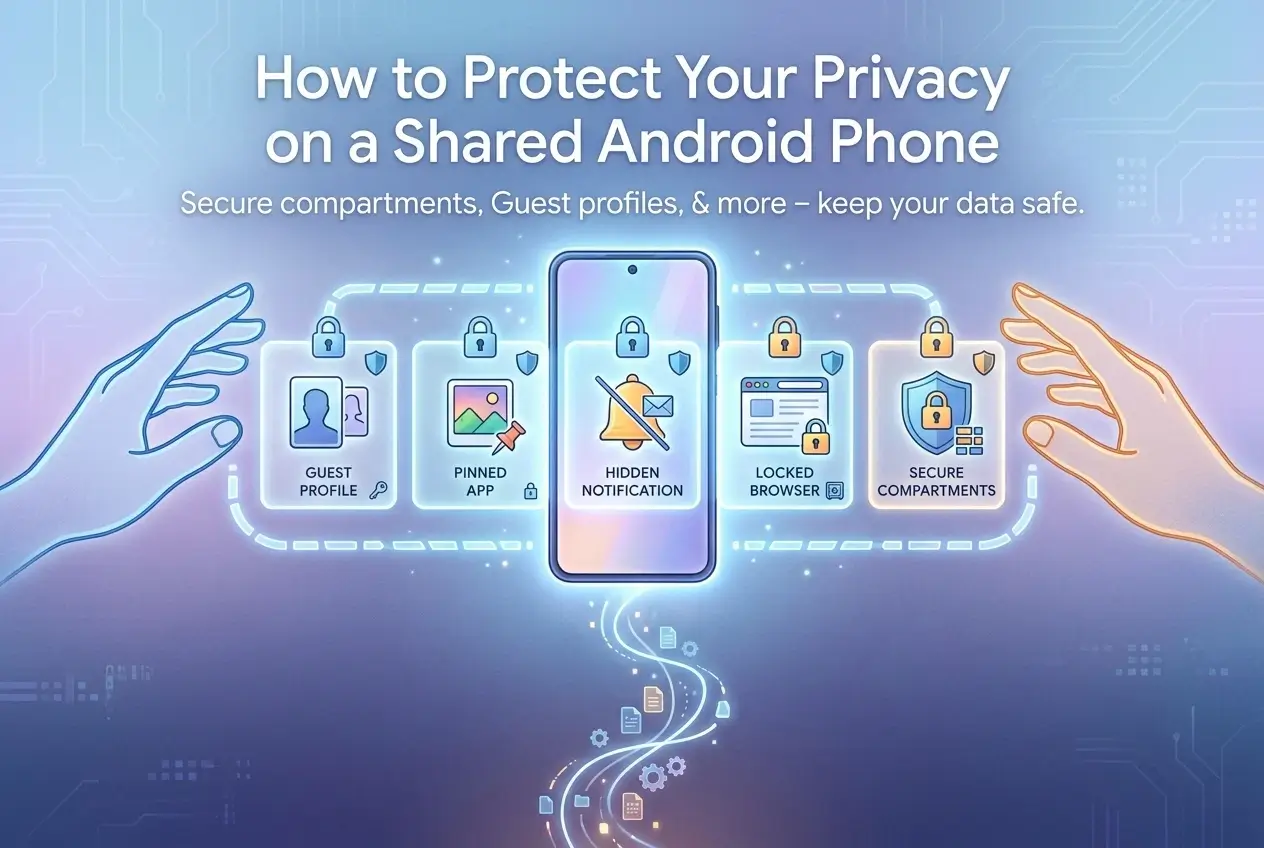
The safest way to share an Android phone is to give the other person a separate user or guest profile. For a brief handoff, use screen pinning, hide sensitive notifications, and keep account, password-manager, photo, and browser data behind authentication. Availability and menu names depend on the device manufacturer and Android version.
If your goal is specifically to protect data inside Quetta, see the separate guide to protect private browser data with Quetta Data Vault.
Choose protection based on how long you are sharing
Sharing situation | Best control | Why |
|---|---|---|
Someone needs one app for a minute | Screen pinning | Keeps the device on the selected app |
Someone needs the phone for a while | Guest or secondary user | Separates many apps, accounts and files |
A child uses it regularly | Supervised account/profile | Adds age-appropriate controls |
You are showing one webpage | Keep hold of the phone or pin the browser | Limits navigation into other apps |
Device is lost or stolen | Strong lock and theft protection | Sharing controls do not address loss |
1. Use a guest or separate user when available
A separate Android user has its own space for accounts, apps, and settings. Guest mode is useful for temporary access and can be reset after use. Some phone makers do not offer multiple users on every model.
Before handing over the phone, switch into the guest/secondary user and confirm that your photos, messages, and signed-in browser sessions are not available there. When the session ends, remove or reset the guest if the device offers that option.
2. Pin one app for a short handoff
Screen pinning can keep the phone on one app until your PIN, pattern, or password is entered. Enable the requirement to authenticate before unpinning. Then open the intended app, pin it, and verify that navigation out of it is blocked.
Pinning is a convenience boundary, not a replacement for a separate user. The pinned app may still reveal its own notifications, account data, recent searches, or file picker.
3. Hide sensitive notification content
Message previews, one-time codes, calendar titles and financial alerts can expose information even when the underlying app is locked. Configure lock-screen notifications to hide sensitive content, and inspect notifications already visible before sharing the device.
Do not rely on Do Not Disturb alone: it can silence an alert without necessarily removing existing content from view.
4. Protect accounts, passwords and payment access
Require authentication for password-manager access and autofill.
Turn on purchase authentication in app stores and payment apps.
Sign out of especially sensitive web accounts if the device must be shared for long.
Do not tell the borrower your main device PIN.
Review active account sessions after any unexpected access.
A private or incognito tab is not an access-control feature. It may reduce local history after the session closes, but it does not lock an already open tab or hide activity from websites, employers, schools or network operators.
5. Review photos, files and clipboard exposure
An app may have permission to show recent photos or documents through a picker. The clipboard may also contain a password, address or code copied earlier. Clear sensitive clipboard content, close recent documents and use a separate user when file separation matters.
Avoid installing a “vault” app from an unknown publisher. A privacy tool that receives broad file or accessibility permissions can create more risk than it removes.
6. Secure the device itself
Use a strong screen lock, keep Android and security updates current, and enable the device's loss/theft protections. Register only trusted biometrics. If another person knows the device credentials, internal app locks and separate credentials become more important.
For browsing-specific protection against trackers and fingerprinting, Quetta users can review Privacy Guard. That is a supplementary browser layer, not a substitute for Android user separation.
Before and after sharing: a two-minute checklist
Before
Choose guest mode, a secondary user or a pinned app.
Hide notification previews.
Close sensitive tabs, documents and recent apps.
Clear sensitive clipboard content.
Confirm authentication is required to exit the restricted space.
After
Exit and reset the guest session where appropriate.
Check recent apps and account security alerts.
Review unexpected downloads, permissions or new apps.
Change a credential if you have evidence it was exposed.
Frequently asked questions
Is guest mode available on every Android phone?
No. Support varies by manufacturer, model, and Android release. If it is unavailable, screen pinning can help for a brief task, but it provides less separation.
Is screen pinning enough for lending a phone overnight?
Usually not. A separate user or a different device is safer for extended access because pinning is designed around one app and may expose content inside that app.
Does private browsing hide my data from the person holding my phone?
Not while the private session is open. Private browsing is not a biometric or device lock. Close the session and use access controls.
Should I share my PIN with family members?
Avoid sharing the owner credential when a guest profile, separate user, or app-specific access can accomplish the task. Anyone who knows the device PIN may be able to change security settings.
Separate access instead of relying on trust alone
For long sessions, create a distinct user space. For a quick handoff, pin one app and require authentication to exit. Then control notifications, accounts, files and browser sessions as separate exposure points. This layered approach is safer than expecting one privacy mode to protect the entire phone.