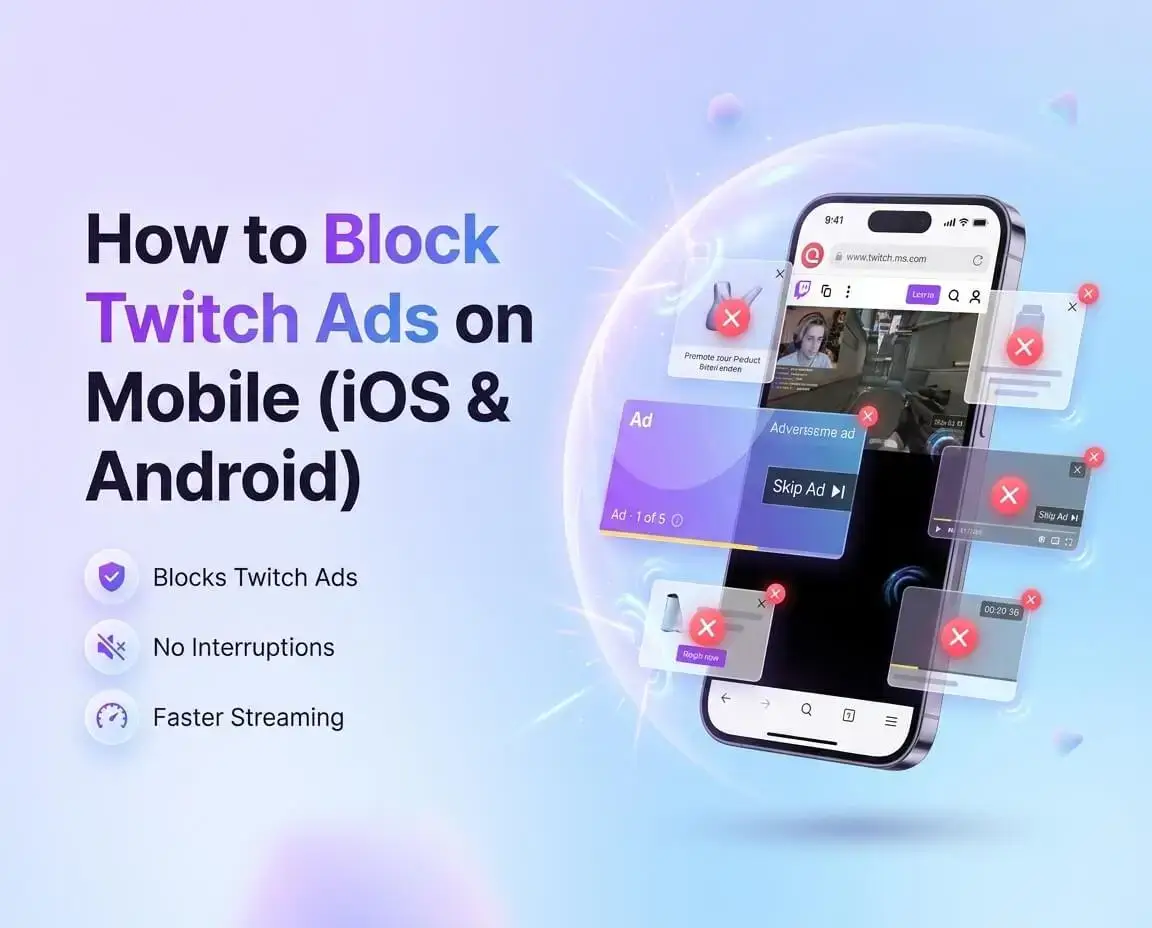
How to Block Twitch Ads on Mobile (iOS & Android)

Struggling with Twitch ads on your phone? Learn why standard adblock tools fail on mobile and how Quetta Browser's built-in ad blocker gives you an instant, zero-setup fix on iOS and Android.
Author avatar

Kayla

Quetta Networks

Logo of X / Twitter
Logo of Facebook
Email icon
Link icon
 Kiwi Browser Alternatives

Anybody who's ever tuned in via mobile and found themselves caught up in the middle of an exciting match, boss fight, or announcement, just to have it interrupted by an unskippable 30-second ad knows exactly how annoying Twitch mobile ads can be.

Those who have tried to solve the problem may even be aware of the fact that there is nothing you can do to stop the ads on mobile, not with regular adblock methods, extensions, settings, or anything else. It's difficult because Twitch ads on mobile devices were specifically designed that way.

However, this guide will show you how to bypass Twitch mobile ads. It will help you understand why Twitch ads can't be stopped easily, why regular methods fail, and why Quetta Browser with its ad blocker is the solution.

Why Twitch Mobile Ads Are So Hard to Block

Before diving headfirst into the ways of circumventing such an issue, let's first consider the reasons behind it. As it stands, Twitch does not utilize the classic web advertising format.

On the standard website, advertisements are delivered through a distinct network request, meaning that after the browser has requested the page from the server, it will make another request for an ad served by a third-party service. The best ad-blocker is then able to stop that request right away, and hence the advertisement does not load at all while the rest of the page operates fine.

As opposed to the traditional website, Twitch makes use of SSAI. This means that instead of sending a distinct request for an advertisement, Twitch incorporates the ad into the streaming media on its server prior to sending it to the viewer. By the time that data gets into one's smartphone, the ad has been incorporated with the stream itself.

This is why:

  • There is an ad on the Twitch app regardless of any changes in settings on your smartphone.

  • Adblocker services via DNS block third-party advertisers, but they are unable to do anything about the ad that is embedded right in the Twitch video feed.

  • A purple screen or muted sound occurs when there's an attempt from some software to stop the video feed partially.

  • All instructions about "how to block Twitch ads" for the PC are irrelevant to the situation on a mobile device.

In mobile devices, the task becomes even more difficult. There are many useful extensions for the desktop PC that can change the functioning of the browser and block ads in the video feed. However, there is no such possibility on either iOS or Android devices; an extension simply won't be able to integrate into your app.

Why Most Mobile Ad Blocking Methods Fall Short

Let's clarify misconceptions regarding the measures that the majority attempt to employ initially, failing to resolve the issue completely.

Twitch Official App: No Native Feature for Decreasing Ads

The official application for iOS and Android has no native means for decreasing ads on your Twitch feed besides paying for the Twitch Turbo service subscription and/or for individual streamers. The official app is the worst choice when it comes to watching ad-free Twitch content via your mobile device.

DNS Filtering: Great Approach Yet Limited

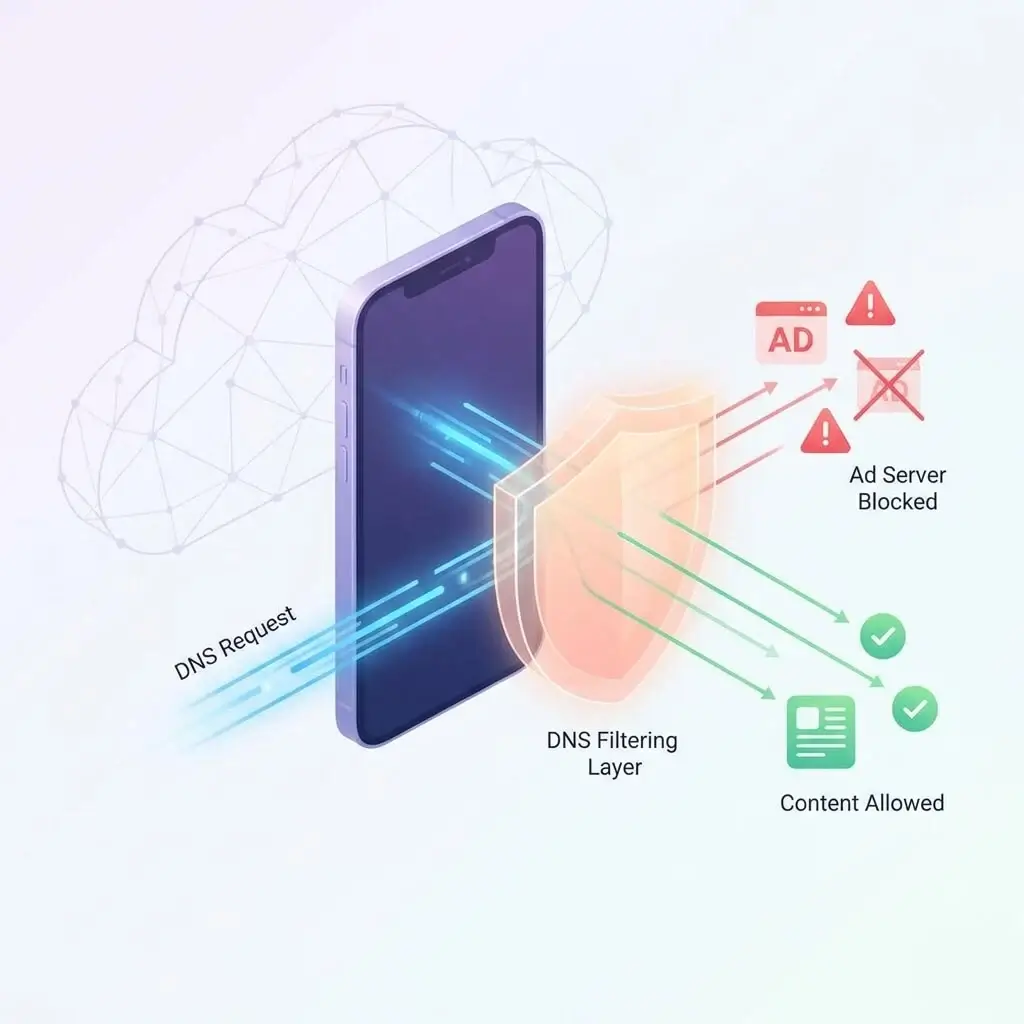
Adjusting a DNS to filter out ads from your mobile device using AdGuard DNS, NextDNS, and Pi-hole is a perfectly valid method of protection from advertisements that is based on the interception of the DNS query to an ad-serving domain before the connection.

How to do that on a mobile device:

  • For iOS: Go to Settings β†’ Wi-Fi β†’ select your network β†’ Configure DNS β†’ choose Manual β†’ add your DNS server

  • For Android: Go to Settings β†’ Network & Internet β†’ Private DNS β†’ Add hostname

Ad Block DNS on Mobile Devices:

  • Blocking third-party trackers and script-based advertisements

  • Reducing banners and display ads on websites

  • Functionality throughout all applications and browsers on the device

Shortcomings of Ad Block DNS for Twitch Streaming:

  • Fails to block advertisements embedded in the Twitch live video stream (SSAI)

  • In-stream mid-rolls may pass through the filters despite being an advertisement

  • Needs manual configuration, which most users struggle with

  • Settings reset on some devices when toggling from Wi-Fi to mobile data connections

Ad Block DNS is a good addition to mobile devices, yet it’s not sufficient in itself to stop advertisements on Twitch. 

VPNs with Advertisement Blocking Capability

There are some free-to-download apps that come equipped with an advertisement blocking component; some examples are Windscribe, ProtonVPN, and Mullvad. This method works by filtering your network activity via proxy servers that remove ad-serving domains from your connections.

The problems:

  • Most reliable services are subscription models ($5-$10 per month)

  • VPN processing will significantly decrease stream quality and increase buffering

  • Similar to DNS methods, it cannot filter out SSAI ads embedded within the stream

  • You are compounding your efforts for potentially inconsistent results

Third-Party Twitch Apps

Third-party applications like Twire (Android) are available as alternatives to the Twitch client, without advertisements. In the past, such software used to work reliably but was continuously broken by Twitch to make sure third-party clients couldn't function properly on their platform anymore.

The Actual Solution: Ad Blocking Functionality Built Into Quetta Browser

Here’s the key revelation: you do not need the Twitch app.

The complete Twitch website, twitch.tv, is compatible with a mobile browser. It allows you to view live videos, browse categories, follow channels, and engage in chat conversations. And, if you launch the Twitch website in a browser with an integrated ad-blocking engine, it filters all ads directly from the browser layer without involving any application or DNS settings.

That is precisely what Quetta Browser offers.

Quetta Browser is a mobile browser available on iOS and Android with a native ad blocking system that demands absolutely no setup whatsoever. You simply download the browser, navigate to Twitch, and you won’t see any ads.

Why Quetta Browser Works Where Other Methods Don't

The fundamental distinction lies in the location of the action itself. The Quetta Browser Ad Blocker acts directly within the browser itself, at the request level, just as desktop applications such as uBlock Origin operate. Because the browser determines its own processes, it has the power to recognize and filter out ad-serving requests before they even come into play, including a variety of pre-roll types utilized by Twitch on mobile.

This is in stark contrast to:

  • DNS block technology, which works exclusively at the domain name level and cannot see past the stream.

  • VPNs with ad-blocking capabilities, which also act at the network level.

  • The Twitch application, which circumvents any form of browser-based filtering technology.

By watching Twitch using the Quetta Browser, rather than the application itself, you place yourself into an environment in which ad-blocking technology can function properly.

How to Configure Quetta Browser for Streaming from Twitch Ad Free

All of the steps can be done in less than two minutes:

Step 1: Install Quetta Browser

  • iOS: Find "Quetta Browser" in the App Store, or use the direct link to App Store

  • Android: Look for "Quetta Browser" in Google Play, or use the direct link to Play Store

Step 2: Access Twitch Website via Quetta Browser

  • Launch Quetta Browser

  • Enter twitch.tv into the URL bar and open it up

  • The website will open up just as usual

Step 3: Sign in to Your Twitch Account

  • Tap on the profile icon and enter your Twitch login information

  • You can access all of your followed channels and subscription history

Step 4: Start Streaming

  • Choose any stream you'd like and begin streaming

  • Ad-blocking function of Quetta Browser will automatically take care of filtering ads out

No need to set anything up

Combining Quetta Browser with DNS Ad Blocking for Maximum Coverage

For maximum mobile adblocking protection, using Quetta Browser's integrated adblock alongside ad-blocking DNS creates two separate levels of filters:

  1. DNS level filter: Filters out ad-serving domains even before the connection occurs, deals with trackers, analytics scripts, and display ad networks

  2. Browser-level filter: Filters out any ad request within the browser request itself, which includes pre-roll video ads on Twitch

Combining both filters gives much wider coverage compared to either filter used separately.

Recommended DNS servers to use with Quetta Browser:

  • Adguard DNS: Recommended for ease of use. Requires no account whatsoever. Simply use 94.140.14.14 (main server) and 94.140.15.15 (backup server) on your device's Wi-Fi settings.

  • NextDNS: Recommended for customization. Offers unlimited free queries per month for up to 300,000 queries. Includes customizable logging features and blocklist creation. Sign up at NextDNS.IO

Changing your phone's DNS servers only takes 90 seconds and applies privacy and adblocking to all apps, not just your browser.

Comparison: Mobile Twitch Ad Blocking Methods

Method

Blocks Twitch Pre-rolls

Blocks Mid-rolls

Setup Required

Cost

Twitch App (default)

❌ No

❌ No

None

Free

Ad blocking DNS only

⚠️ Partial

❌ No

Moderate

Free

VPN with adblock

⚠️ Partial

❌ No

Moderate

Paid

Third-party Twitch app

⚠️ Unreliable

⚠️ Unreliable

Easy

Free

Quetta Browser

βœ… Yes

βœ… Most

None

Free

Twitch Turbo

βœ… Yes

βœ… Yes

Easy

$8.99/month

It is evident that when you need a hassle-free solution to ad blocking on mobile Twitch, nothing beats Quetta Browser.

Which is the best free ad-blocking tool for Twitch mobile?

The answer is Quetta Browser, which requires zero configuration to offer hassle-free ad-blocking on both Android and iOS devices. For optimal results, use an ad-blocking DNS service such as AdGuard DNS together with Quetta Browser.

Conclusion

Twitch mobile advertising content is purposely designed to circumvent ad-blocking applications. Ad-blocking DNS cannot work against server-side injection. There is nothing you can do about it inside Twitch application itself. Using a third-party app, such as a VPN, only adds to your cost and inconvenience without fully addressing the issue.

Quetta Browser does not let any of this affect you. By making use of its browser-based interface along with a built-in ad-blocking feature, you completely bypass all issues surrounding Twitch ads.

Get in on GooglePlayDownload on the AppStore

Frequently Asked Questions

Is there any way to block Twitch ads on iPhone without a VPN?

Yes. Utilizing Quetta Browser on iOS provides a native adblock feature without the need for a VPN or DNS configuration. All that needs to be done is installing the browser, going to twitch.tv, and logging in.

Will DNS ad blocking work for the Twitch app?

Yes and no. While the DNS for blocking ads approach will successfully block third-party tracking domains as well as some display ads, it will not be able to stop server-side ads that Twitch itself injects into the video feed. For mobile Twitch ads to function, a browser with an integrated adblocker is necessary.

Can you watch Twitch through the mobile browser instead of the app?

Yes. Watching streams in the Quetta Browser works just as well as doing it in the Twitch application. However, the latter will still send you push notifications from the application, which is why using both together might be beneficial for those who rely on notifications.

Would the Quetta Browser's ad-block continue functioning even if Twitch updated?

The ad-blocking functionality of Quetta Browser is updated on a regular basis, just like any other adblocker program would be updated. However, unlike any other mobile ad-blocks that depend entirely on DNS for blocking, Quetta uses browser-level techniques for ad-blocking, which are much more stable.