Why Twitch Ad Blockers Fail and What the Symptoms Mean
Learn why Twitch ad blockers fail, how server-side ad insertion affects live streams, and what purple screens, black screens, and quality drops may indicate.

Kayla
Quetta Networks


Twitch ad blockers often fail because live-stream advertising can be delivered differently from ordinary banner or page ads. Ads may be integrated into the stream workflow, while Twitch, browsers, extensions, and filter rules continue to change. As a result, blockers may miss ads, interrupt playback, reduce stream quality, or produce purple and black screens.
This article explains those mechanisms and symptoms. If you need a step-by-step repair sequence, use the Twitch ad blocker troubleshooting checklist.
Why Twitch Is Harder to Block Than Ordinary Web Ads
Many web ad blockers work by stopping requests to known advertising domains or hiding ad elements after a page loads. Live-stream advertising is more difficult because the ad and the requested video may be delivered through closely connected playback systems. Blocking one part of that process can therefore affect the stream itself instead of removing only a separate ad element.
Twitch can also change its player, manifests, delivery paths, and responses to blocking over time. A filter or script that worked previously may become ineffective or interfere with playback after one of those changes.
What Is Server-Side Ad Insertion on Twitch?
Server-side ad insertion, commonly shortened to SSAI, is a method of incorporating advertising into a streaming workflow before or as the stream is delivered to the viewer. Unlike a separate banner request, a stream-integrated ad may be harder for a traditional blocker to identify and remove without also affecting playback.
SSAI does not mean that every Twitch ad, stream, region, or device behaves identically. The exact result can depend on the player, browser, account, location, stream, blocker, and current filter rules.
Five Reasons a Twitch Ad Blocker May Fail
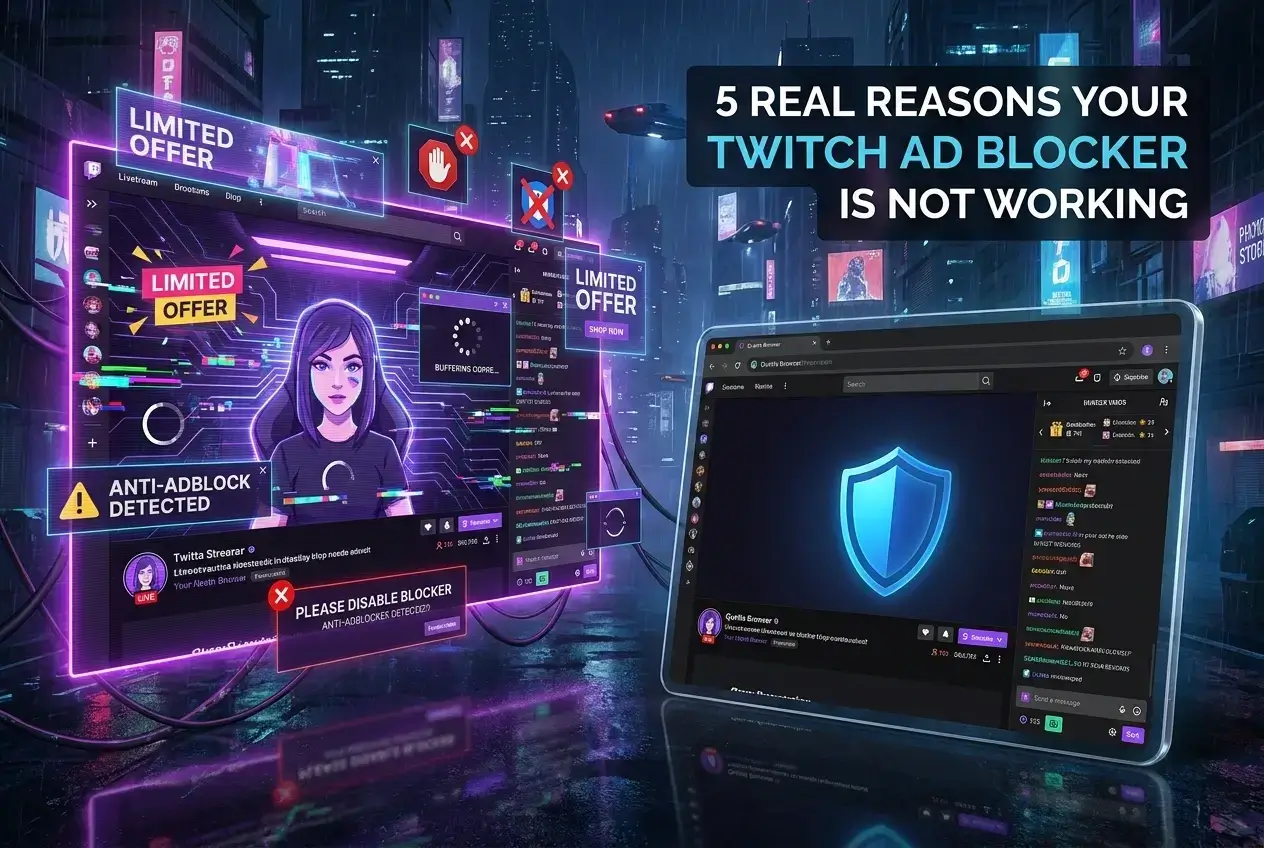
1. The Ad Is Connected to the Live-Stream Delivery
Traditional blockers are most effective when advertising is loaded as a separate request that can be identified and stopped. When the ad is connected to the same playback workflow as the live content, blocking rules may struggle to distinguish the ad from the stream or may interrupt both.
This is why a blocker can work well on ordinary websites yet behave inconsistently on Twitch.
2. Twitch Changes Its Player and Delivery Behavior
Twitch can update its player, stream manifests, request patterns, and ad delivery. Extensions and community filter lists may need time to adapt. A workaround described in an older forum post may therefore be outdated even when the extension itself is still maintained.
Avoid presenting any Twitch workaround as permanent.
3. Filter Rules Become Outdated
Some extensions depend on filter lists maintained by their developers or communities. When Twitch changes a request or playback pattern, existing rules may stop matching or may interfere with the wrong part of the stream.
Updating filters can help in some cases, but it does not guarantee that every stream, browser, or ad format will be handled consistently.
4. The Browser or Blocking Method Has Technical Limits
Extensions, built-in browser blocking, DNS filtering, VPN filtering, and userscripts operate at different layers. Each method can see and control different parts of the browsing or playback process. A tool designed mainly for page banners may not behave the same way on a live video stream.
Browser extension APIs and available features can also vary between browsers and versions.
5. Blocking Can Interfere With the Twitch Player
If a blocker changes or prevents a request that the player expects, Twitch may show a warning, loading state, purple screen, black screen, quality change, or playback failure. These symptoms do not prove that the blocker successfully removed an ad; they may simply show that part of the playback workflow was interrupted.
What Common Twitch Ad-Blocker Symptoms May Mean
Purple Screen
A purple screen can appear when Twitch detects interrupted ad playback, displays an ad-blocking notice, or cannot continue the expected stream transition. The exact trigger may vary, so the screen should be treated as a symptom rather than proof of one specific cause.
Black Screen or Endless Loading
A black screen or loading loop may indicate that the player did not receive a required stream response, manifest, segment, or script. Conflicting blockers and custom scripts can make this more likely.
Ads Play Normally
If ads play without any visible interruption, the blocker may be disabled, allowlisted, outdated, or unable to affect the current delivery method. It may also be working on page ads while having little effect on stream-integrated advertising.
Stream Quality Drops
A sudden quality reduction can occur when a blocking method changes the stream or falls back to an alternative playback path. Network conditions can produce the same symptom, so compare playback with and without the blocking layer before drawing a conclusion.
The Blocker Works on Other Websites but Not Twitch
This is possible because ordinary page advertising and live-stream advertising do not always use the same delivery model. Success on banners, pop-ups, or tracking requests does not guarantee identical behavior on a Twitch stream.
What to Do After Identifying the Symptom
Start with the lowest-risk checks: confirm that the blocker is enabled, update the browser and extension, refresh supported filter lists, remove overlapping tools, clear Twitch site data, and test another stream. Make one change at a time so you can identify the cause.
For the complete process, follow the Twitch ad blocker troubleshooting checklist. If the current setup remains unreliable, compare Twitch ad-blocking options and their limitations.
Frequently Asked Questions
What is SSAI on Twitch?
SSAI means server-side ad insertion. It describes advertising incorporated into a streaming workflow before or as the stream reaches the viewer. This can make an ad harder to separate from the requested live content than an ordinary banner or third-party page request.
Why does my ad blocker work everywhere except Twitch?
Many blockers are highly effective against separate ad requests, banners, trackers, and pop-ups. Twitch is a live-streaming platform, so its player and advertising workflow may not behave like a normal webpage. A blocker can therefore work elsewhere while remaining inconsistent on Twitch.
Why does Twitch show a purple screen when I use an ad blocker?
A purple screen may indicate that Twitch detected interrupted ad playback, displayed a blocking notice, or could not complete the expected stream transition. It does not necessarily mean that the ad was removed successfully.
Why do I get a black screen or endless loading on Twitch?
The player may be missing a stream response or script it expected. Conflicting extensions, outdated filters, custom scripts, and ordinary playback or network problems can all produce similar symptoms.
Can outdated filters cause Twitch ads to return?
Yes. Outdated rules may no longer match current requests or playback behavior. Updating filters can help, but results may still vary by browser, stream, region, and Twitch changes.
Does a quality drop mean the blocker is working?
Not necessarily. A quality change can result from an alternate playback path, stream interference, or normal network adaptation. Compare playback conditions before attributing the change to the blocker.


Conclusion
Twitch ad blockers can fail because live-stream advertising, player behavior, browser limitations, filter rules, and frequently changing delivery methods interact. The same underlying conflict may appear as normal ads, a purple screen, a black screen, endless loading, or reduced stream quality.
No approach should be described as permanently reliable across every stream, region, browser, and version. Identify the symptom first, then use a controlled troubleshooting process before adding more tools or changing browsers.