10 Best Microsoft Edge Extensions in 2026
Discover 10 of the best Microsoft Edge extensions for passwords, writing, privacy, productivity, PDFs, shopping, AI and Web3 in 2026.

Kayla
Quetta Networks


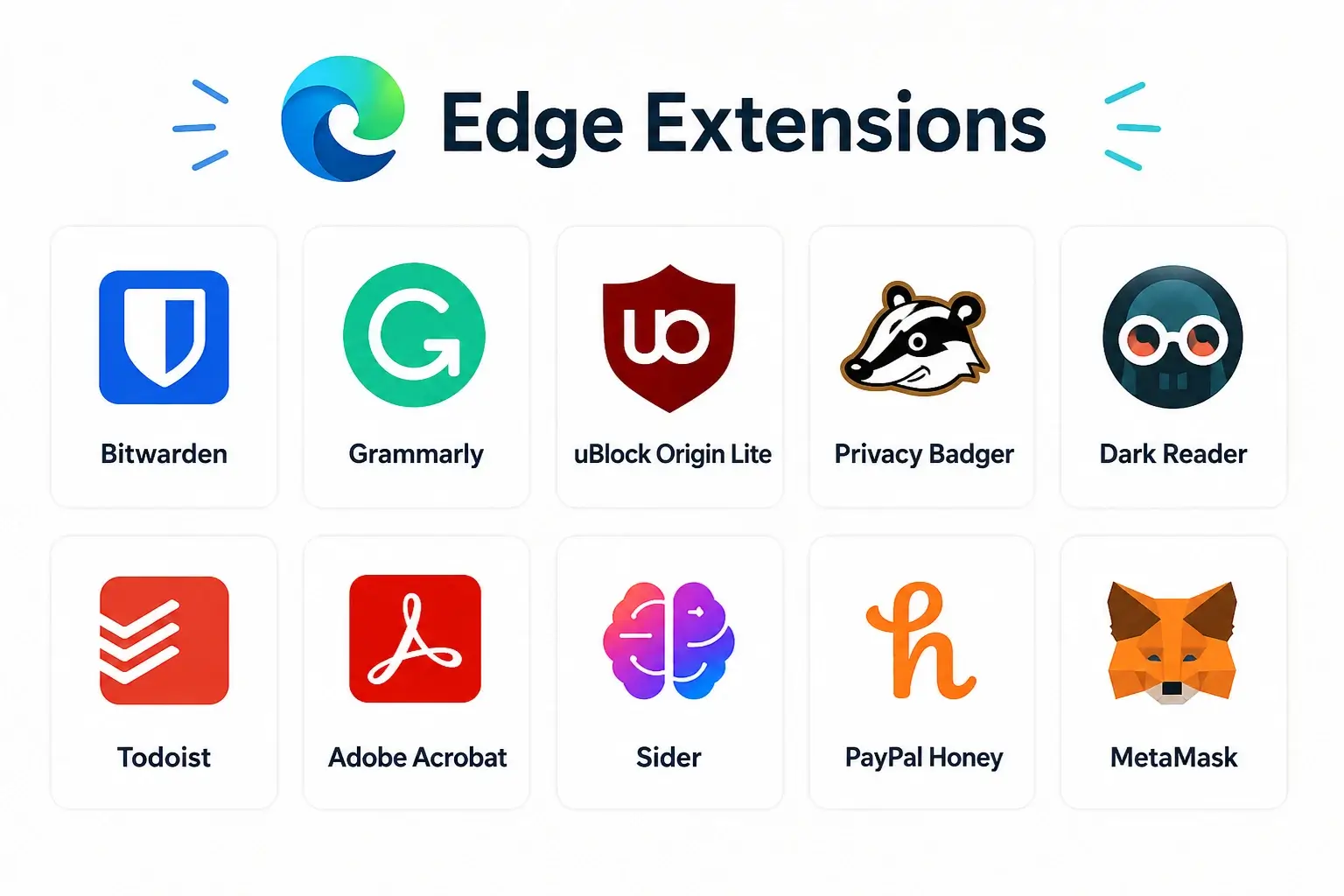
The best Microsoft Edge extensions in 2026 are the ones that solve a specific problem without asking for more access than they need. Our top picks include Bitwarden for passwords, Grammarly for writing, uBlock Origin Lite for content blocking, Todoist for task capture, Adobe Acrobat for PDFs, and several specialized tools for privacy, AI, shopping, and Web3.
You do not need to install all ten. Every extension adds code, permissions, and another developer relationship to your browser. Start with one or two tools that match your workflow, review the permissions carefully, and remove anything you stop using.
Quick answer: For most Edge users, Bitwarden, Grammarly, Dark Reader, Todoist, and Adobe Acrobat cover the broadest everyday needs. uBlock Origin Lite and Privacy Badger are more specialized privacy choices. Sider, PayPal Honey, and MetaMask should be installed only when their specific benefits justify their broader access or data requirements.
The best Microsoft Edge extensions at a glance
Extension | Best for | Why it made the list | Main consideration |
|---|---|---|---|
Passwords and passkeys | Generates, stores, and autofills credentials across devices | Your vault contains highly sensitive information; protect it with a strong master password and MFA | |
Writing assistance | Checks grammar, clarity, and tone in supported text fields | It processes text to provide suggestions; avoid using it in fields containing confidential information | |
Declarative content blocking | Uses Manifest V3 rulesets to block selected ads and trackers | Blocking can occasionally break site functions; allow trusted sites when necessary | |
Tracker protection | Blocks or limits hidden third-party tracking behavior | It can overlap with Edge tracking prevention or another content blocker | |
Dark mode | Creates adjustable dark themes for websites | Page restyling can cause visual issues on some websites | |
Task capture | Saves pages or selected text as actionable tasks | Requires a Todoist account and collects data needed for syncing | |
Working with PDFs | Adds PDF commenting, form, signing, conversion, and organization tools | Some advanced tools require sign-in, a trial, or a paid Acrobat plan | |
Multi-model AI assistance | Places AI reading, writing, summarizing, and comparison tools in the Edge sidebar | Can process website content and account data; do not send confidential material without reviewing its policies | |
Coupons and price tracking | Tests coupon codes and tracks prices on supported shopping sites | Its Edge listing discloses access to shopping-related personal, browsing, activity, and website data | |
Web3 and dapps | Connects Edge to supported decentralized applications and manages wallet activity | A browser wallet is a high-risk target; verify every signature and never reveal a recovery phrase |
Review method: We selected tools with a distinct use case, an identifiable developer, a current Microsoft Edge Add-ons listing, and evidence of active availability when checked on July 21, 2026. Store presence is not a permanent safety guarantee. Features, pricing, permissions, and availability can change after publication.
1. Bitwarden: best Edge extension for passwords and passkeys
Bitwarden is the strongest general recommendation on this list because it solves a universal problem: creating and using unique credentials without memorizing them. The Edge extension can generate passwords, store logins, autofill credentials, and keep the vault available across supported devices.
The Microsoft Edge Add-ons listing identifies Bitwarden Inc. as the developer and showed version 2026.6.1, updated June 30, 2026, when we checked. Bitwarden also publishes its applications and extension source code, which makes independent inspection possible, although open source does not eliminate every security risk.
Who should install Bitwarden?
People who reuse passwords because remembering unique credentials is difficult.
Users who want passwords and passkeys available across Edge and other devices.
Families or teams that need controlled credential sharing.
What should you check first?
Use a long, unique master password and enable multifactor authentication for your Bitwarden account. Do not blindly approve autofill prompts on unfamiliar or lookalike domains. A password manager reduces password reuse, but users still need to verify the website receiving the credential.
Verdict: The best first extension for most Edge users who do not already use a reputable password manager.
2. Grammarly: best Edge extension for everyday writing
Grammarly provides spelling, grammar, clarity, tone, and AI-assisted writing suggestions inside supported websites. It is useful for people who write email, support replies, documents, applications, and social posts in English and want feedback without moving every draft into a separate editor.
Microsoft currently includes Grammarly in its Edge extensions starter collection. Its Edge Add-ons page showed an update dated May 22, 2026 when reviewed.
Who should install Grammarly?
Students and professionals writing regularly in English.
Customer-facing teams that need consistent tone and clearer sentences.
Users who prefer live suggestions inside the page they are already using.
What should you check first?
Writing assistants need access to text in order to analyze it. Disable the extension on sensitive websites and avoid entering confidential client information, unreleased company material, medical information, passwords, or recovery phrases into AI writing tools. Also review important suggestions instead of accepting every rewrite automatically.
Verdict: A practical writing assistant, provided its text access fits your privacy requirements.
3. uBlock Origin Lite: best Edge extension for simple content blocking
uBlock Origin Lite is a Manifest V3 content blocker from Raymond Hill, the developer behind uBlock Origin. It uses declarative rulesets to block selected advertising, tracking, and other unwanted network requests. The default configuration includes established filter sources such as EasyList and EasyPrivacy.
The official Edge Add-ons listing described it as an MV3-based blocker and showed version 2026.607.1724, updated June 7, 2026, when reviewed.
Who should install uBlock Origin Lite?
Edge users who want a relatively simple, ruleset-based content blocker.
People who prefer an open-source blocker from an established developer.
Users willing to troubleshoot a page if blocking interferes with essential functions.
What should you check first?
Do not run several overlapping ad blockers at once. Multiple blockers can duplicate work, make broken pages harder to diagnose, and provide little extra benefit. Start with the default mode, then change settings only when you understand the trade-off. If a trusted site stops loading a player, sign-in, payment form, or comments, test it with blocking disabled for that site.
Verdict: A good choice for straightforward content blocking, but not a mandatory extension for every Edge installation.
4. Privacy Badger: best Edge extension for tracker-focused protection
Privacy Badger is developed by the Electronic Frontier Foundation. Its purpose is narrower than a conventional ad blocker: it looks for third-party tracking behavior, sends privacy signals such as Global Privacy Control, and can replace some embedded trackers with click-to-activate placeholders.
The Edge Add-ons listing identifies the Electronic Frontier Foundation as the developer and showed an update dated June 16, 2026 when reviewed.
Who should install Privacy Badger?
Users who specifically want additional tracker-focused controls.
People who value the EFF's privacy mission and transparent documentation.
Users prepared to allow individual elements when a site feature is blocked.
What should you check first?
Microsoft Edge already includes tracking prevention. Privacy Badger may add a different layer of control, but overlap is possible. Test your normal browsing workflow before combining Privacy Badger with uBlock Origin Lite or strict Edge tracking settings. More blocking tools do not automatically mean better protection.
Verdict: A focused privacy option, best chosen deliberately rather than installed by default alongside every other blocker.
5. Dark Reader: best Edge extension for website dark mode
Dark Reader creates dark color schemes for websites and lets users adjust brightness, contrast, sepia, fonts, and site-specific behavior. It is most useful when a frequently visited website has no suitable native dark theme or when you want more control than the website provides.
The authentic Dark Reader listing for Edge is published under the developer name alexanderby. When reviewed, the listing showed version 4.9.128, updated June 23, 2026. Confirm the developer and extension ID because the store contains similarly named products.
Who should install Dark Reader?
People who browse bright websites in low-light environments.
Users who need per-site color and contrast controls.
Readers who want a consistent visual theme across many websites.
What should you check first?
Because Dark Reader restyles pages, it may occasionally make images, charts, input fields, or branded interfaces difficult to read. Disable it on affected domains instead of assuming the website itself is broken. A dark interface may feel more comfortable, but it is not a medical treatment and should not be described as preventing eye damage.
Verdict: The most useful visual customization extension on this list, especially for sites without a good native dark mode.
6. Todoist: best Edge extension for capturing tasks from the web
Todoist for Microsoft Edge turns webpages and selected text into tasks. A saved page retains its link, which makes the extension useful for articles to read, purchases to research, forms to complete, and resources to revisit. Tasks can then be organized and completed without leaving the browser workflow.
The Todoist Edge Add-ons listing identifies Doist Inc. as the developer and showed version 12.21.6, updated April 28, 2026, when reviewed.
Who should install Todoist?
Existing Todoist users who frequently turn webpages into actions.
Researchers who want a task reminder rather than another bookmark.
People who manage work from a cross-device task list.
What should you check first?
The extension is most valuable if Todoist is already your task system. If you use Microsoft To Do, another task manager, or simple Edge Collections, adding a second workflow may create more clutter than value. Review what page titles, selected text, and account information are synced.
Verdict: Excellent for Todoist users; optional for everyone else.
7. Adobe Acrobat: best Edge extension for PDF work
Adobe Acrobat adds PDF-focused actions to Microsoft Edge, including comments, highlighting, form filling, signing, and access to conversion or document organization tools. It is useful for people who work with contracts, forms, reports, research papers, or review documents inside the browser.
The official Edge Add-ons listing identifies Adobe Inc. as the developer and showed version 26.5.2.3, updated June 11, 2026, when reviewed.
Who should install Adobe Acrobat?
Users who annotate, fill, or sign PDFs regularly.
Teams already using Adobe Document Cloud or Acrobat workflows.
People who want more PDF actions available directly from Edge.
What should you check first?
Microsoft Edge can already open and perform basic actions on PDFs. Install Acrobat only if its additional workflow saves you time. Some advertised features may require signing in, opening the desktop application, starting a trial, or paying for an Acrobat plan.
Verdict: A strong specialist extension for frequent PDF work, but unnecessary for users who only read an occasional PDF.
8. Sider: best Edge extension for a multi-model AI sidebar
Sider places AI tools in an Edge sidebar for tasks such as summarizing pages, comparing model responses, drafting text, translating selected content, and working with page context. Its appeal is convenience: the assistant remains available beside the current webpage instead of requiring repeated copying between tabs.
The Sider listing in Edge Add-ons showed version 5.27.0-e, updated July 3, 2026, when reviewed. The listing also disclosed that the extension collects personal data and can handle website content.
Who should install Sider?
Users who actively compare output from multiple AI models.
Researchers who frequently summarize or question webpages.
People who value an always-available sidebar more than a separate AI tab.
What should you check first?
Edge already provides Microsoft Copilot features, so install Sider only if its multi-model workflow fills a real gap. Do not allow an AI sidebar to process confidential documents, private dashboards, customer records, source code, or unpublished material without evaluating its permissions, retention rules, account settings, and organizational policies.
Verdict: A capable AI power-user tool, but its page access makes it a deliberate choice rather than a universal recommendation.
9. PayPal Honey: best Edge extension for automatic coupon testing
PayPal Honey checks supported stores for coupon codes, can apply available codes at checkout, and offers tools such as price tracking and rewards. It can reduce the time spent searching for promotions, but a code is not guaranteed to work or produce the lowest total price.
The PayPal Honey Edge listing showed version 19.4.0, updated June 17, 2026, when reviewed. It also explains that participating merchants may pay affiliate commissions and discloses access to categories including web history, user activity, website content, and shopping-related information.
Who should install PayPal Honey?
Frequent online shoppers who value automatic coupon testing.
Users comfortable exchanging some browsing and shopping data for convenience.
People who will still compare the final price independently.
What should you check first?
Read the privacy disclosure before installation. Compare the final price, shipping cost, return policy, seller reputation, and other available discounts instead of assuming an applied coupon is the best deal. If you rarely shop online, keeping a shopping extension active across the browser may not be worthwhile.
Verdict: Convenient for frequent shoppers, but the data trade-off deserves more attention than the old “install and save automatically” pitch suggests.
10. MetaMask: best Edge extension for Web3 access
MetaMask is a self-custodial browser wallet used to connect with supported decentralized applications, review wallet activity, and approve blockchain transactions. It gives users direct control, which also means there is no conventional password-reset process that can recover a lost secret recovery phrase.
The official MetaMask Edge Add-ons listing is published by MetaMask and links to its public GitHub repository. The extension requires significant webpage access to connect the browser with decentralized applications.
Who should install MetaMask?
Experienced users who need to connect Edge to supported dapps.
People who understand wallet signatures, network fees, token approvals, and recovery phrases.
Users prepared to separate everyday browsing from higher-risk wallet activity.
What should you check first?
Install MetaMask only from the verified store listing. Never type a recovery phrase into a webpage, chat, support form, AI assistant, or another extension. Read every signature request and verify the domain before connecting. New users should learn with an empty wallet or an amount they can afford to lose before using valuable assets.
Verdict: The specialist Web3 choice on this list—not a general browsing requirement.
How to choose a safe Microsoft Edge extension
An extension can read or change browser data only within the permissions and capabilities it receives, but those permissions may still be broad. Microsoft recommends reviewing the permission prompt before adding an extension. Edge can also install compatible extensions from the Chrome Web Store, although the same verification rules still apply.
Before installing any Edge extension:
Confirm the developer. Similar names and icons can belong to unrelated products.
Open the permission prompt. Ask whether each permission is necessary for the advertised function.
Check maintenance signals. Review the latest update, recent reviews, support site, and privacy policy.
Prefer the narrowest tool. A single-purpose extension generally creates fewer conflicts than an all-in-one product with features you do not use.
Avoid overlapping extensions. Do not install several ad blockers, dark-mode tools, coupon finders, or AI sidebars for the same job.
Limit site access where possible. In Edge's extension settings, restrict an extension to selected sites when its function allows it.
Remove unused extensions. Turning off or uninstalling old tools reduces clutter and future exposure.
Microsoft's current instructions for installing, disabling, and removing extensions are available in its official Edge support guide.
How to install extensions in Microsoft Edge
To install an extension from Microsoft Edge Add-ons:
Open Microsoft Edge.
Select Extensions beside the address bar. If it is not visible, open Settings and more > Extensions.
Select Get extensions for Microsoft Edge.
Open the extension's product page and select Get.
Review the requested permissions.
Select Add extension only if the access matches the function you expect.
Microsoft also states that extensions designed for Chrome can be used in Edge. To install one from the Chrome Web Store, Edge may ask you to enable Allow extensions from other stores. Prefer the Edge Add-ons version when the authentic developer maintains one there; use another store only after confirming the developer and extension identity.
Which Edge extensions should most people install?
Most people should begin with a password manager and then add tools only for recurring needs. Bitwarden is the broadest recommendation here. Grammarly suits frequent English writing, Dark Reader helps people who need configurable website themes, Todoist helps existing Todoist users capture tasks, and Adobe Acrobat benefits people who work with PDFs regularly.
Privacy, shopping, AI, and Web3 extensions require more individual judgment. Their benefits can be substantial, but so can their permissions or data exposure. “Must-have” should describe the problem an extension solves—not pressure every reader to install the same bundle.
Microsoft Edge extensions FAQ
What are the best Microsoft Edge extensions in 2026?
Useful Edge extensions in 2026 include Bitwarden for passwords, Grammarly for writing, uBlock Origin Lite for declarative content blocking, Privacy Badger for tracker protection, Dark Reader for website themes, Todoist for tasks, Adobe Acrobat for PDFs, Sider for multi-model AI, PayPal Honey for shopping, and MetaMask for Web3.
Can Microsoft Edge install Chrome extensions?
Yes. Microsoft says extensions designed for Google Chrome can also be used in Microsoft Edge. In Edge, visit the Chrome Web Store and enable Allow extensions from other stores if prompted. Always verify the developer and requested permissions before installation.
Are Microsoft Edge extensions safe?
No extension store can make every extension permanently risk-free. Store review helps, but users should still verify the developer, permissions, update history, privacy disclosure, and recent reviews. Remove abandoned or unused extensions and restrict website access when Edge provides that option.
Does Microsoft Edge already have an ad blocker?
Microsoft Edge includes tracking prevention, but tracking prevention and ad blocking are not identical. Users who want additional content filtering may consider a tool such as uBlock Origin Lite. Avoid stacking multiple blockers unless you understand the overlap and can troubleshoot broken websites.
Do I need both uBlock Origin Lite and Privacy Badger?
Usually not. uBlock Origin Lite focuses on declarative content-blocking rulesets, while Privacy Badger focuses on tracker behavior and privacy signals. Their functions can overlap with each other and with Edge tracking prevention. Start with one configuration and add another only to solve a documented gap.
Which Microsoft Edge extension is best for AI?
Edge users should first test Microsoft Copilot because it is already integrated into the Microsoft ecosystem. Sider is more relevant when a user specifically wants a third-party, multi-model sidebar. Grammarly is the more focused choice when the main need is writing assistance rather than general AI chat.
How often should I review my Edge extensions?
Review installed extensions at least every few months and after any unexpected browser change. Remove tools you no longer use, check whether permissions or ownership have changed, and confirm that important extensions still receive updates from the expected developer.
Final recommendation
The best Edge extension setup is a short, intentional list. Start with Bitwarden if you need a password manager, then choose one tool for each recurring problem: Grammarly for writing, Dark Reader for website themes, Todoist for task capture, or Adobe Acrobat for PDF work. Add privacy, AI, shopping, or Web3 extensions only after evaluating their permissions and data trade-offs.
If your main goal is using extensions on a phone rather than on Microsoft Edge desktop, this is a different search task. See our separately maintained guide to extensions tested for Quetta Browser on Android. Keeping the two guides separate helps readers choose tools for the browser and device they actually use.