Top Quetta Browser Tips to Improve Speed and Performance
Quetta Browser has gained popularity as a fast, secure, and feature-rich Android browser, designed for users who want privacy, speed, and efficiency in one package.



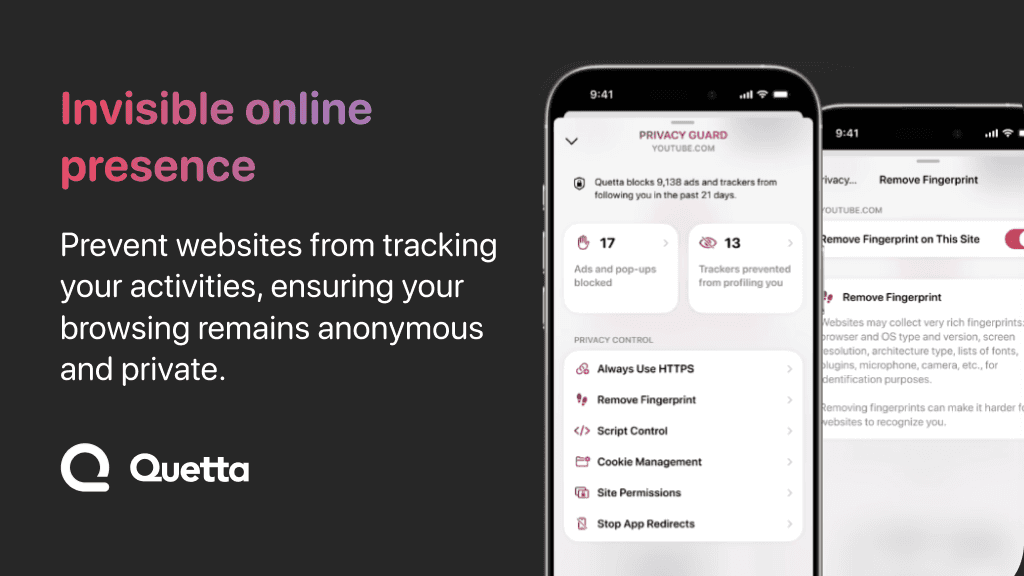
Quetta Browser has gained popularity as a fast, secure, and feature-rich Android browser, designed for users who want privacy, speed, and efficiency in one package. However, to maximize its performance, you need to tweak settings and use built-in tools effectively.
In this guide, we’ll cover the top Quetta Browser tips to help you achieve a smoother, faster, and more secure browsing experience.

1. Enable the Built-in Ad Blocker for Faster Browsing
One of the biggest slowdowns on web pages comes from ads, pop-ups, and trackers. Quetta Browser’s built-in ad blocker eliminates these distractions, improving page load speed and reducing data consumption.

How to Enable Ad Blocker:
✅ Go to Settings > Privacy & Security
✅ Toggle Ad Blocker On
Benefits:
✔ Pages load up to 50% faster
✔ Saves mobile data by blocking unnecessary content
✔ Reduces website clutter for a cleaner experience

2. Speed Up Browsing by Clearing Cache Regularly
Over time, cached data and cookies can slow down your browser. Clearing them frequently frees up storage and enhances performance.
Steps to Clear Cache & Cookies:
✅ Open Settings > Storage & Data
✅ Tap on Clear Cache and Clear Cookies
✅ Set Auto-Clear Cache for regular maintenance
Benefits of Clearing Cache:
✔ Prevents lagging and slow loading times
✔ Fixes issues with broken web pages
✔ Frees up storage space
3. Activate Turbo Mode for Maximum Speed
Quetta Browser comes with Turbo Mode, a feature that enhances browsing speed by optimizing resource usage and prioritizing faster-loading websites.
How to Enable Turbo Mode:
✅ Navigate to Settings > Performance
✅ Toggle Turbo Mode On
Why Use Turbo Mode?
✔ Reduces website load times
✔ Boosts rendering speed for complex pages
✔ Minimizes background activity for better performance
4. Manage Open Tabs to Prevent Slowdowns
Having too many open tabs can consume memory and slow down your browser. To keep Quetta Browser running smoothly, close unused tabs regularly.
Best Practices for Tab Management:
✅ Use the "Close All Tabs" button after a session
✅ Enable "Auto Suspend Tabs" in settings to pause inactive tabs
✅ Utilize "Tab Groups" for better organization
Why This Matters:
✔ Reduces RAM and CPU usage
✔ Prevents browser crashes and freezes
✔ Keeps your browsing organized
5. Use a Lightweight Homepage for Faster Startup
If Quetta Browser takes too long to open, you might be using a heavy homepage with too many widgets or animations.
How to Set a Lightweight Homepage:
✅ Open Settings > Homepage
✅ Select Custom Homepage
✅ Choose a minimalist search engine like Google or DuckDuckGo
Performance Boost:
✔ Reduces browser launch time
✔ Loads a lightweight, distraction-free start page
✔ Improves responsiveness on low-end devices
6. Enable Private Mode for Secure & Fast Browsing
Quetta Browser’s Private Mode prevents tracking, disables cookies, and blocks unnecessary scripts, making browsing faster and safer.
How to Enable Private Mode:
✅ Tap Menu > New Private Tab
✅ Browse without leaving any history or data traces
Advantages of Private Mode:
✔ No saved history or cookies
✔ Faster performance by disabling trackers
✔ More secure for sensitive browsing activities
7. Use Dark Mode to Save Battery Life
If you’re browsing on an OLED or AMOLED screen, enabling Dark Mode reduces eye strain and conserves battery life.
How to Activate Dark Mode:
✅ Go to Settings > Appearance
✅ Enable Dark Mode
Why It Helps:
✔ Extends battery life on AMOLED screens
✔ Reduces eye strain during night browsing
✔ Enhances readability in low-light environments
8. Optimize Downloads with the Built-in Download Manager
Downloading large files can slow down your browser. Quetta Browser’s Smart Download Manager allows you to schedule and prioritize downloads for better efficiency.
How to Use It:
✅ Open Menu > Downloads
✅ Enable Smart Downloading
✅ Set Download Limits to prevent network slowdowns
Benefits:
✔ Faster downloads with optimized speeds
✔ Ability to pause and resume downloads
✔ Organizes files for easier access
9. Update Quetta Browser for the Latest Performance Improvements
Regular updates bring security patches, bug fixes, and speed enhancements. Make sure you’re using the latest version of Quetta Browser for the best experience.
How to Update:
✅ Open Google Play Store
✅ Search for Quetta Browser
✅ Tap Update if available
Why Keep It Updated?
✔ Ensures better security & performance
✔ Fixes bugs and glitches
✔ Adds new features and optimizations
Final Thoughts: Boost Your Quetta Browser Experience Today!
With these top Quetta Browser tips, you can maximize speed, efficiency, and privacy on your Android device. Whether you’re looking to improve performance, save data, or enhance security, these simple tweaks will make a big difference.
Start optimizing Quetta Browser today for a smoother, faster, and more secure browsing experience!
