Adblock Not Working on YouTube? What to Check and Try Next
If your adblock is not working on YouTube, update its filters, remove conflicts, check permissions, and try a browser-level alternative.

Kayla
Quetta Networks


If your adblock is not working on YouTube, first update the browser and blocker, refresh the blocker’s filter lists, and turn off any second blocker that may conflict with it. Then check site permissions and test YouTube in a clean browser session. If failures continue, a browser with built-in ad blocking can reduce reliance on extensions.
YouTube changes its site and ad delivery frequently. A blocker that worked yesterday may temporarily miss an ad, trigger a warning, or interfere with playback today. No ad-blocking method can honestly promise permanent, flawless results on every video or device, but the checks below can identify many common causes.
First, identify what is actually failing
The symptom often points to the likely cause:
What you see | What it may indicate | Best first check |
|---|---|---|
Ads suddenly appear | Outdated filters or changed site behavior | Update the blocker and its filter lists |
“Ad blockers are not allowed” warning | YouTube detected the current setup | Remove conflicting blockers and retest |
A black screen, endless loading, or playback error | A blocked request or extension conflict | Temporarily disable blockers one at a time |
Missing comments, controls, or page elements | Over-aggressive cosmetic filtering | Reset custom filters and refresh the page |
The blocker works elsewhere but not on YouTube | Site-specific rules are stale or disabled | Check the YouTube allowlist and permissions |
1. Update your browser and ad blocker
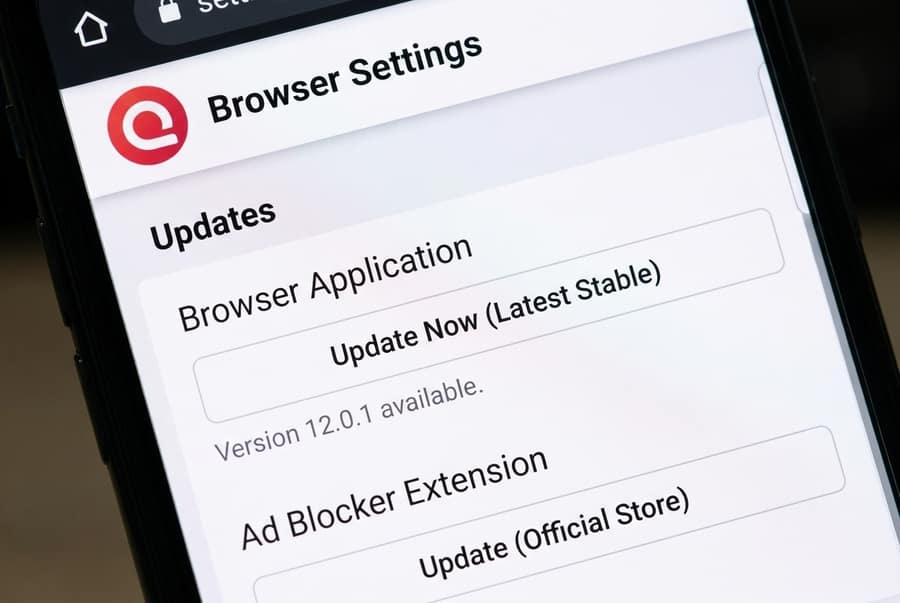
Start with the least disruptive fix. Install the latest stable browser update, then update the ad blocker from its official store or built-in update screen. Older versions may use rules that no longer match the current YouTube page.
Avoid downloading a “special fix” from an unfamiliar pop-up or clone website. Browser extensions can request access to the pages you visit, so install them only from a source you trust and review their permissions before approving them. Google’s Chrome extension guidance also notes that unsupported extensions may be disabled when they no longer meet current requirements.
2. Refresh the filter lists
Most extension-based blockers rely on lists that identify ad requests and page elements. Open the blocker’s settings, find its filter list or update section, and run a manual update if that option exists. Reload YouTube only after the update finishes.
If you added custom filters, back them up and temporarily disable them. An old custom rule can hide video controls or block a request needed for playback.
3. Use only one blocker during testing
Running two ad blockers, a privacy extension, and a script blocker at the same time can create overlapping rules. That does not necessarily improve blocking; it can make it harder to identify which tool broke the page.
Disable all but one blocker, restart the browser, and test again. If playback returns, re-enable the other tools one at a time. Keep the smallest combination that works for your browsing needs.
4. Check whether YouTube was accidentally allowlisted
Many blockers let users permit ads on individual sites. Open the blocker while viewing YouTube and confirm that blocking is enabled for the domain. Also, check whether the blocker has permission to run on the site.
On a work- or school-managed device, an administrator may control extension settings. In that case, you may not be able to change the relevant permission yourself.
5. Clear YouTube site data, then sign in again
Corrupted or stale site data can preserve a broken page state. Clear cookies and cached data for YouTube—not necessarily the entire browser—then close and reopen the tab. You will likely need to sign in again.
This step removes local session data. It does not change your YouTube account, subscriptions, or playlists stored by Google.
6. Test a clean session
Try YouTube while signed out or in a fresh browser profile. Private browsing can also be useful for diagnosis, but remember that many browsers disable extensions in private mode by default. A clean session helps separate an account experiment or corrupted profile from an extension problem.
If YouTube works only after the blocker is disabled, the blocker or one of its rules is the likely conflict. If it fails in every clean test, check for a broader browser, network, or YouTube service issue before changing more settings.
7. Consider browser-level ad blocking on mobile
Mobile browsers do not all support desktop-style extensions, and extension behavior can change as browser APIs evolve. One alternative is to use a browser that includes blocking directly rather than depending entirely on a separate add-on.
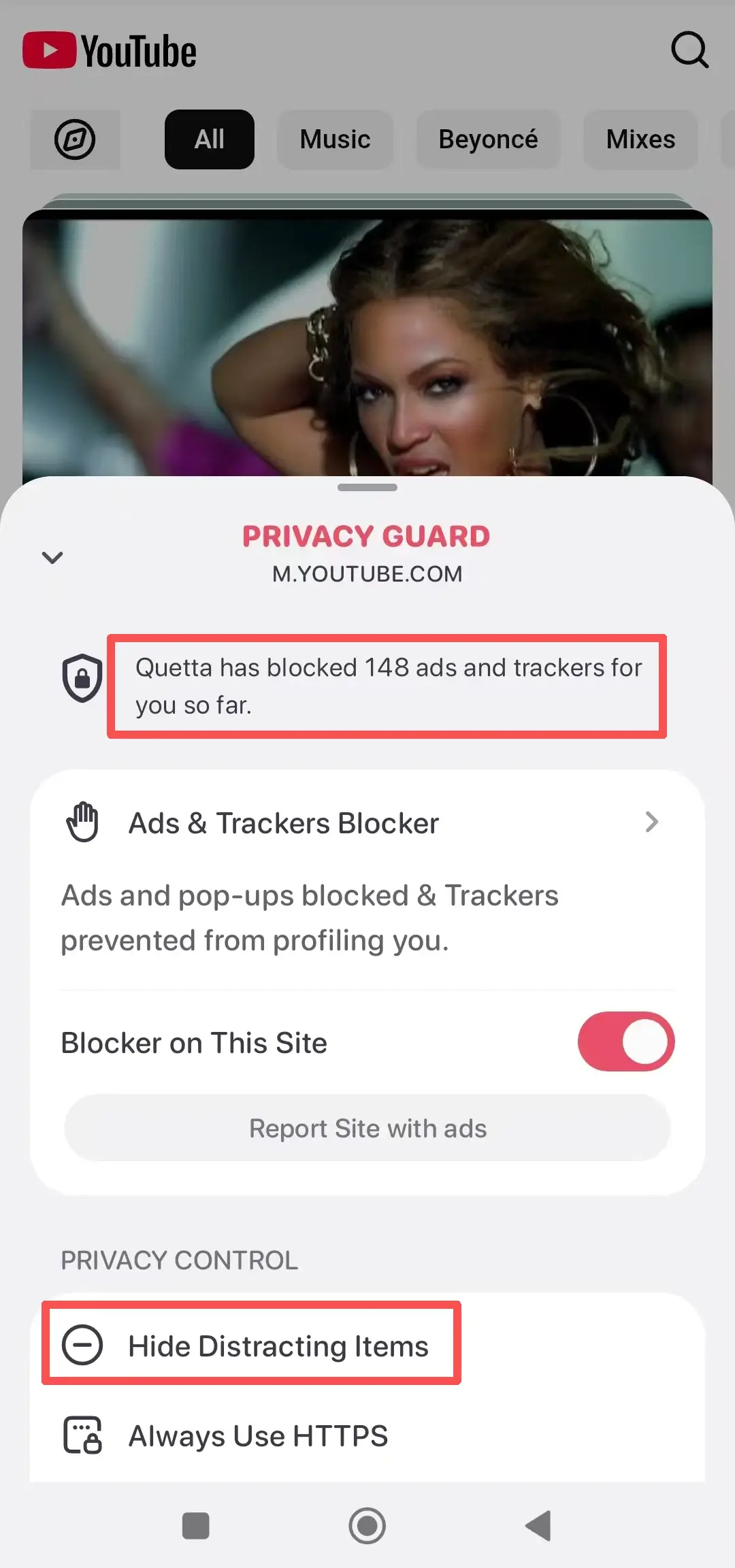
Quetta includes a browser-level ad blocker and tracker protection. Because the blocking system is built into the browser, users do not need to install a separate mobile ad-block extension. This design also separates it from the lifecycle and permission model of third-party extensions. Learn more about built-in ad blocking for mobile.
That is an architectural difference, not a guarantee that every ad will always be blocked. YouTube and other sites continually change their delivery and detection systems, so results may vary by site, account, region, and app version.
A quick decision path
Ads appeared today: update the blocker and filter lists.
The page is broken: disable overlapping blockers and custom rules.
Only your signed-in session fails: clear site data and test signed out.
Your mobile browser does not support the extension you want: consider a browser with built-in blocking.
Nothing changes: temporarily allow YouTube to confirm the blocker is the source, then use the site’s supported viewing options while you reassess your setup.
Frequently asked questions
Why did my AdBlock suddenly stop working on YouTube?
The most common reasons are a YouTube site change, outdated filter rules, conflicting extensions, changed site permissions, or a browser update that affects an extension. Because both sites and blockers change, a temporary failure does not always mean the blocker is permanently broken.
Can two ad blockers work better than one?
Not necessarily. Two blockers can apply overlapping or contradictory rules, causing playback errors or missing page elements. Test with one blocker enabled, then add other privacy tools back one at a time.
Does clearing cookies fix YouTube ad-block problems?
It can fix problems caused by stale site data, but it will not repair an outdated blocker or filter list. Clear only YouTube’s site data first and expect to sign in again.
Will a built-in ad blocker always block YouTube ads?
No responsible provider should promise permanent blocking on every site. Built-in blocking reduces dependence on third-party extensions, but results can still change as YouTube updates its systems.
Is blocking ads the same as blocking trackers?
No. The two functions overlap, but tracker blocking focuses on requests used to follow activity across sites, while ad blocking focuses on advertising requests and page elements. Quetta combines ad blocking with broader Privacy Guard protections.