How to Download Videos with Quetta Video Downloader
Download videos more easily with Quetta Video Downloader for Chrome, Firefox, and Edge. Use hover, right-click, or the extension panel to detect and save supported video resources.
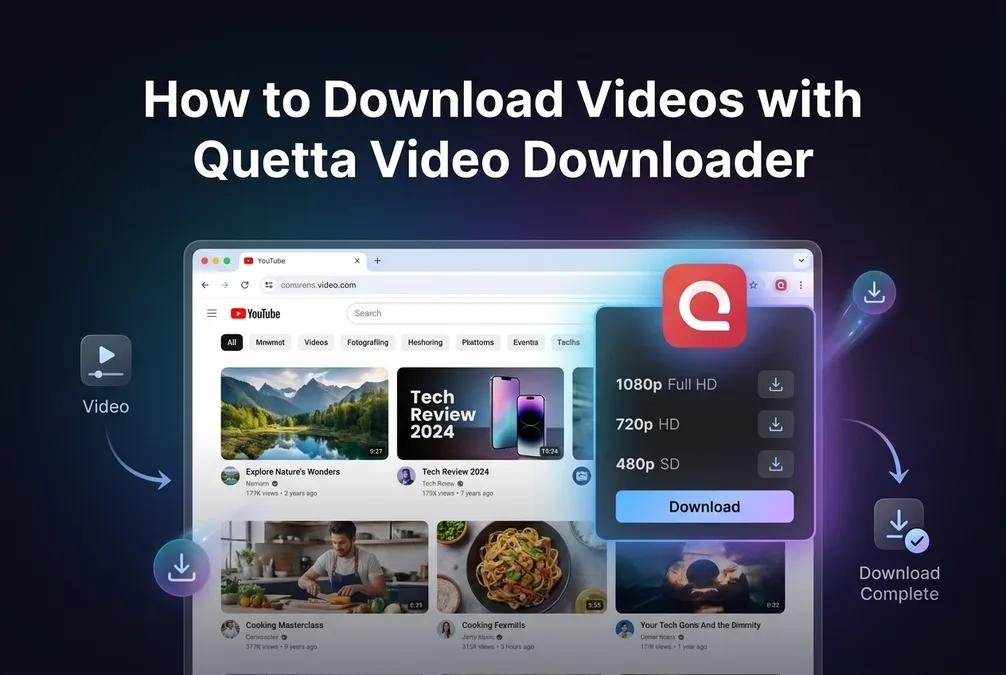
Quetta Video Downloader has been installed. To make your first authorized download, pin the extension to your desktop browser, open a page containing a supported video, play the video if necessary, and select the detected media from the Quetta panel. You can also begin from the on-video button or your browser’s right-click menu.
Quetta Video Downloader is a desktop browser extension for compatible versions of Chrome, Microsoft Edge, and Firefox. It is separate from the video downloader built into Quetta’s mobile browser.
Quick Start: Download Your First Supported Video
Use this workflow after the extension opens this page for the first time:
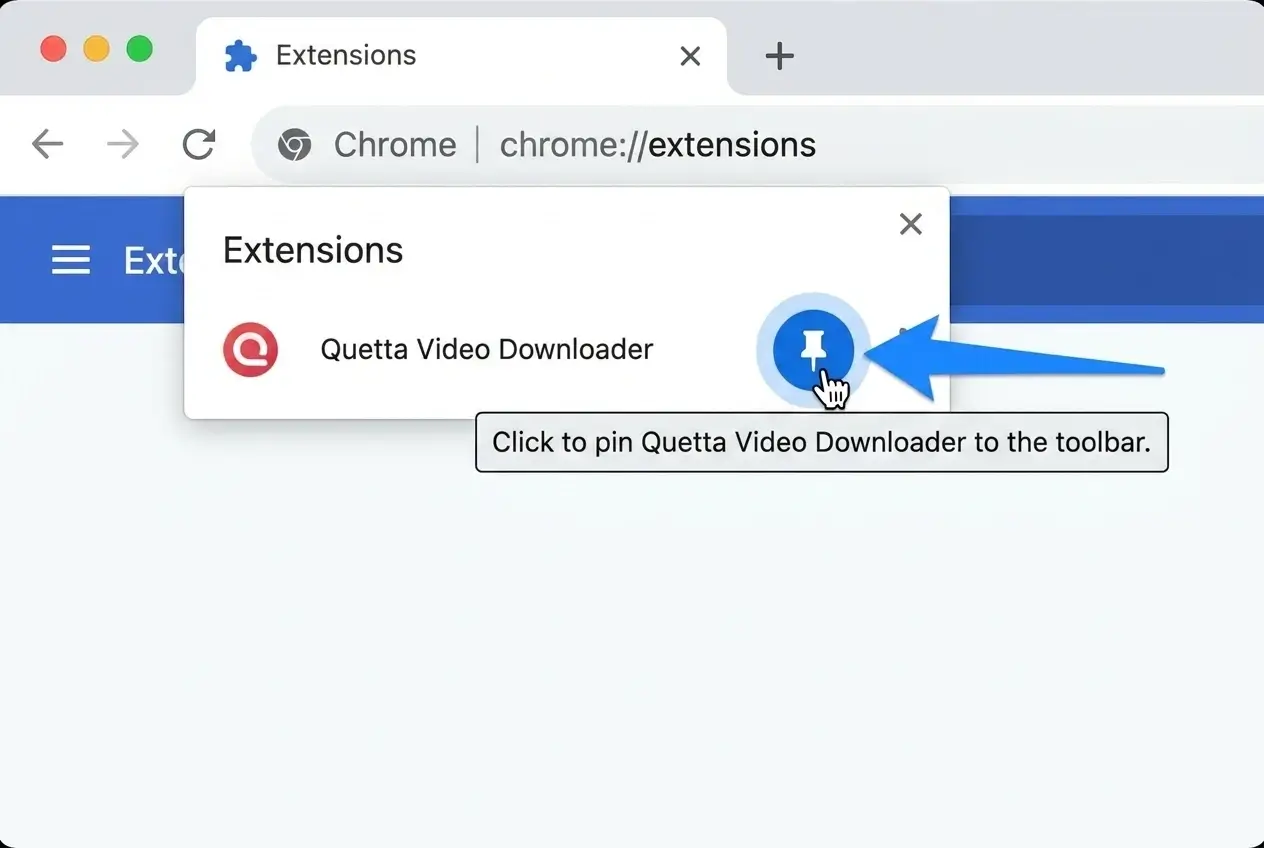
Pin Quetta to the toolbar. Open your browser’s Extensions menu, find Quetta Video Downloader, and select the pin or toolbar option.
Open a video you are allowed to save. Use a public or otherwise authorized page. Quetta does not bypass logins, paywalls, DRM, private access, or website restrictions.
Start playback if needed. Some websites load their video resource only after you press Play.
Wait for Quetta to detect the media. The extension icon changes from gray to red when a supported downloadable resource is detected.
Open the Quetta panel. Review the detected video, format, and resolution supplied by the source.
Select Download. The file is saved through your browser’s normal download process.
The extension detects supported downloadable resources available to the current page. A video being playable does not guarantee that it is available as a downloadable file.
If you have not installed the extension yet, use the official Quetta Video Downloader Extension page to choose Chrome, Microsoft Edge, or Firefox.
Step 1: Pin Quetta to Your Browser Toolbar
Pinning the extension keeps its detection status visible and makes the download panel easier to open.
In Chrome
Select the Extensions icon beside the address bar.
Find Quetta Video Downloader.
Select the pin icon.
You can install the official extension from the Chrome Web Store.
In Microsoft Edge
Select Extensions beside the address bar.
Find Quetta Video Downloader.
Turn on Show in toolbar.
You can install it from Microsoft Edge Add-ons.
In Firefox
Open the Extensions menu, find Quetta Video Downloader, and add it to the toolbar if it is not already visible. Use the Firefox installation link provided on the official Quetta extension page rather than downloading an extension file from another website.
Step 2: Open a Supported Video Page
Open the page containing the video you own or have permission to download. Let the page finish loading and press Play when the website does not load its media immediately.
Quetta looks for compatible media resources such as available MP4 and WebM files and supported HLS/M3U8 streams. The formats and resolutions shown depend on what the source supplies. Quetta does not convert a low-resolution source into HD or 4K.
If the page contains several videos or media resources, use the extension panel to identify the correct item before starting the download.
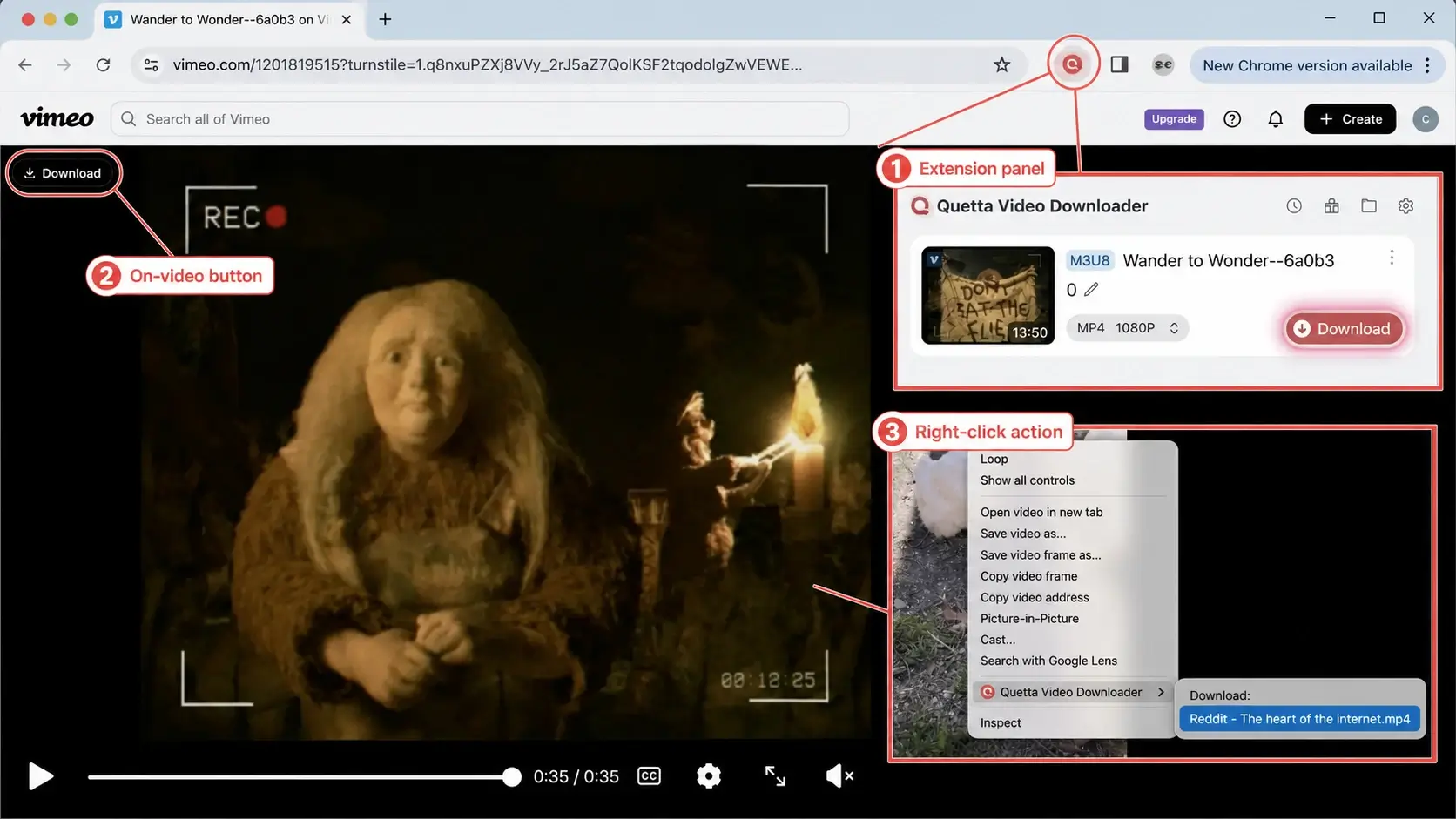
Step 3: Choose One of Three Download Controls
All three controls lead to the same Quetta extension workflow. You do not need to use every method.
Method 1: Open the Extension Panel
The extension panel is the best method for a first download because it shows whether Quetta has detected a supported resource.
Wait for the Quetta icon to change from gray to red.
Select the icon to open the panel.
Review the detected media and available choices.
Select Download beside the item you want to save.
Use the panel when a page contains multiple videos, when detection takes time, or when you want to verify the available format and resolution.
Method 2: Use the On-Video Download Button
Move your pointer over the video. On supported pages, Quetta may display a download control over the video area. Select it to open the download flow.
If you do not want Quetta to display the hover control:
Open the Quetta extension.
Open Settings.
Turn off the on-video or hover download button.
Disabling this control does not disable the extension panel.
Method 3: Use the Right-Click Menu
Right-click the page or supported video area and select the Quetta download action when it is available. This method is useful when you prefer the browser’s context menu or have disabled the hover control.
How to Tell Whether Quetta Detected a Video
The toolbar icon provides a quick status signal:
Gray icon: Quetta has not detected a supported downloadable resource on the current page.
Red icon: Quetta has detected at least one resource that can be reviewed in the panel.
Detection may occur after the rest of the page appears ready because websites load media at different times. If the icon remains gray, play the video, wait for it to begin, and reopen the panel.
Do not interpret a gray icon as proof that the extension is broken. The video may be externally embedded, protected, unsupported, or unavailable as a normal downloadable resource.
Choose a Format and Resolution
Quetta displays only the compatible formats and resolutions detected from the source. Depending on the page, you may see:
MP4 or WebM video files.
Supported HLS/M3U8 streams.
SD or HD resolutions.
Up to 4K when the source provides a downloadable 4K resource.
A supported live stream while it is still available.
Not every option appears on every page. When two files look similar, compare the displayed resolution, format, and size before downloading.
For a complete explanation of supported media types, HLS/M3U8 processing, live streams, and browser differences, see the Quetta Video Downloader Extension product page. This guide owns the operating instructions; the product page owns capability and installation intent.
Where Your Downloaded Video Is Saved
Completed files are saved through the browser’s normal download system. You can find them in:
Your browser’s Downloads list.
The download folder configured in your browser.
The location you selected if your browser asks where to save each file.
Quetta does not upload the completed video to an online library as part of the normal extension download flow.
Play a Downloaded Video with Quetta Web Player
You can watch a completed file with Quetta Web Player or your computer’s default media player.
Open the Web Player from Quetta
Open the extension panel and select Web Player. For Quetta Web Player to read local video files and display thumbnails, the browser may require permission to access file URLs.
Open the file after downloading
When a download finishes, select Play. Depending on your current player preference and permission setting, the file opens in Quetta Web Player or your system player.
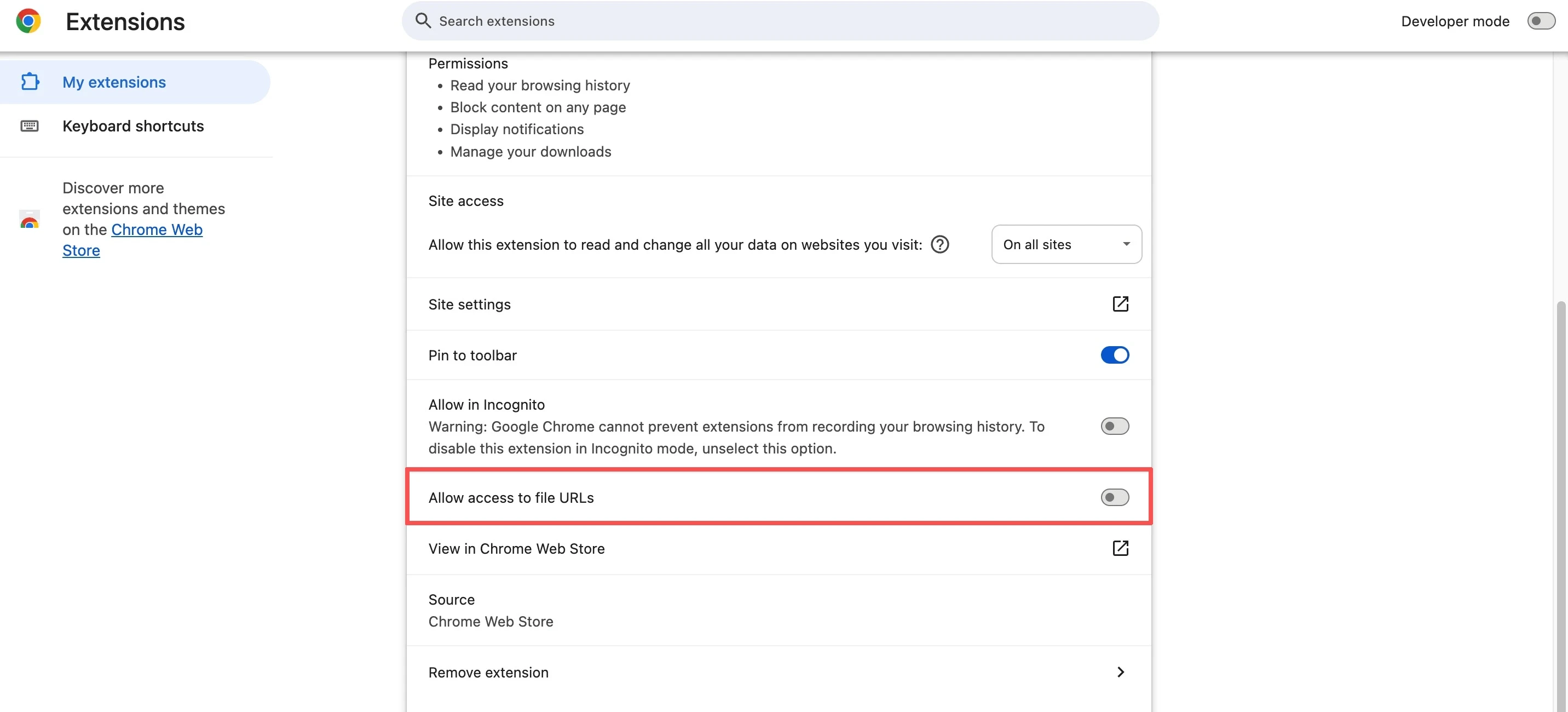
Allow access to file URLs in Chrome
This permission is optional and is needed only when you want the extension’s Web Player to read local files.
Open
chrome://extensionsFind Quetta Video Downloader.
Select Details.
Turn on Allow access to file URLs.
If you do not grant this permission, the downloaded file remains on your computer and can be opened with the system’s video player.
Why Quetta Is Not Detecting a Video
Work through these checks in order:
Let the page finish loading. Reopen the extension panel after a few seconds.
Press Play. The resource may not load until playback begins.
Check the source. The visible player may be embedded from a different website.
Reload the page. After refreshing, play the video and check whether the icon changes.
Update the extension. Confirm that you installed Quetta from the official browser store.
Test another authorized public video. This separates a page-specific compatibility issue from an extension-wide issue.
Review access restrictions. DRM, account permissions, paywalls, removed content, and private media are not downloadable through this guide.
If Quetta detects other supported videos but not one particular page, the issue is likely related to that website’s media delivery or access rules.
Why a Downloaded Filename May Look Different
Some websites do not expose a useful video title to browser extensions. In that case, Quetta may save the correct video with a generic or technical filename.
After confirming the file plays correctly, rename it in your computer’s file manager. Changing the filename does not change the video format.
Downloading YouTube Videos Depends on the Browser
YouTube downloading is not currently supported by the Chrome version of Quetta because browser-extension store rules and capabilities differ.
Quetta currently identifies supported YouTube downloading as available in compatible Firefox and Microsoft Edge versions. Install only from the official store link supplied by Quetta and verify the current availability on the extension product page.
Do not create a second general “how to use Quetta extension” page just for Chrome. Browser-specific limitations belong in this guide and the product page unless a future troubleshooting topic has substantial independent demand.
Downloading Supported Live Streams
Quetta can process supported live-stream media while the stream is active. To test an authorized broadcast:
Open the live page while the broadcast is available.
Start playback if required.
Open the extension panel.
Select the detected live or HLS/M3U8 resource.
Start the download while the stream remains available.
For supported HLS media, Quetta downloads detected segments and merges them into a playable file. The saved portion depends on when detection and downloading begin, how the stream is delivered, and whether the stream remains available.
Quetta does not bypass DRM or recover a stream that is no longer accessible.
Quetta Extension on PC vs. Quetta Browser on Android
Quetta offers two different video-download experiences:
On PC: Quetta Video Downloader is installed as an extension in Chrome, Microsoft Edge, or Firefox.
On Android: video downloading is built into Quetta Browser for Android; users do not install this PC extension inside the mobile browser.
This page is exclusively the PC extension onboarding guide. For mobile capability, formats, and general product information, use the built-in Video Downloader feature page.
Frequently Asked Questions
What should I do after installing Quetta Video Downloader?
Pin Quetta to the toolbar, open a permitted video page, start playback if needed, and wait for the icon to change from gray to red. Open the extension panel, select a detected resource, and choose Download.
Why did this guide open automatically?
This is Quetta Video Downloader’s post-installation quick-start page. It explains how to pin the extension, detect your first supported video, choose a download control, and configure the optional Web Player permission.
Is Quetta Video Downloader a browser or an extension?
On PC, Quetta Video Downloader is an extension for compatible desktop versions of Chrome, Microsoft Edge, and Firefox. Quetta also has a separate mobile browser with a built-in downloader.
Why is the Quetta icon gray?
The current page has not exposed a supported downloadable resource yet. Let the page load, press Play, reopen the panel, and reload the page if necessary. The media may also be external, protected, or unsupported.
How do I turn off the download button over videos?
Open Quetta settings and disable the on-video or hover download control. You can continue using the extension panel and right-click action.
Does Quetta download every video website?
No. Download availability depends on the website, media format, browser, source permissions, technical protection, and whether the page exposes a compatible resource.
Can Quetta download YouTube videos in Chrome?
Not currently. Quetta identifies supported YouTube downloads as available in compatible Firefox and Microsoft Edge versions, while Chrome does not support that use case.
Do I have to allow access to file URLs?
No. Grant it only if you want Quetta Web Player to read local downloaded files and show thumbnails. Without it, you can open completed downloads with your computer’s normal media player.
Where can I find the downloaded file?
Open your browser’s Downloads list or the download folder configured in your browser settings.
Can Quetta download DRM-protected or private videos?
No. Quetta does not bypass DRM, passwords, paywalls, private access, or other content restrictions. Download only media you own or have permission to save.
Ready for Your First Download?
Open a permitted video page, wait for Quetta’s icon to turn red, and select the detected media from the extension panel. For installation links, supported formats, browser availability, and current capability details, visit the Quetta Video Downloader Extension page.