Android Browser With Extensions: Bring Desktop Tools to Your Phone
Install Chrome Web Store and Microsoft Edge Add-ons extensions on Android with Quetta. Learn how extension support works and how to choose add-ons safely.
An Android browser with extensions lets users add tools for productivity, passwords, privacy, research, accessibility, and customization. Quetta supports extensions from the Chrome Web Store and Microsoft Edge Add-ons on Android, with installation, pop-up access, and extension management built into the mobile browser.
What are browser extensions?
To use browser extensions on Android, choose a mobile browser that explicitly supports desktop-style extensions. In Quetta, open the extension area, find an add-on from the Chrome Web Store or Microsoft Edge Add-ons, review its permissions, install it, and manage it from the browser settings.
Why extension support matters on Android
Mobile browsers are good at everyday navigation, but many people rely on extensions when they work on a computer. A translator can simplify research. A password manager can fill in credentials. A reading or accessibility tool can adapt a page. A productivity extension can capture information without switching between several apps.
On Android, extension support is not universal. Users may find an extension in a desktop store only to discover that their mobile browser cannot install or run it. An extension-capable browser closes that gap by providing the APIs, interface, and management controls an add-on needs.
Quetta is built to provide that functionality on Android while keeping the installation flow inside the browser.
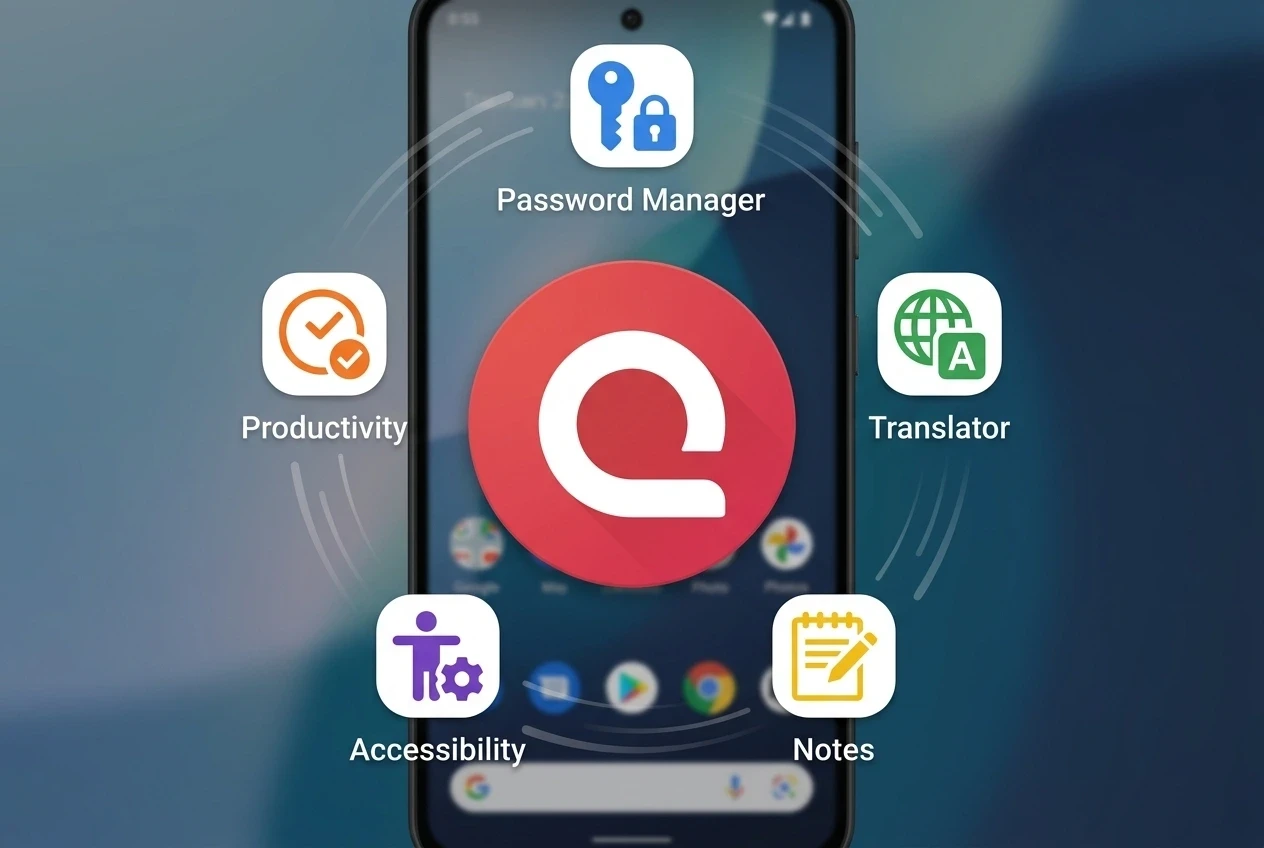
What kinds of browser extensions can be useful on a phone?
Common categories include:
Password managers: Generate, store, and fill credentials.
Productivity tools: Save notes, manage tasks, clip pages, or organize tabs.
Translation and language tools: Translate pages or support writing.
Accessibility tools: Adjust contrast, text, reading layout, or navigation.
Privacy and content controls: Add specialized site rules or privacy features.
Research tools: Capture citations, summarize selected text, or save references.
Developer utilities: Inspect headers, test pages, or manage web workflows.
VPN connections: Use a third-party VPN extension to manage the connection used for browsing in Quetta.
The best mobile extension is not always the one with the longest feature list. It should solve a frequent task, have understandable permissions, and work well on a smaller screen.
Use a VPN Extension Without Leaving Quetta
If you want a VPN connection for browsing, Quetta lets you use most VPN extensions from the Chrome Web Store on Android. Choose your provider and manage the connection from its extension interface.
The provider controls its account requirements, server locations and free or paid plans. For the complete installation and connection process, follow how to use a VPN extension in Quetta.
How extension support works in Quetta
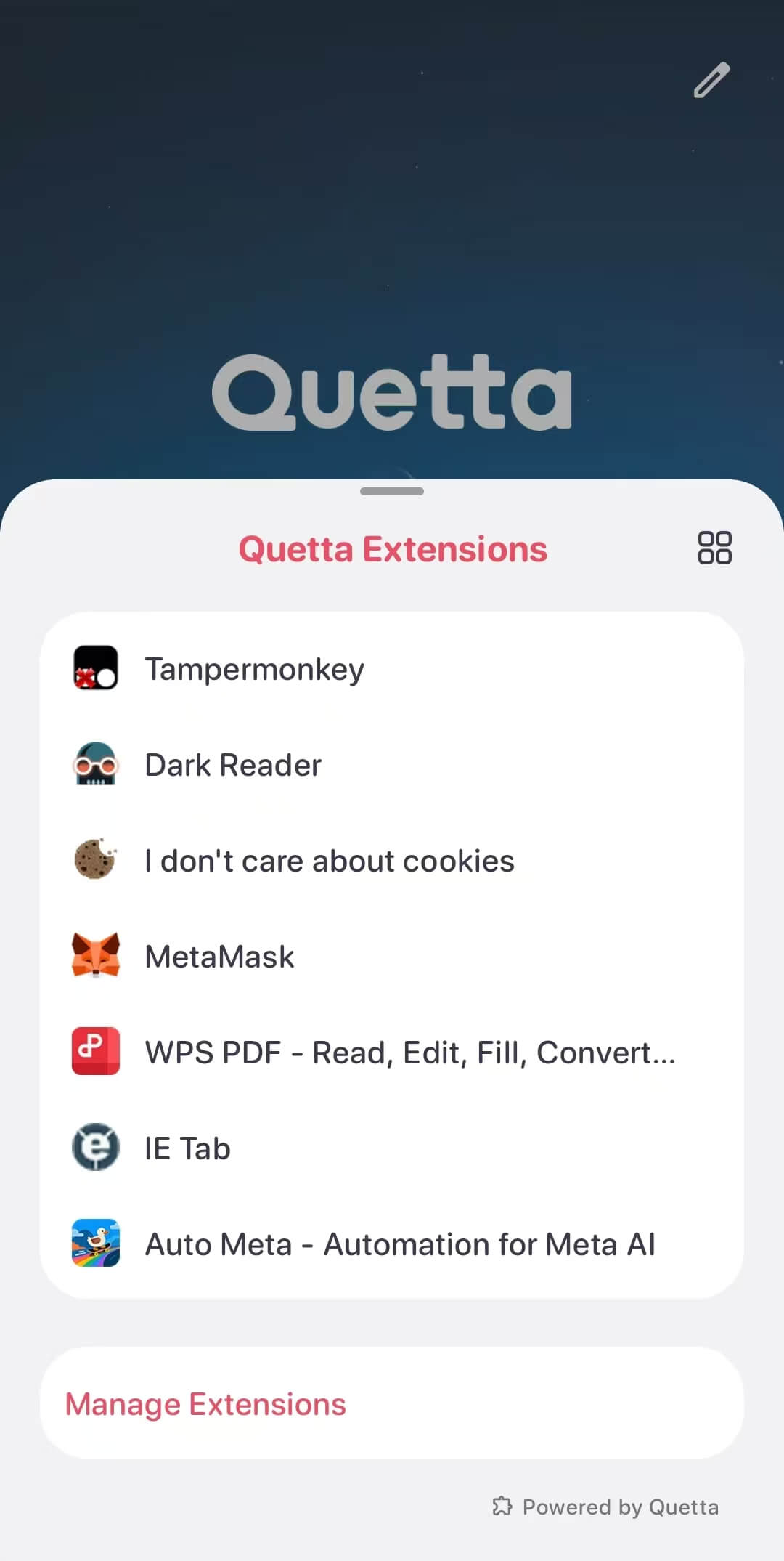
Quetta's Android extension support is designed around the desktop extension ecosystem. Users can browse compatible add-ons from the Chrome Web Store and Microsoft Edge Add-ons, install them in Quetta, open extension popups, and enable, disable, or remove installed tools from the browser settings.
Chrome and Edge extensions are generally built on related web-extension technologies, but compatibility can still vary. An extension may rely on a desktop-only interface, a hardware capability, or an API that behaves differently on mobile. Quetta's public guidance appropriately recommends reporting an extension that does not work as expected rather than assuming every desktop add-on will be perfect on every Android device.
How to install browser extensions on Android with Quetta
Download Quetta for Android and open the browser.
Open Quetta's Extensions area from the browser menu.
Search for the extension you need, or open its listing in the Chrome Web Store or Microsoft Edge Add-ons.
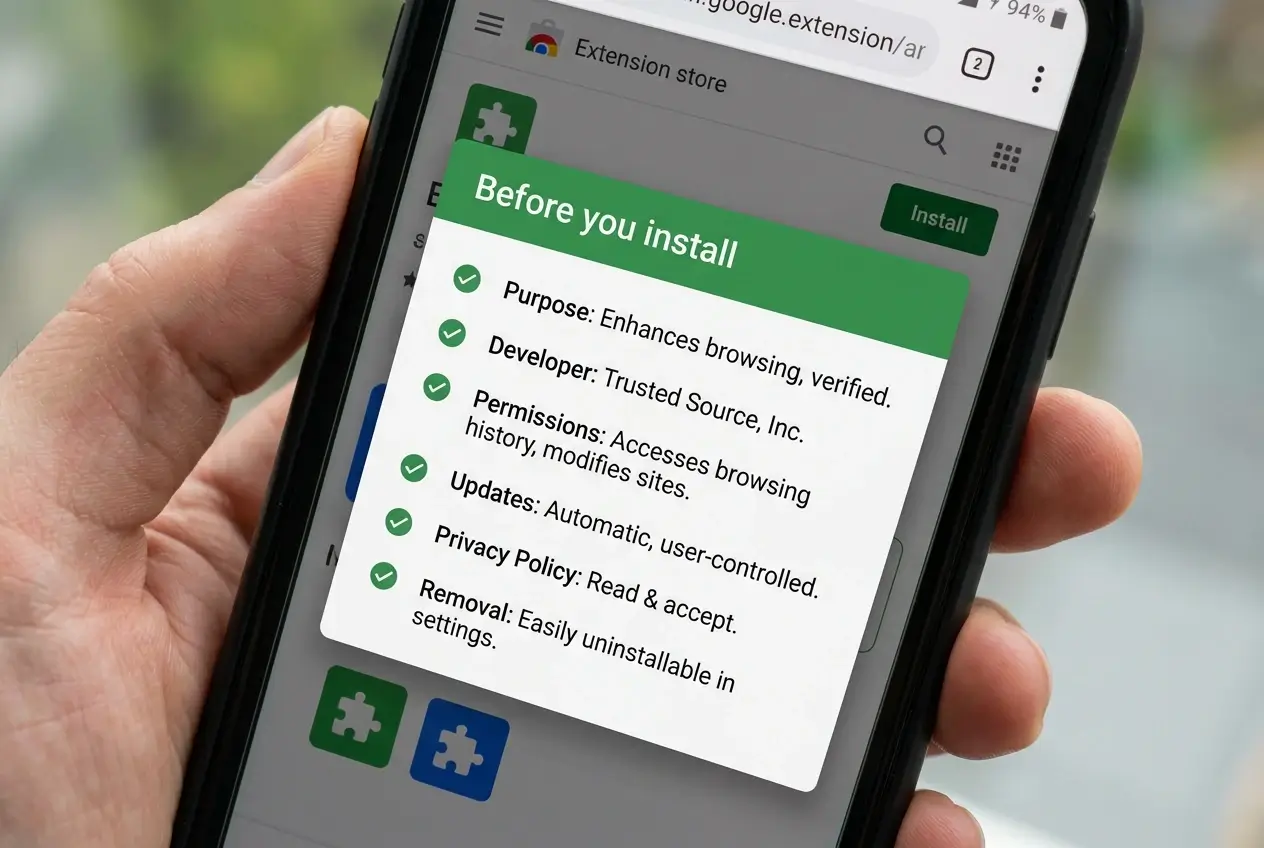
Read the description, developer information, recent update history, and user feedback.
Review the requested permissions carefully.
Select Install or Add to browser and confirm the permissions.
Open the extension popup or visit its settings to finish setup.
Return to Quetta's extension manager whenever you want to disable or remove it.
For a shorter walkthrough, use Quetta's existing guide on how to use browser extensions on an Android phone.
Check extension permissions before installing
Extensions can be powerful because they interact with browser tabs and web pages. That power can also create privacy or security risk when an add-on requests more access than it needs.
Before installing, ask:
Does the requested access match the extension's purpose?
Is the developer identifiable and trustworthy?
Has the extension been updated recently?
Does its privacy policy explain what it collects?
Can access be limited to specific sites or only when the extension is used?
Do you still need extensions that were installed months ago?
Google's official extension-permissions documentation explains that permissions control access to APIs and websites. Users do not need to understand every API name, but they should pause when a simple tool requests broad access to all visited pages.
Android browser extensions vs. separate apps
An extension is useful when the task happens inside a web page. A separate Android app is often better when the task needs background activity, deep system access, offline storage, or a full-screen mobile interface.
Choose an extension when… | Choose a separate app when… |
|---|---|
The tool changes or reads the current web page | The task is mostly independent of browsing |
You want the same workflow on phone and desktop | You need Android system integrations |
A small pop-up or page control is enough | You need a complete mobile interface |
You use the tool only on selected websites | The tool must run continuously in the background |
This distinction helps users avoid installing an extension simply because it exists. The best solution is the smallest trustworthy tool that completes the job.
How to keep extensions fast and manageable
Every extension adds code, permissions, and maintenance to the browser. Keep the setup deliberate:
Install one extension for each real need rather than several overlapping tools.
Remove extensions you no longer use.
Disable an extension temporarily if a page behaves unexpectedly.
Keep the browser and extensions updated.
Review permissions again after a major extension update.
Use Quetta's built-in features when they already solve the task, reducing the number of add-ons required.
For inspiration without turning the browser into a toolbox drawer that will no longer close, see Quetta's guide to choosing the right extensions for your workflow.
Frequently asked questions
Can I install Chrome extensions on Android?
Yes, if the Android browser supports them. Quetta can install extensions from the Chrome Web Store on Android. Compatibility may vary by extension because some add-ons depend on desktop-specific behavior.
Does Quetta support Microsoft Edge extensions on Android?
Quetta's extension feature page states that users can install add-ons from Microsoft Edge Add-ons as well as the Chrome Web Store.
Do all desktop extensions work on Android?
No browser should promise perfect compatibility with every extension. Some tools rely on desktop layouts, unsupported APIs, or capabilities that do not translate well to a phone.
Will extensions slow down my Android browser?
They can. The impact depends on what an extension does, how often it runs, and how many are enabled. Keep only the tools you use and disable one when troubleshooting performance.
Are Android browser extensions safe?
Extensions are not automatically safe or unsafe. Check the developer, update history, privacy policy, requested permissions, and user feedback. Remove any extension you no longer trust or need.
How do I remove an extension in Quetta?
Open Quetta's extension manager, select the installed extension, and choose the disable or remove option. Interface labels may vary by version.
Make your Android browser work your way
Quetta brings desktop-style extension choice to Android alongside built-in privacy, ad blocking, and video tools. Explore Extensions for Android, browse the Android product page, or download Quetta to build a mobile browser setup around the way you work.